How to Hide a Widget from Enrolled Students
Show a widget only to visitors who are not yet enrolled in the current course, so enrolled students never see it. This guide uses the Course Access Plans widget as the example, but the same rule works on any widget, section, or column.
A course template or page that already contains the widget you want to hide. Conditional logic works with Elementor Core; Elementor Pro is not required. For a walkthrough of the panel itself, see The Conditional Logic Panel.
1. Open the widget's Advanced tab
In the Elementor editor, click the Course Access Plans widget, then click the Advanced tab in the panel on the left. Scroll to the Conditional Logic section.
2. Open the Conditional Logic settings
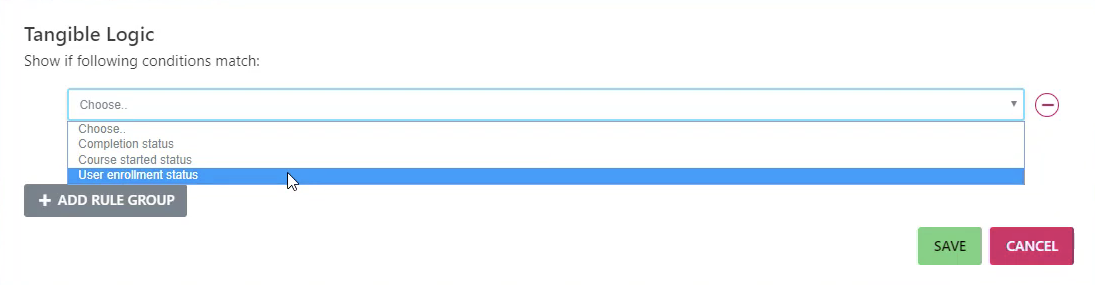
Click Open Conditional Logic Settings. The conditional logic panel opens with an empty rule group.
3. Add the rule
In the rule group, set the three fields of the first rule:
- Condition: User enrollment status
- Operator: is not
- Value: Enrolled in current course
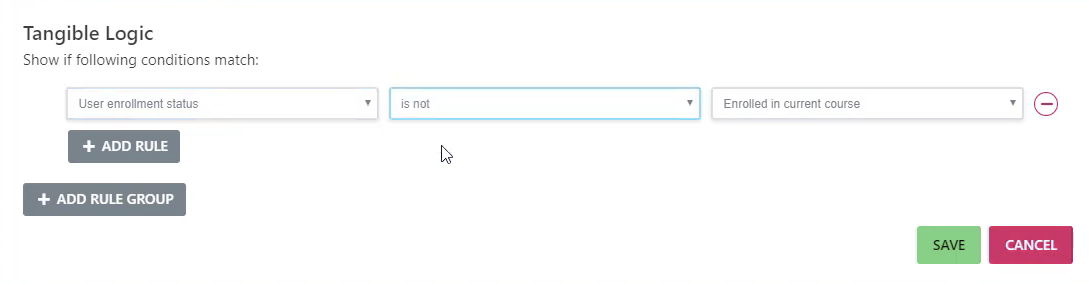
The widget now displays only when the visitor is not enrolled in the course being viewed. The full list of conditions is in the Conditional Logic reference.
4. Save and publish
Close the conditional logic panel and click Update (or Publish) so the rule is saved with the template or page.
Result
Enrolled students no longer see the Course Access Plans widget on that course; visitors who are not enrolled still see it.
To check the rule, open a course as a user who is enrolled in it: the widget is hidden. Then open the same course logged out, or as a user who is not enrolled: the widget is visible.
The same pattern works for LifterLMS Groups roles with the User group role condition. See How to Create a Leader-Only Sidebar.