How to Import a Template File
Import a Lifter Elements template file into the Elementor Pro Theme Builder so it can be applied to your LifterLMS content.
The pre-made Lifter Elements template packs (School, Medical, Corporate) are no longer available for download in Tangible Cloud. The steps below remain for customers who already have a template file from an earlier purchase.
- Elementor Pro installed and active (the Theme Builder is an Elementor Pro feature).
- Lifter Elements and LifterLMS installed and active.
- The template archive (
.zip) or template file (.json) you downloaded earlier.
Template files cannot be imported through the WordPress importer. Use the Elementor import utility described below.
1. Unzip the archive
Locate the template archive you downloaded and extract it on your computer. The extracted folder contains one or more template files that the Theme Builder can import.
2. Import into the Theme Builder
In the WordPress admin, go to Templates > Theme Builder and click Import Templates at the top of the page.

In the import dialog, click Choose File, select the template file from the folder you extracted, and click Import Now.

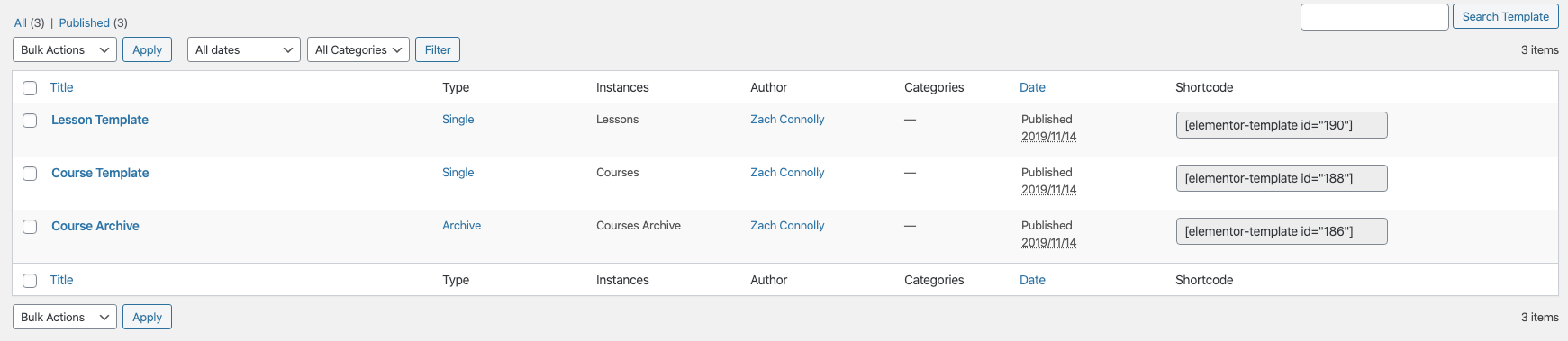
When the import finishes, the templates appear in the Theme Builder list.
3. Set display conditions for each template
Imported templates have no display conditions, so they are not applied to any page yet. Open each template, click the arrow next to Publish (or Update), and choose Display Conditions. Assign the LifterLMS content the template should target, for example all courses for a course template or all lessons for a lesson template. See How to Build a Lesson Template for what a lesson template should target, and the Elementor display conditions documentation for the full set of options.
Result
Your LifterLMS courses and lessons render with the imported templates. Open a course page on the front end to confirm the template is applied; if it is not, check that the template's display conditions match that content.
Each imported template includes its styling as custom CSS under Settings > Advanced in the Elementor editor. Move that CSS to the Customizer's Additional CSS panel or to your child theme's stylesheet. This avoids repeating the same rules in every template and lets you make global style changes in one place.