01. Introduction to LearnDash Materials Extended
LearnDash Materials Extended is a WordPress plugin by Tangible Inc. that upgrades the Materials field LearnDash provides on every course, lesson, topic, and quiz. Instead of pasting links into a text box, you build a list of items, each pointing at a file from your Media Library or an external URL, and the plugin renders them as a tidy list with file-type icons, in the same Materials tab learners already know.
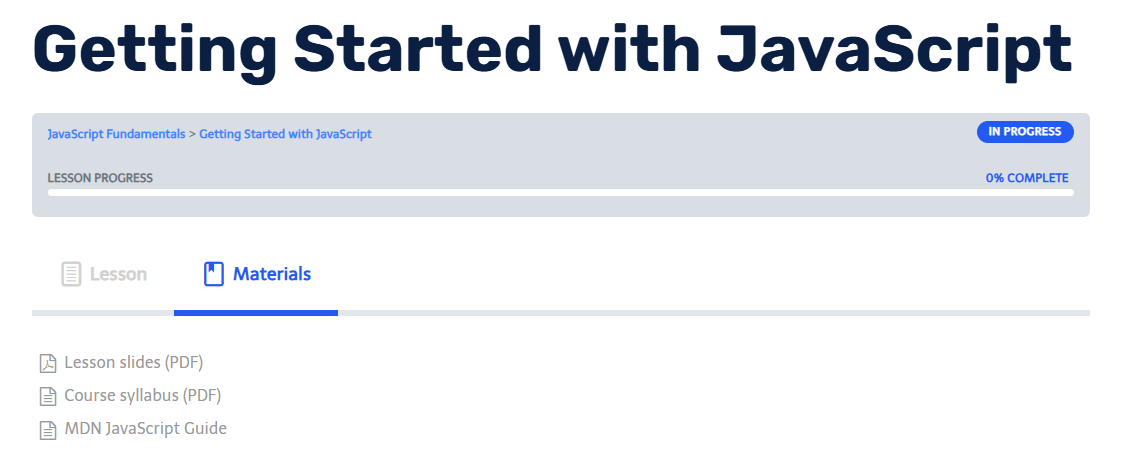
What LearnDash Materials Extended gives you
| Capability | What it does |
|---|---|
| Structured materials list | Add, reorder, and remove materials on any course, lesson, topic, or quiz from the LearnDash Settings tab, without writing HTML. |
| Media Library or URL sources | Each material is a file picked from the WordPress Media Library or an external link you type in. |
| Download or attachment page | For Media Library files, choose whether the link downloads the file or opens its WordPress attachment page. |
| Open in new tab | Per item, choose whether the link opens in a new browser tab. |
| Automatic file-type icons | PDF, Word, Excel, PowerPoint, image, archive, audio, video, and code files get a matching icon; everything else gets a generic document icon. |
| Link or button styling | One global style for the whole site: a plain link list, or pill buttons with your own colours, border, and radius. Three presets get you started. |
| Font control | Optionally apply a Google Font and font size to the materials list. |
The list appears wherever LearnDash shows the Materials field, which for the default LearnDash templates is the Materials tab on the course, lesson, topic, or quiz page. You can also place the list anywhere in the content with the [learndash_materials_extended] shortcode.
What you need
| Plugin | Required for |
|---|---|
| LearnDash | Everything. The plugin extends LearnDash's Materials field and has no function without it. |
If you are new to LearnDash, read the orientation page first:
How to use this documentation
New to the stack: read section 02 first, then follow Installation and Setup.
Ready to add materials: go to 5.1 Adding Materials to a Lesson.
Changing how the list looks: see 5.3 Style Settings.
Looking up a setting, the shortcode, or CSS classes: jump to the References Hub.