5.1 Adding Materials to a Lesson
Materials are managed on the same Settings tab where LearnDash keeps each item's options. This page walks through a lesson; courses, topics, and quizzes work identically.
1. Open the Materials setting
- Edit the lesson and click the Settings tab at the top of the edit screen (next to Lesson page).
- Scroll to Display and Content Options and find Lesson Materials.
- Switch the Lesson Materials toggle on. LearnDash's materials editor appears, and beneath it two buttons added by LearnDash Materials Extended: Insert shortcode and Add item.
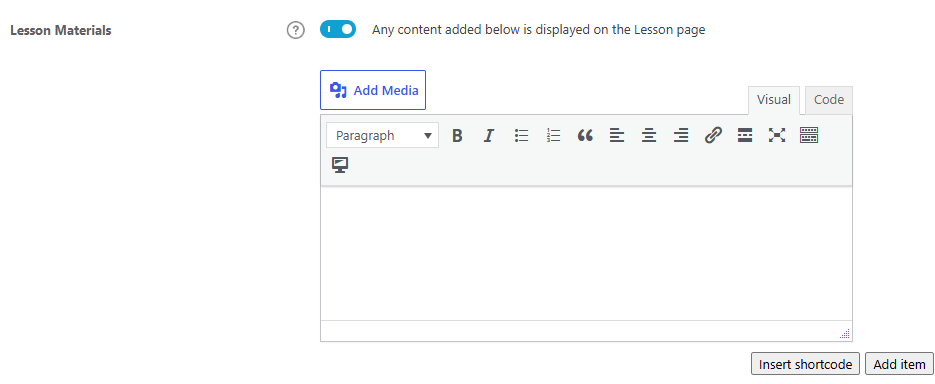
The two buttons only appear while the Lesson Materials toggle is on. If you cannot see them, check the toggle first. On courses, topics, and quizzes the setting is called Course Materials, Topic Materials, and Quiz Materials.
2. Add items
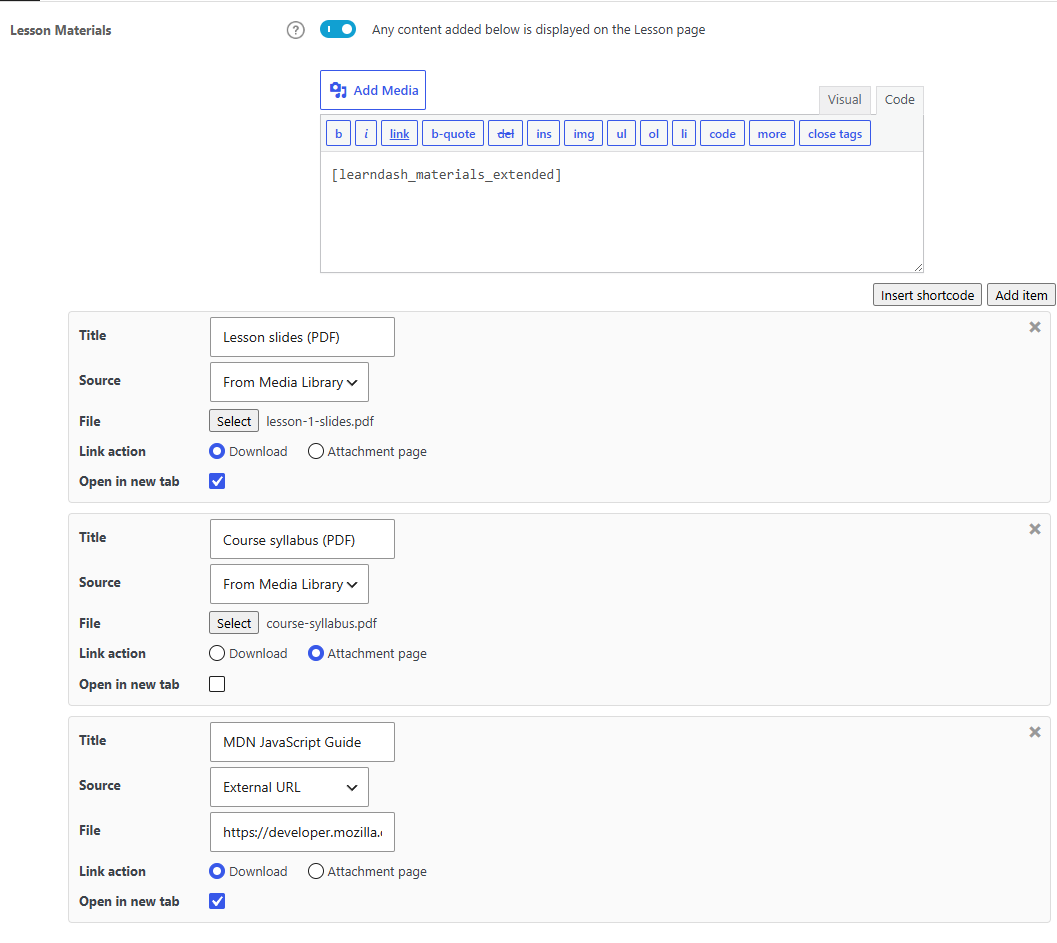
Click Add item once per material. Each item has the same fields:
| Field | What to enter |
|---|---|
| Title | The text learners click. |
| Source | From Media Library to pick a file you have uploaded to WordPress, or External URL to link anywhere else. |
| File | For Media Library items, click Select and choose the file in the media window; the filename appears next to the button. For URL items, type or paste the full address, including https://. |
| Link action | Media Library items only. Download links straight to the file so the browser downloads or opens it. Attachment page links to the file's WordPress attachment page instead. |
| Open in new tab | Tick to open the link in a new browser tab. |
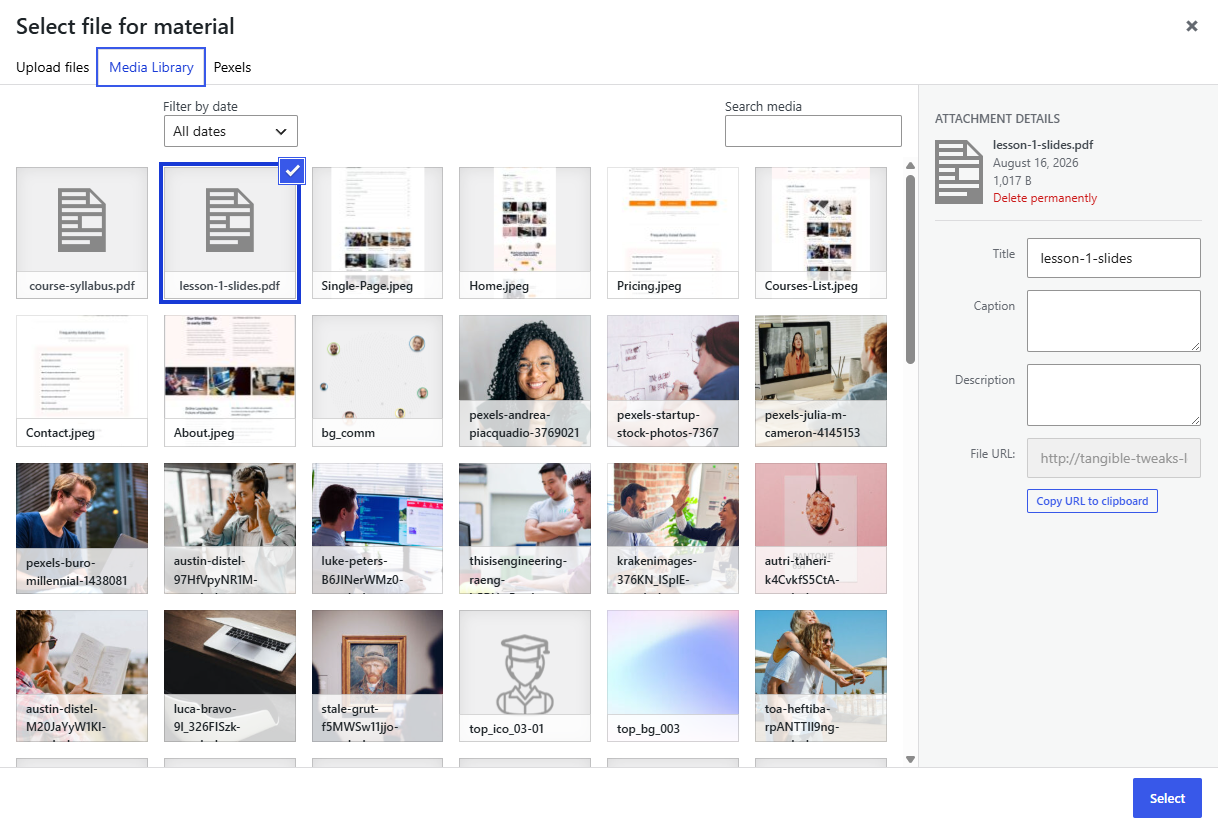
Drag an item by its row to reorder the list. Click the × at the top right of an item to remove it.
3. Insert the shortcode
Click Insert shortcode. The plugin places [learndash_materials_extended] into LearnDash's materials editor above the items. This is what tells LearnDash to render your list in the Materials tab. You only need to do this once per lesson; clicking again does not add a duplicate.
You can keep other text in the materials editor alongside the shortcode. LearnDash shows everything in the editor, in order.
4. Save
Save or update the lesson as normal. The materials list and the shortcode are stored with the lesson.
What learners see
On the lesson page, the Materials tab now lists your items with a file-type icon each:
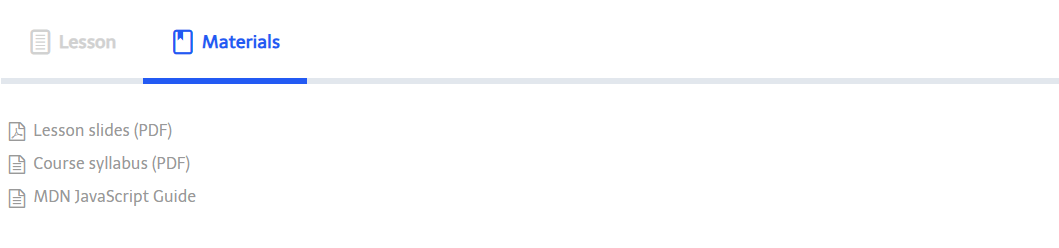
The style of the list, plain links or buttons, is a site-wide setting. See 5.3 Style Settings.
Notes
- Each course, lesson, topic, and quiz has its own list. Materials are not shared between items or inherited from a course to its lessons.
- The icon is chosen from the file extension at the end of the link. A file linked with Attachment page points at a WordPress page, not the file, so it shows the generic document icon; use Download if you want the PDF, Word, or other type-specific icon.
- External URLs without a scheme are prefixed with
http://. Enterhttps://addresses in full. - Removing all items and saving clears the list; the shortcode stays in the materials editor and simply renders nothing until you add items again.