5.2 The Materials Shortcode
[learndash_materials_extended] renders the materials list of the course, lesson, topic, or quiz it is placed on. It takes no parameters: the list it shows is always the one belonging to the page being viewed.
The normal place: LearnDash's Materials tab
The Insert shortcode button (see 5.1 Adding Materials to a Lesson) puts the shortcode into LearnDash's own materials editor. LearnDash then shows it in the Materials tab of the front-end page, alongside the Lesson (or Course, Topic, Quiz) content tab.
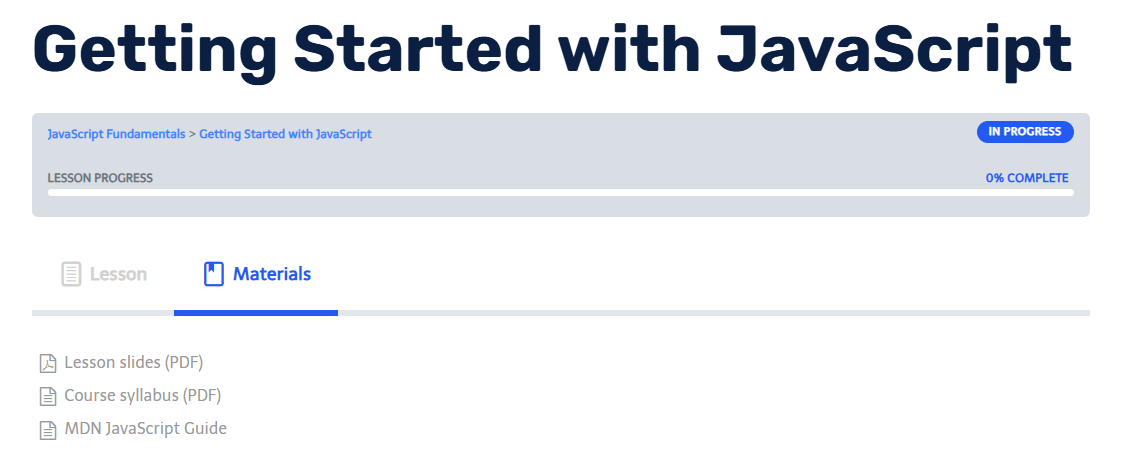
Because LearnDash only shows the Materials tab when the materials setting is on and has content, turning the toggle off hides the tab and the list together. Turning it back on restores both; your items are kept.
Showing the list in the page content instead
You can also place the shortcode in the main content of the lesson (or course, topic, quiz) so the list appears in the content tab, for example under a "Downloads" heading. In the block editor, add a Shortcode block and type [learndash_materials_extended].
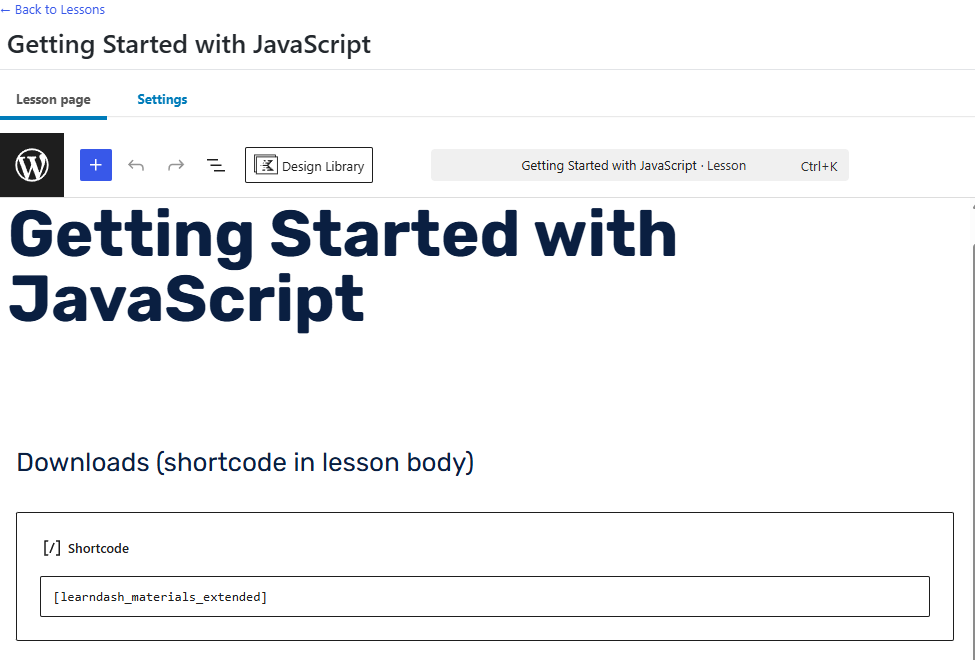
The list is the same either way; the shortcode reads the materials of the current page. Use both placements if you want the list in the content and in the Materials tab.
Where the shortcode does not work
- On a page or post that is not a LearnDash course, lesson, topic, or quiz, the shortcode has no materials to read and renders nothing.
- The shortcode cannot show another item's materials. There is no
idparameter.
Markup and styling
The list renders as a div.ldash-materials wrapper containing one div.ldash-materials-item per material, each with a single link and an icon span. Class names are stable and listed in 8.3 Shortcode and CSS Reference if you want to add your own CSS. Colours, fonts, and the link-versus-button choice are set in 5.3 Style Settings.