How to Show a Sidebar Only to Group Leaders
Show a sidebar on a group page only to users whose role in the current group is Leader, using the User Group Role conditional-logic condition. Members, group administrators, non-members, and logged-out visitors do not see it.
- Lifter Elements 1.7.0+ with LifterLMS Groups installed and activated
- Elementor Pro (required for the Theme Builder template the sidebar lives in; conditional logic itself works with Elementor Core)
- A group with at least one user assigned the Leader role, for testing
- A group page or group page template to edit, such as the one from How to Create a Group Landing Template
1. Add the sidebar section
Open the page or template in Elementor and add the sidebar layout:
- Drag a new Section onto the canvas with a two-column structure (or as many columns as your design needs).
- Use one column for main content and one as the sidebar.
- In the sidebar column, add the widgets leaders should see, for example:
- A Heading widget with the text "Leader tools"
- A Button widget linking to the group's Members > Manage Members page (on the group's front-end page)
- A Text Editor widget with quick reference notes on leader responsibilities
- Give the column a distinct background color or border so it reads as a separate panel.
At this point the whole section is visible to everyone.
2. Open Conditional Logic on the column
You can apply the condition at three levels:
- The entire section — hides the whole sidebar, including its background. Use this when the section contains nothing else.
- The sidebar column only — hides just the column; the rest of the section stays. Use this when the section also holds main content.
- Each widget individually — the most granular option, but verbose.
This guide gates the column, the most common case:
- Click the sidebar column to select it (not a widget inside it).
- In the panel on the left, open the Advanced tab.
- Expand the Conditional Logic section.
- Click Open Conditional Logic Settings.
A modal opens with the rule builder.
3. Add the rule
In the rule builder:
- Click Add Rule.
- Set the condition type to User Group Role.
- Set the operator to is.
- In the value dropdown, choose Leader of current group.
- Click Save.
The full rule reads User Group Role is Leader of current group.
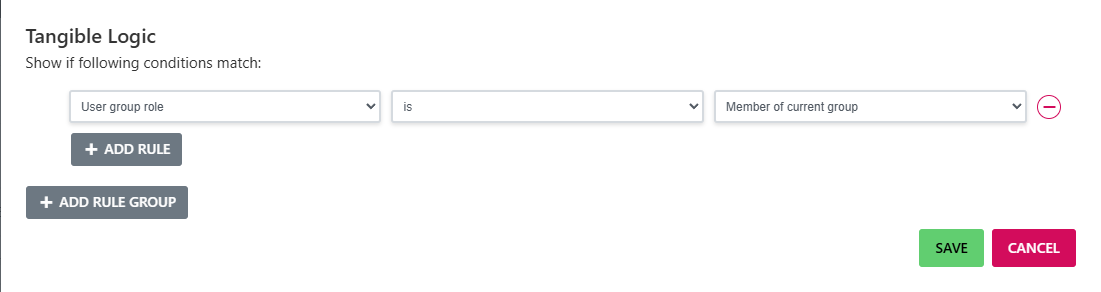
When you save, the modal closes and the editor preview updates. If you are previewing as a logged-out user or a non-leader, the sidebar column disappears from the canvas immediately, because Elementor honors the condition in the editor preview.
Result
The editor preview is a reasonable indicator, but test with real user accounts:
- As a Leader: log in as a user assigned the Leader role in this group and visit the group page. The sidebar renders.
- As a Member: log in as a regular member of the same group. The sidebar is hidden.
- As an Admin: log in as a group administrator. The sidebar is hidden (admins are not leaders).
- As a non-member: log in as a user who is not enrolled in the group. The sidebar is hidden.
- Logged out: visit the page in a private window. The sidebar is hidden.
If any of these do not behave as expected, see Troubleshooting. The most common cause is Elementor's element cache serving stale output; re-save the page in Elementor to clear it.
Variations
The same pattern covers several adjacent cases by changing only the rule's value:
| Goal | Rule |
|---|---|
| Show only to group admins | User Group Role is Administrator of current group |
| Show only to members (excludes leaders and admins) | User Group Role is Member of current group |
| Show to any role in the group (members, leaders, admins) | User Group Enrollment is Enrolled in current group |
| Show to non-members only (for example, a "Join us" call to action) | User Group Enrollment is not Enrolled in current group |
To combine conditions, use rule groups: rules inside one group must all match, and separate groups are alternatives. For example, to show the column to leaders or admins of the current group, put each User Group Role rule in its own group. See The Conditional Logic Panel for how groups are evaluated.
- Combine roles with seat availability: show a "Group is full" notice inside the leader-only column only when the group has no open seats. Add a condition on a widget inside the column: Group Seat Availability is Current group has no open seats.
- Apply to a specific group: pair this with a Theme Builder template whose display condition is limited to a single group post. The sidebar then appears for that one group only.
- Build a public-vs-private group split: see How to Create a Group Landing Template for the inverse pattern (hide calls to action from non-members) using User Group Enrollment.