5.6 The Conditional Logic Panel
Lifter Elements adds a Conditional Logic section to every Elementor element, so you can show or hide a widget, section, column or container depending on the visitor's LifterLMS status. This page explains where the panel is and how its rules are read; the full list of conditions is in the Conditional Logic reference.
Finding the panel
Select any element on the canvas and open its Advanced tab. Scroll down to the Conditional Logic section, just above Responsive, and click Open Conditional Logic Settings. The rule editor opens as a dialog over the canvas.
The section is present on every element, including sections, columns and containers, so you can gate a whole block of a layout as easily as a single widget. As a reminder, each element also carries a small New! section on its Content (or Layout) tab that points you to the panel.
How rules are evaluated
A rule is one line in the editor: a condition, an operator, and a value, for example User enrollment status / is not / Enrolled in current course. Rules live inside rule groups. Use Add Rule to add a line to the current group and Add Rule Group to start a new group, then Save to write the rules back to the element.
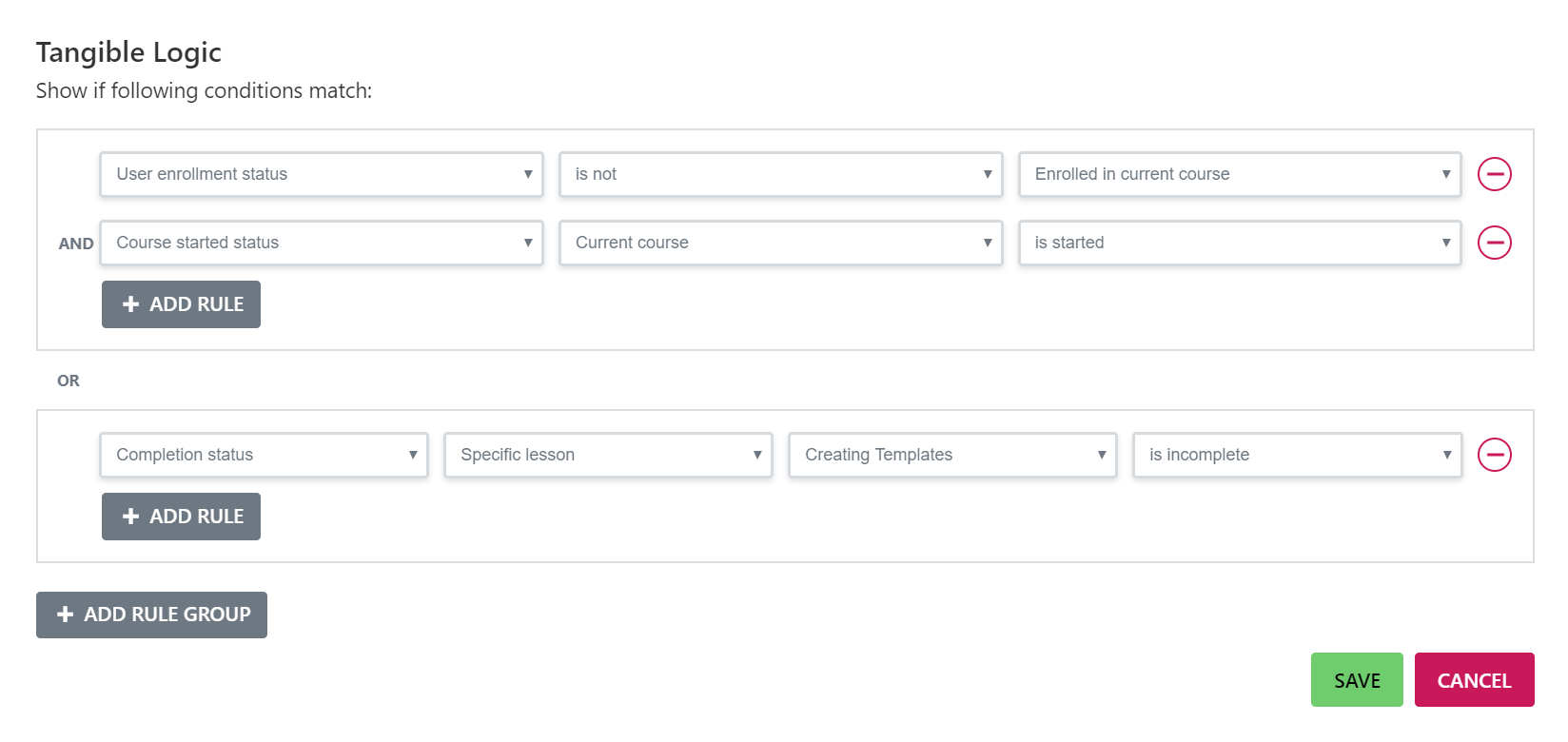
The editor labels the logic for you:
- Within a group, rules are joined by AND. Every rule in the group must be true for that group to pass.
- Between groups, the join is OR. The element is shown as soon as any one group passes.
An element with no rules is always shown. When the rules fail, the element is hidden from that visitor on the front end:
- A hidden widget outputs nothing at all. Its markup is not sent to the browser.
- A hidden section, column or container is rendered with
display:noneon its wrapper.
Rules are evaluated on each page load, so the same element can be visible to one student and hidden from another, and its state changes as a student enrols, starts or completes content.
What you can test
The conditions available in the panel are grouped by what they check: a student's completion status for the current or a specific course or lesson, whether a course has been started, the student's enrollment status in the current course or in a membership, and a lesson's drip date relative to today. When LifterLMS Groups is active, four more conditions appear for group enrollment, group role, group visibility and group seat availability. Each condition, with its operators and values, is listed in the Conditional Logic reference.
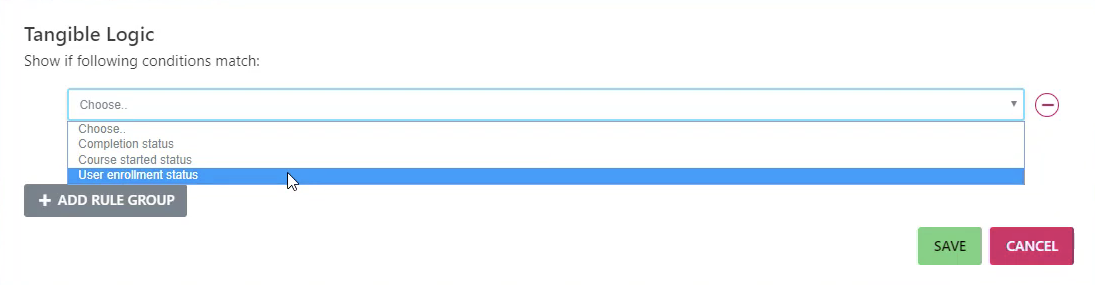
Conditions from any Lifter Elements extension are added to the same editor and can be combined with the core ones in one rule group.
Things to know
- Conditional logic works with Elementor Core. Elementor Pro is not required.
- Logged-out visitors have no student record, so enrollment-based rules treat them as not enrolled. Use an is not rule if you want content to appear for visitors as well as unenrolled students.
- Elements that carry rules are excluded from Elementor's element output cache, so visibility is never served stale. Pages last saved with an older version of Lifter Elements need to be saved again in the editor for this to apply.
Next step
See the rules in action in Hide a Widget from Enrolled Students, which walks through a single User enrollment status rule from start to finish.