5.5 Theme Builder Locations
The Elementor Pro Theme Builder lets you design one template that is applied to every item of a content type, instead of laying out each page by hand. This page lists the LifterLMS content types that become available as Theme Builder locations when Lifter Elements is active, and shows where a template is assigned.
The Theme Builder is an Elementor Pro feature. The Lifter Elements widgets and dynamic tags work on ordinary pages with Elementor alone, but templates that apply to all courses, lessons, quizzes or groups need Elementor Pro.
Pages versus templates
A page is a single piece of content you edit with Elementor: a course sales page, a student dashboard, a login page. You build it once and it applies to that one URL.
A template is a layout that Elementor Pro applies to every item that matches its display conditions. A Single Post template assigned to lessons restyles all your lessons at once; edit the template and every lesson changes with it. Lifter Elements widgets and dynamic tags placed inside a template pull their content from whichever lesson, course or group is being displayed, so a single layout can serve hundreds of items.
Locations Lifter Elements makes available
Out of the box, Elementor Pro only offers a Theme Builder location for LifterLMS content types that LifterLMS registers as public: courses and memberships. Lessons, quizzes and assignments are registered as non-public, so they are missing from the Theme Builder's display conditions. Lifter Elements changes how those post types are registered so that Elementor Pro detects them.
| Content | Template type | Display condition to pick | How-to |
|---|---|---|---|
| Course catalog (all courses) | Archive | Include > Archive > Courses Archive | Build a Course Archive Template |
| Single course | Single Post | Include > Singular > Courses | Build a Course Template |
| Single lesson | Single Post | Include > Singular > Lessons | Build a Lesson Template |
| Single quiz | Single Post | Include > Singular > Quizzes | Build a Quiz Template |
| Single assignment (LifterLMS Assignments add-on) | Single Post | Include > Singular > Assignments | — |
| Membership catalog (all memberships) | Archive | Include > Archive > Memberships Archive | — |
| Single membership | Single Post | Include > Singular > Memberships | — |
| Single group (LifterLMS Groups add-on) | Single Post | Include > Singular > Groups | Create a Group Landing Template |
Notes on the table:
- Groups appear only when the LifterLMS Groups add-on is active. The Lifter Elements Groups integration adds the group post type to the same list of Theme Builder locations.
- Assignments appear only when the LifterLMS Assignments add-on is active.
- Lessons, quizzes, assignments and groups have no archive page in LifterLMS, so they offer a Single Post location but no Archive location.
- The course and membership catalog pages are the archives LifterLMS already provides. Lifter Elements does not add them, but its Course List and Membership List widgets are the usual way to lay them out.
The exact labels in the display-condition picker come from Elementor Pro and follow each post type's plural name.
Assigning a template
A template does nothing until it has a display condition. The flow is the same for every location:
- Go to Templates > Theme Builder and click Add New.
- Pick the template type: Single Post for one course, lesson, quiz, assignment, membership or group; Archive for the course or membership catalog.
- Build the layout, then click Publish.
- In the Publish Settings dialog, open Conditions and click Add Condition.
- Leave the first dropdown on Include, set the second to Singular or Archive, then choose the LifterLMS content type from the third. You can narrow further, for example to a single course, or add an Exclude condition.
- Click Save & Close.
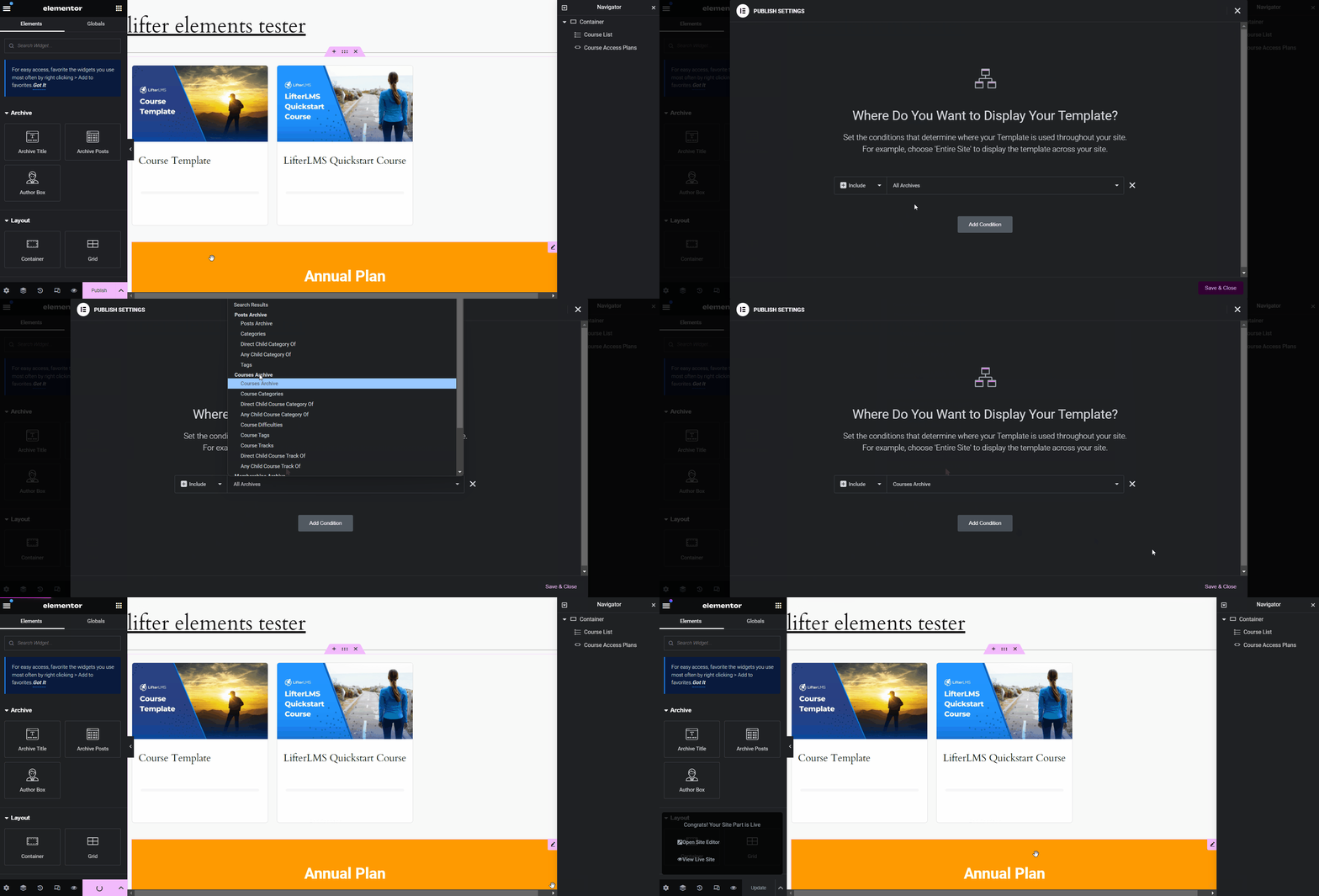
If several templates match the same content, Elementor Pro applies the more specific one. See Elementor's display conditions guide for how conditions combine and how to change them after publishing.
Widgets and dynamic tags inside templates
Inside a template you are not designing for one specific course or lesson. The Lifter Elements widgets and dynamic tags resolve to whichever item the template is rendering: a Course Syllabus widget in a course template shows the syllabus of the course being viewed, and a Lesson Content widget in a lesson template shows the current lesson's content. While editing the template, Elementor Pro previews it with one sample item; use Preview Settings in the panel footer to switch to a different course or lesson and check how the layout holds up.
Elementor cache
Elementor caches the rendered output of static elements. Lifter Elements marks its own widgets and any element with conditional logic as dynamic content, so they are rendered fresh on every request rather than served from that cache. If a template still shows stale or user-specific output after an update, clear the element cache under Elementor > Tools > Regenerate CSS & Data and re-save the template in Elementor.
Next step
Continue to The Conditional Logic Panel to control which parts of a template show for each visitor.