5.1 Widgets
This page shows you where the Lifter Elements widgets live in Elementor and how they behave, so you know what to expect before placing them on a page or template.
Finding the widgets
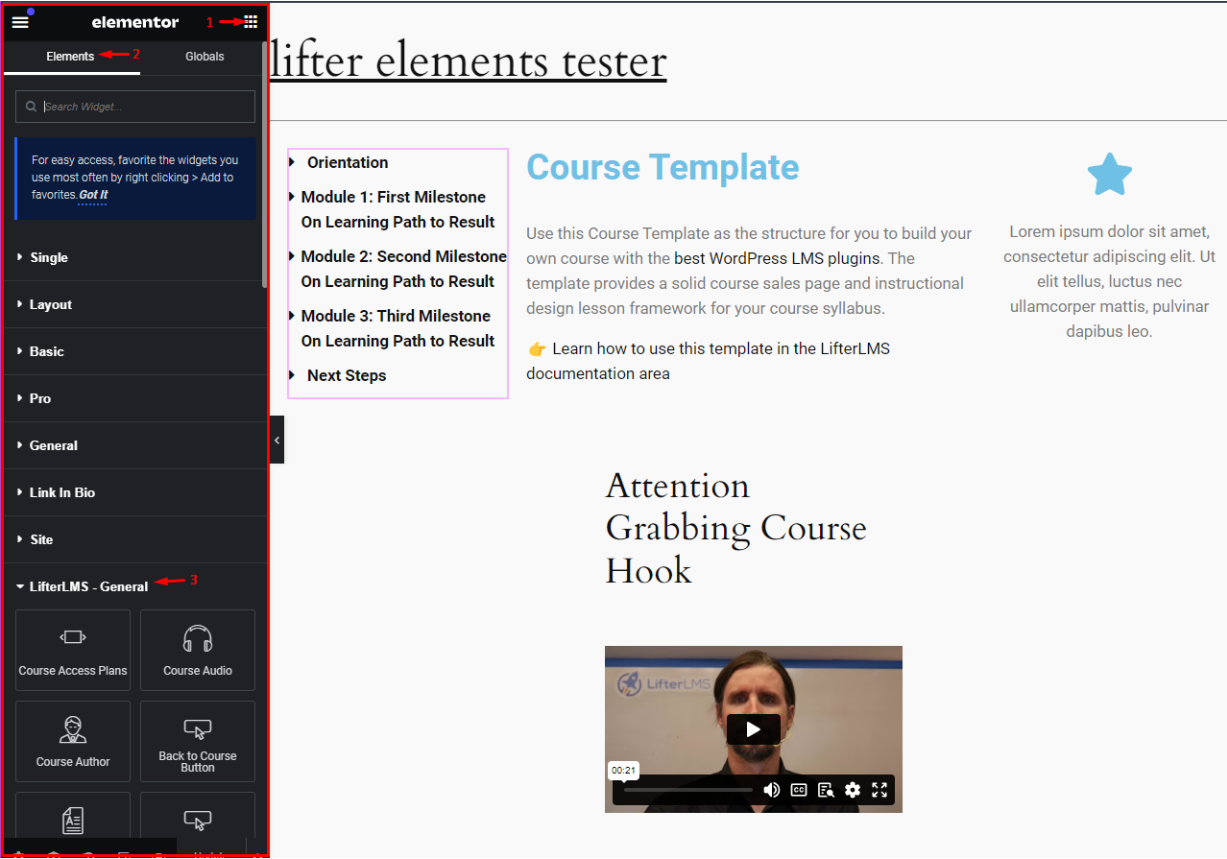
Open any page, post or template with Edit with Elementor. In the widgets panel on the left, scroll down to the Lifter Elements category. All core widgets are grouped there. You can also type a widget name into the panel's search box.
When the LifterLMS Groups add-on is active, a second category, Lifter Elements - Groups, appears with the group widgets.
Widgets resolve the current course or lesson
The widgets read their data from the course or lesson being displayed. There is no course selector to fill in: a Course Syllabus widget on a course page shows that course's syllabus, and a Course Progress widget on a lesson page shows progress for the course that lesson belongs to. Course widgets placed on a lesson page always resolve to the lesson's parent course. The Quiz widget works the same way for quizzes: it renders the quiz being viewed, so it belongs in a quiz template.
The Course Content and Lesson Content widgets output the post content without the blocks LifterLMS injects into it, so layout stays entirely under Elementor's control.
Where widgets can be used
You can drop the widgets straight onto an individual course or lesson edited with Elementor, or into a Theme Builder template that applies to every course, lesson or membership at once. Templates are the usual choice for a course site, because one layout then covers all your content. Theme Builder is an Elementor Pro feature; see Build a Lesson Template for a worked example.
Widgets that need Elementor Pro
Two widgets are built on Elementor Pro components and only register when Elementor Pro is active:
- Course Access Plans extends the Pro Slides carousel.
- Course Author extends the Pro Author Box.
Without Elementor Pro these two do not appear in the panel. Every other widget works with Elementor Core.
Widget categories
The widgets are organised by the LifterLMS object they display. Each category has its own section in the Widgets reference, with a page per widget listing its settings.
- Course — the largest group: Course List for catalogues, plus single-course widgets such as Syllabus, Outline, Progress, Meta, Content, Video, reviews, prerequisites and navigation buttons.
- Lesson — the lesson-page counterparts: Lesson Content, Lesson Video, Lesson Navigation and the Lesson Complete Button.
- Quiz — the Quiz widget: the whole quiz page (start screen, questions and results) for a Theme Builder quiz template, with LifterLMS's own output or a layout of parts you arrange and style.
- Membership — the Memberships List catalogue widget.
- Plans — purchase flow: the Access Plan Button, Pricing Table and Checkout.
- User — the logged-in student's own data: Dashboard, Courses, Certificates, Achievements, Memberships, plus the Login and Registration forms.
- Groups — with LifterLMS Groups active: Groups List, Group Members, Group Page Course Card, Group Invitation Link and Leave Group.
Content, Style and Advanced tabs
Select a widget on the canvas and its settings open in the panel. The Lifter Elements options live on the Content tab (what is shown, and for some widgets a Render choice between LifterLMS's own output and the Lifter Elements render) and the Style tab (typography, colours, spacing; every widget has one). The Advanced tab holds Elementor's own layout, motion and responsive controls, plus the Lifter Elements Conditional Logic section, covered in The Conditional Logic Panel. Settings differ from widget to widget; each reference page lists them.
Next step
Widgets output whole blocks of LifterLMS content. To pull a single value, such as a course title or a lesson's drip date, into any Elementor control, use Dynamic Tags.