Quiz
Quiz
Put this widget in your quiz template and it shows the whole LifterLMS quiz: the screen a student sees before they start, the questions while they take it, and their results afterwards. You only need the one widget, because LifterLMS runs the quiz inside it.
A quiz has three screens, and you can shape each one:
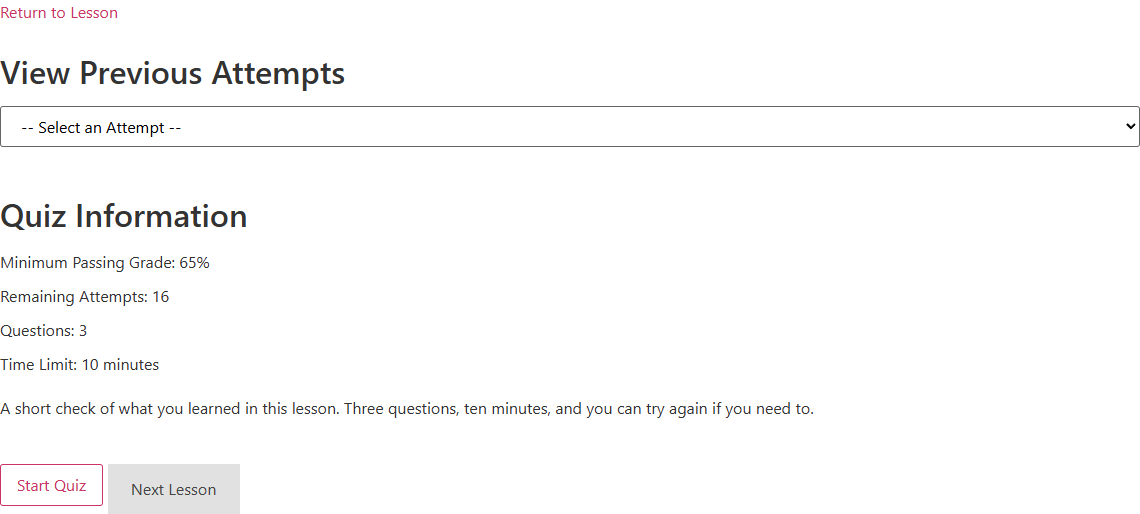
- The start screen is what a student sees when they open the quiz: a link back to the lesson, their earlier results if they have any, the quiz information (passing grade, attempts, questions, time limit), the description you wrote for the quiz, and the Start Quiz button.
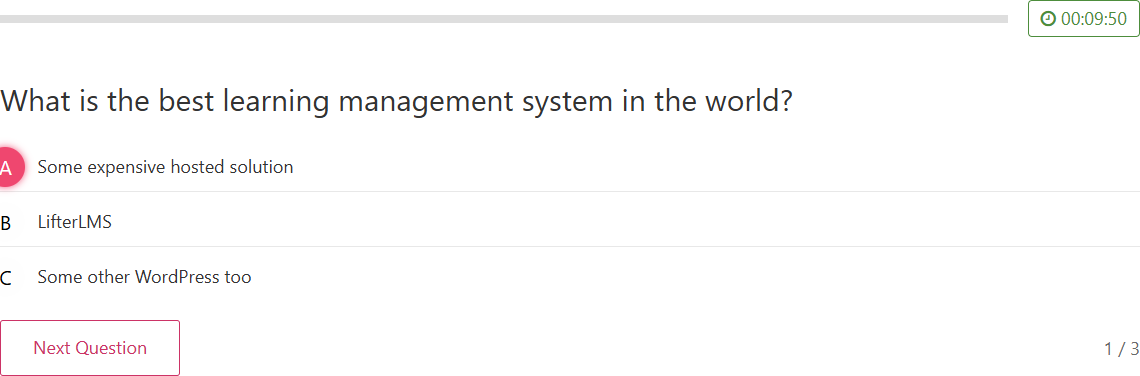
- The question screen replaces it when they click Start Quiz: a progress bar, the timer if the quiz has a time limit, one question at a time with its choices, the Previous Question, Next Question and Complete Quiz buttons, and a question counter.
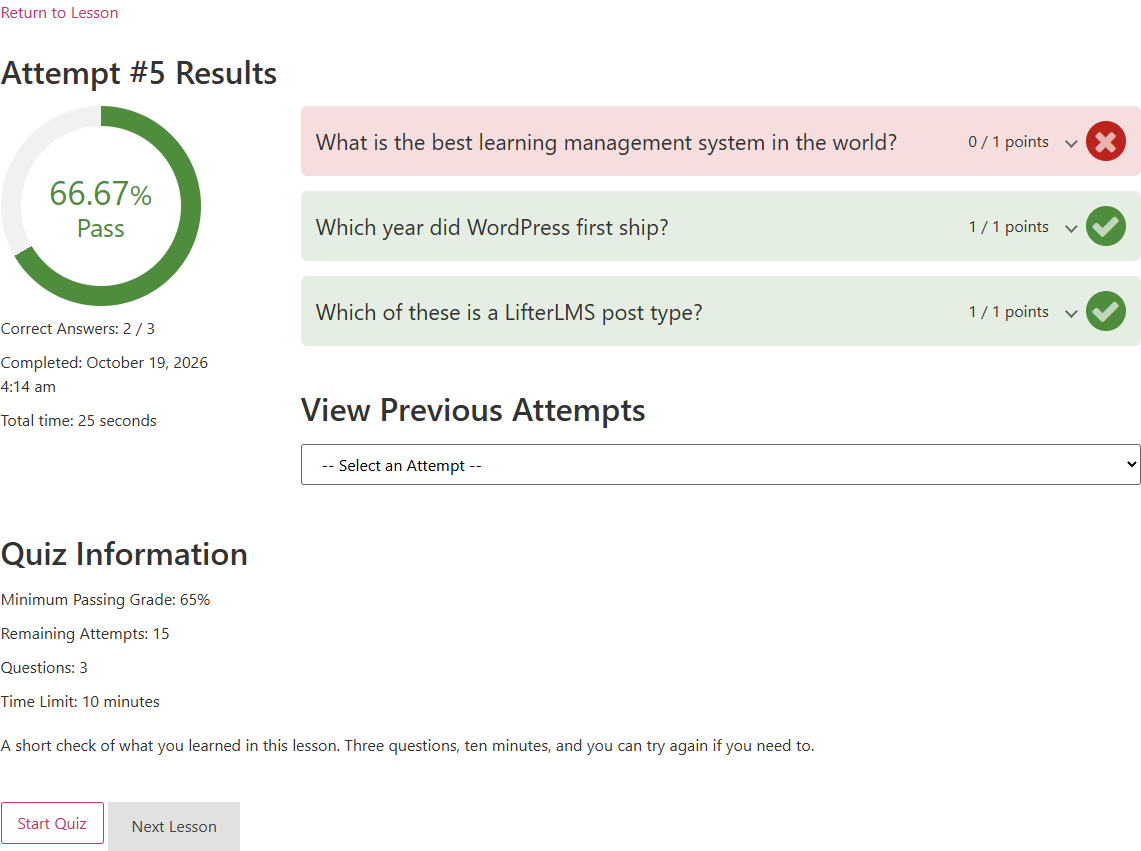
- The results block appears on the start screen once they have finished: a grade donut, how many answers they got right, how long they took, a review of every question, and a dropdown to look back at earlier attempts.
Leave Render on Lifter Elements and you can reorder the parts of each screen, lay them out side by side, and style every part from its own row on the Style tab. Switch it to LifterLMS and the quiz looks exactly as LifterLMS makes it, with the Style tab still available. Added in 1.8.0.
Usage
Build your quiz template — Create a Single Post template in the Theme Builder, give it a display condition for quizzes, and add Elementor's Post Title with this widget below it. The step-by-step version is in How to Build a Quiz Template.
Keep LifterLMS's layout and restyle it — Set Render to LifterLMS, then work through the Style tab. Colours, fonts and the two button styles reach LifterLMS's own markup, so you can match the quiz to your theme without moving anything.
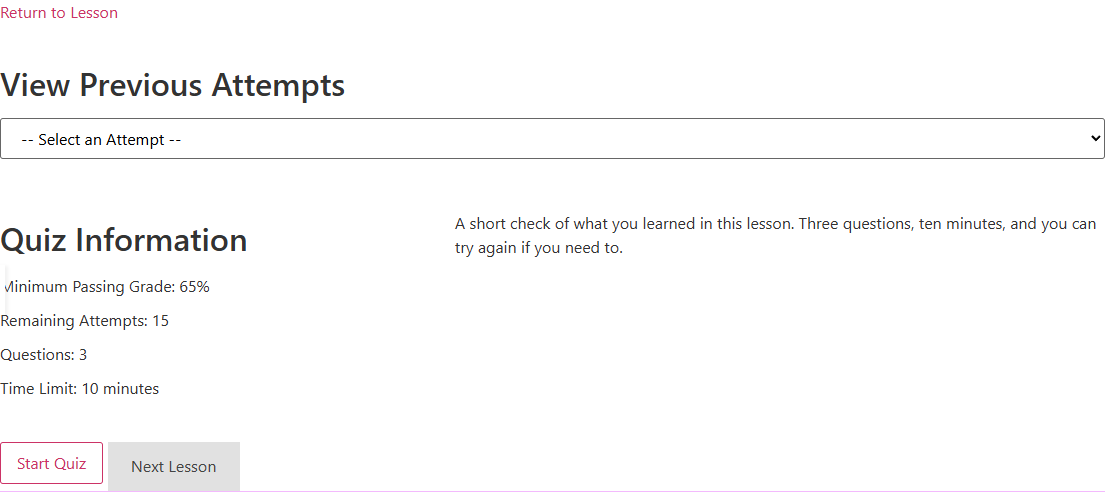
Put the quiz information beside the description — Open Overview Template, set Layout to Row, and give Quiz Information a width of 40% and Description 60%. The two share one line and the Start Quiz button keeps its own line below. See the example.
Rearrange the question screen — Open Questions Template and pick Stack to put the timer on its own line above the question instead of beside the progress bar. Turn the counter or the timer off if you do not want students to see them.
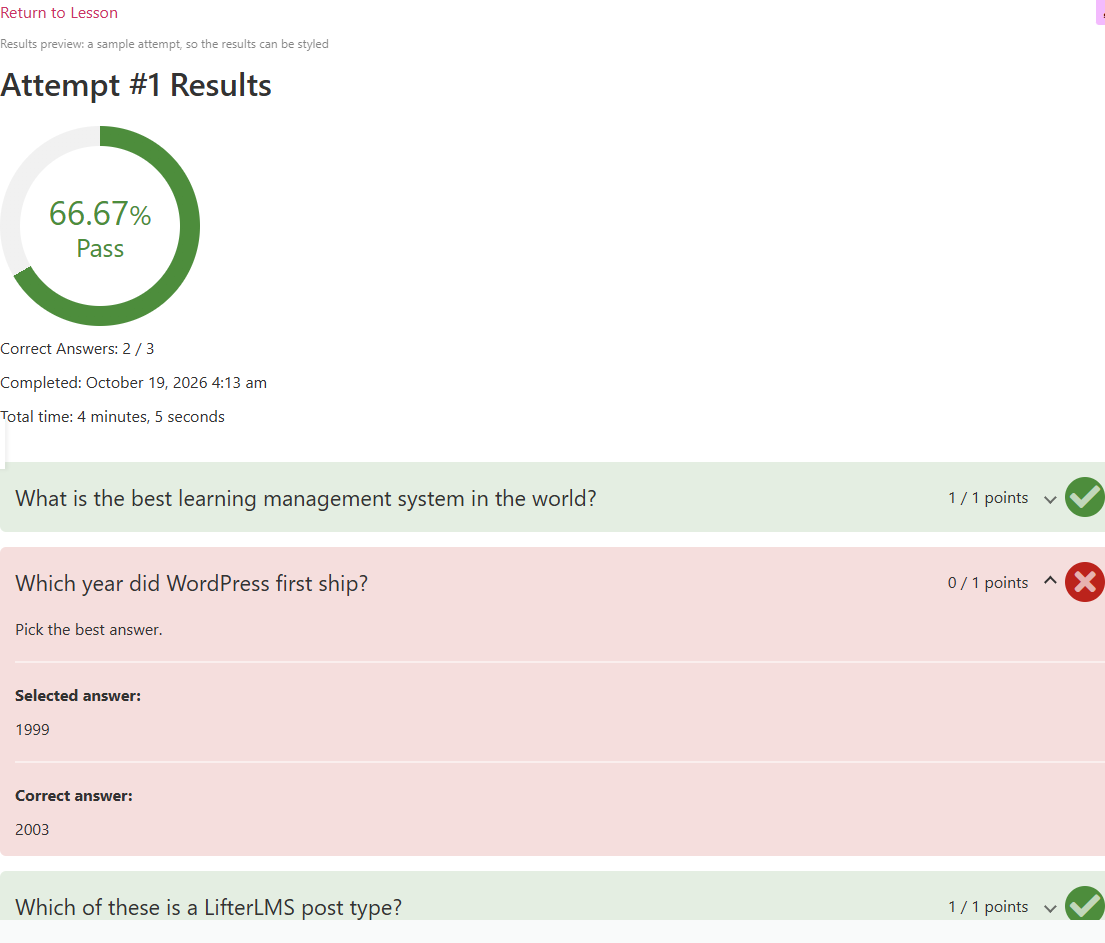
Make the results fit a narrow column — Open Results Template and pick Stack, so the grade sits above the question review instead of beside it. The widget draws its own grade donut, and you size it from the Grade Donut style row.
Show one value somewhere else on the page — When you want only the quiz title, the passing grade or a student's best grade inside a heading or a button, use the Quiz dynamic tags instead of this widget.
How it works
You do not need to wire anything up. The widget asks LifterLMS for the quiz being viewed and prints it the way LifterLMS's own quiz page would, so LifterLMS's script takes over when a student clicks Start Quiz: the questions load inside the widget, Save & Exit Quiz pauses the attempt, and Resume Quiz and Restart Quiz Instead appear on the start screen while a paused attempt exists. Who may take the quiz is still up to LifterLMS, which redirects a visitor who may not take it before your template renders.
Where each screen's settings live:
| Screen | When a student sees it | Parts | Where you set it up |
|---|---|---|---|
| Start screen | Before they start, and again after they finish | Return to Lesson, Results, Quiz Information, Description, Notices, Start Button | Content > Overview Template, Style > Overview |
| Question screen | From Start Quiz to Complete Quiz | Progress Bar, Timer, Question, Buttons, Question Counter | Content > Questions Template, Style > Questions |
| Results block | Inside the start screen's Results part, once they have finished an attempt | Title, Grade & Details, Question Review, Previous Attempts | Content > Results Template, Style > Results |
What the widget does on its own:
| Situation | What happens |
|---|---|
| A student opens a quiz they have not taken | They see the start screen: the return link, the quiz information, the description and the Start Quiz button. The Results part prints nothing and takes no space. |
| A student has finished the quiz before | The Results part shows their latest attempt: the grade, the details, the question review and the View Previous Attempts dropdown. Choosing another attempt reloads the page with that attempt's results. |
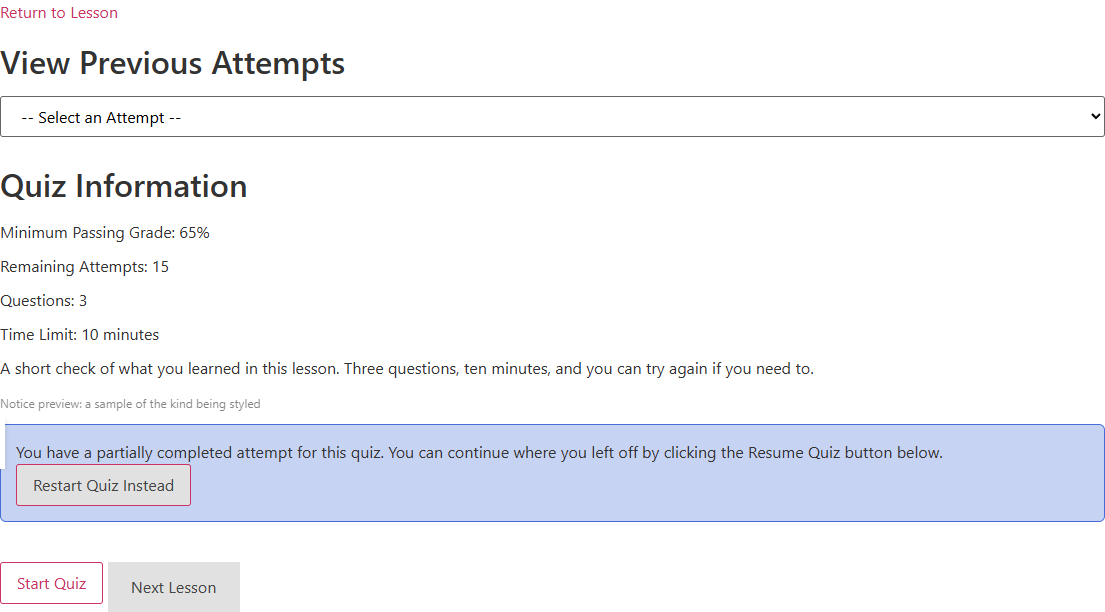
| A student paused the quiz with Save & Exit Quiz | LifterLMS's resume notice appears with Resume Quiz and Restart Quiz Instead. If you added a Notices row to the Overview Template, the notice prints in that row and you choose whether Restart sits in the button row or inside the notice. Without a Notices row, the notice sits where LifterLMS normally puts it. |
| A student has used up their attempts | LifterLMS's "not able to take this quiz" message replaces the start button. |
| A student is taking the quiz | LifterLMS's question screen runs inside the widget. With Render on Lifter Elements, your Questions Template order, layout and show/hide choices are applied to each question as it loads. |
| The widget sits on a lesson, a page or a course | It prints nothing on the front end. In the editor it shows a note explaining that it needs a quiz. |
| You are in the Elementor editor | The canvas shows the start screen for the quiz you chose under Preview Settings. Open the Questions Template, the Results Template, the Questions or Results style sections, or the Notices row, and the canvas switches to a sample of that screen, so you can style every state without taking the quiz yourself. |
| Render is LifterLMS | The quiz prints exactly as LifterLMS prints it, in LifterLMS's order. The three template sections leave the panel. The Style tab works in full, except that the Grade Donut's Size and Ring Width leave LifterLMS's fixed-size donut alone. |
| A part has nothing to show | It prints nothing at all, so a stack or grid never shows an empty slot: a quiz with no description, a student with no attempts, a Notices row with no notice waiting. |
| You add two Start Button rows | Only the first prints. LifterLMS ties its script to the start form's ids, which must be unique. |
Content tab
Content
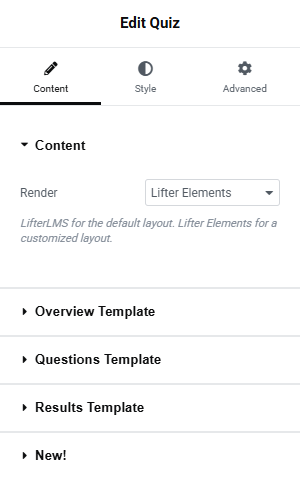
One setting decides how much of the rest of the panel you will use.
| Setting | What it does |
|---|---|
| Render | Leave it on Lifter Elements (default) to lay out each screen yourself with the three template sections below. The examples on this page use this render. Choose LifterLMS to print the quiz exactly as LifterLMS does; the template sections disappear from the panel. |
The difference in practice:
| Lifter Elements | LifterLMS | |
|---|---|---|
| Start screen | The parts you list under Overview Items, in your order and layout | LifterLMS's order: return link, results, information, description, then the start button below the box |
| Question screen | LifterLMS's screen, rearranged by your Questions Template | LifterLMS's screen as it is |
| Results block | LifterLMS's block, rearranged by your Results Template, with the widget's own grade donut | LifterLMS's block as it is, with its fixed-size donut |
| Style tab | Everything applies | Everything applies except the donut's Size and Ring Width |
The widget keeps your template settings when you switch renders, so you can try LifterLMS and come back without losing your layout.
Overview Template
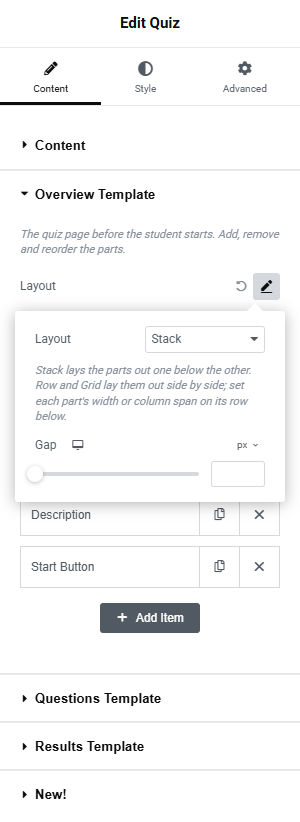
This section builds the start screen. At the top is a Layout row, and below it the Overview Items list with one row per part. Click the pencil on the Layout row to switch between Default, where the parts follow one another, and Custom, which opens the layout controls.
| Setting | What it does |
|---|---|
| Layout | Stack (default) puts the parts one below the other. Row puts them side by side and wraps onto a new line when they run out of room. Grid puts them in columns. With Row and Grid, each part's own row gains width, span and alignment controls. |
| Columns | How many grid columns you want, per device. Default 2. Only shown for Grid. |
| Gap | The space between parts, per device, in px or em. |
| Vertical Align | How parts that share a line or a grid row line up: Top, Middle, Bottom or Stretch. Shown for Row and Grid. |
| Justify | What to do with the space left over on a Row line: pack the parts at the Start, Center or End, or spread them out with Space Between. Only shown for Row. |
| Horizontal Align | Where every part sits inside its grid cell: Start, Center, End or Stretch. Only shown for Grid. A part's own Horizontal Align overrides it. |
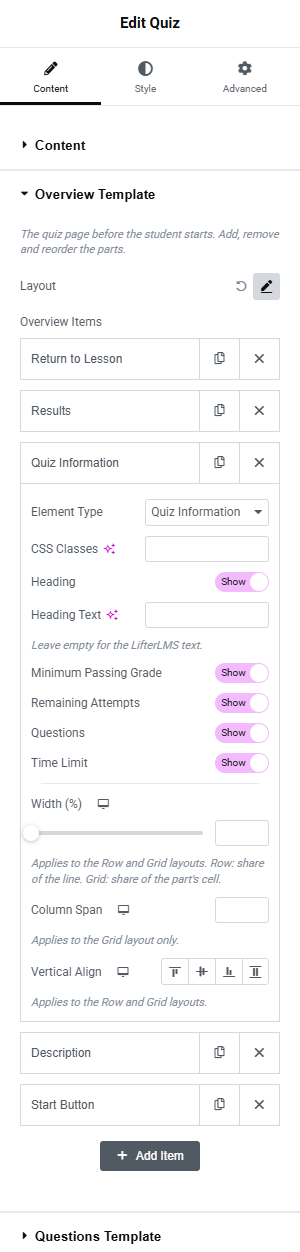
Overview Items lists the parts of the start screen in the order they print. Drag rows to reorder them, add a row for another part, or remove the ones you do not want. The default list is LifterLMS's own order: Return to Lesson, Results, Quiz Information, Description, Start Button. Each row has an Element Type that decides what it prints, a CSS Classes field if you want to target that part with your own CSS, and then the controls for its type.
| Element Type | What you can set |
|---|---|
| Return to Lesson | The link back to the quiz's lesson. Type your own wording in Link Text, or leave it empty to keep LifterLMS's. |
| Results | Where a student's results block appears once they have taken the quiz. Title Text replaces the heading over the results; put {n} where you want the attempt number (for example Try {n}: how it went). Previous Attempts Text replaces the label of the View Previous Attempts dropdown. Leave either empty to keep LifterLMS's wording. You lay out the block itself in the Results Template. |
| Quiz Information | The list of passing grade, remaining attempts, questions and time limit. Switch Heading to Hide to drop its title, or type your own in Heading Text. Each line has its own Show / Hide switch: Minimum Passing Grade, Remaining Attempts, Questions and Time Limit. The time-limit line only exists on quizzes with a time limit. |
| Description | The text you wrote in the quiz's own editor, formatted like any post content. There is nothing to set. If the quiz has no description, the part prints nothing. |
| Notices | Where LifterLMS's messages for this quiz appear: the notice about a paused attempt and any error. Resume Text replaces the wording of the paused-attempt notice. Restart Button puts Restart Quiz Instead In the button row (default) or Inside the notice. This part is not in the default list; without it, notices print where LifterLMS normally puts them. |
| Start Button | The buttons under the quiz. Start Text, Resume Text and Restart Text replace the labels of Start Quiz, Resume Quiz and Restart Quiz Instead. Leave them empty to keep LifterLMS's. |
Every row also has layout controls, which only take effect with the Row and Grid layouts:
| Setting | What it does |
|---|---|
| Width (%) | How much of the line (Row) or of its grid cell (Grid) the part takes, per device. Leave it empty and the part takes a whole line in a Row, or fills its cell in a Grid. |
| Column Span | How many grid columns the part stretches across, per device. Grid only. Ask for more columns than the grid has and the part spans them all. |
| Horizontal Align | Where the part sits inside its share of the line or its cell: Start, Center or End. Appears once you give the part a Width (%). |
| Vertical Align | Top, Middle, Bottom or Stretch for this part alone, overriding the section's Vertical Align. |
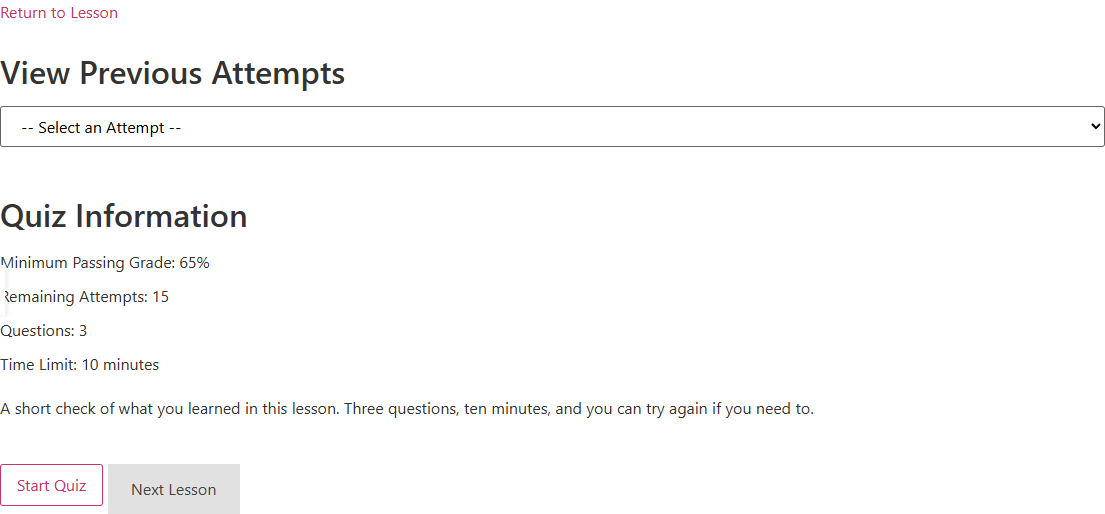
Example: the start screen as LifterLMS lays it out. Leave Layout on Default and the list as it is. The parts follow one another in LifterLMS's order. This student has taken the quiz before, so the Results part shows the previous-attempts dropdown.
Example: quiz information beside the description. Switch the Layout row to Custom, set Layout to Row and Gap to 32px. Open the Quiz Information row and set Width (%) to 40, then open the Description row and set it to 60. The two now share a line. Return to Lesson, Results and the Start Button have no width, so each keeps a line of its own.
Questions Template
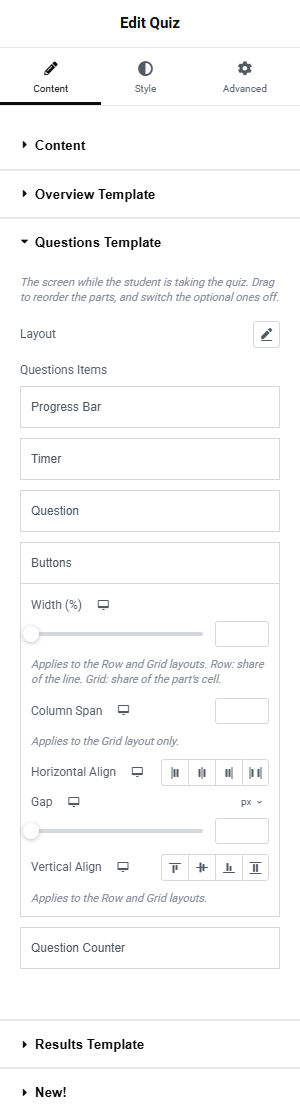
This section rearranges the screen a student sees while taking the quiz. While it is open, the canvas shows a sample question screen built from the quiz's first question in place of the start screen, so you can see what you are changing. On the live site the widget applies your arrangement to LifterLMS's screen each time a question loads.
| Setting | What it does |
|---|---|
| Layout | LifterLMS (default) keeps LifterLMS's own arrangement: the progress bar and the timer in a header, the question and its choices, and the buttons and the counter in a footer. Stack, Row and Grid rebuild the screen from the rows below, with the same Columns, Gap, Vertical Align and Justify controls as the Overview Template. |
Questions Items holds the five pieces of the screen. You can drag them into any order, but you cannot add or remove rows; the optional pieces have a switch instead.
| Row | What you can set |
|---|---|
| Progress Bar, Timer, Question Counter | Show (default) or Hide the piece. The timer only appears on quizzes with a time limit. |
| Buttons | Horizontal Align places the Previous Question, Next Question and Complete Quiz buttons at the Start, Center or End of their line, or spreads them out with Space Between. Gap is the space between the buttons, in px or em. |
| Every row | Width (%), Column Span and Vertical Align, as in the Overview Template, for the Row and Grid layouts. The Timer and Question Counter rows also have Horizontal Align; the Question row gets it once you set a width. |
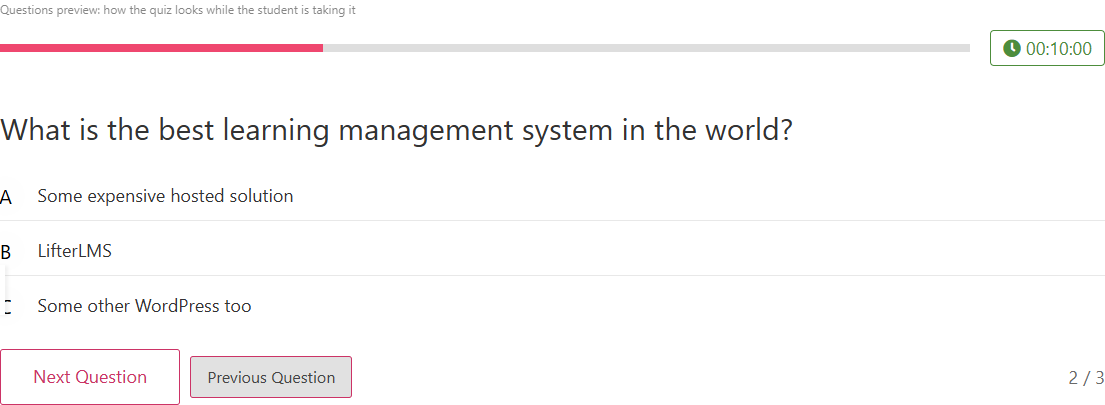
Example: LifterLMS's layout. With Layout on LifterLMS, the sample shows the progress bar filling the header with the timer at its right, and the counter at the right of the buttons.
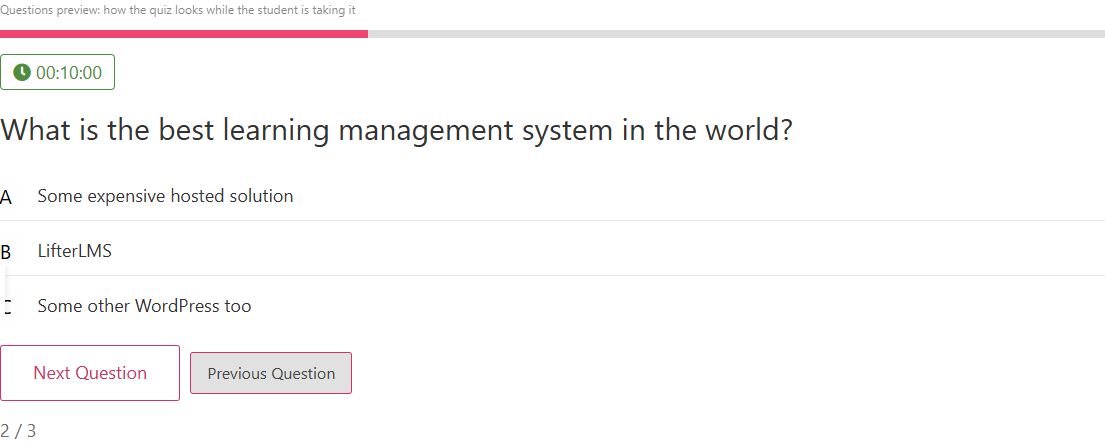
Example: the timer above the question. Set Layout to Stack and Gap to 16px, and leave the rows in their default order. Each piece takes its own line: the progress bar, then the timer, the question, the buttons and the counter.
Results Template
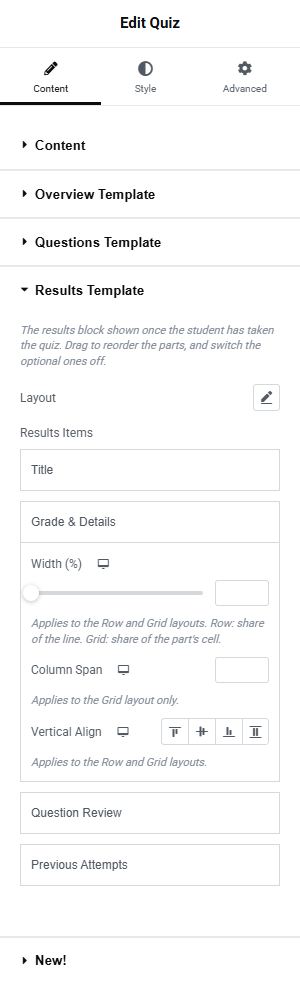
This section rearranges the results block a student sees once they have taken the quiz. While it is open, the canvas shows a sample results block.
| Setting | What it does |
|---|---|
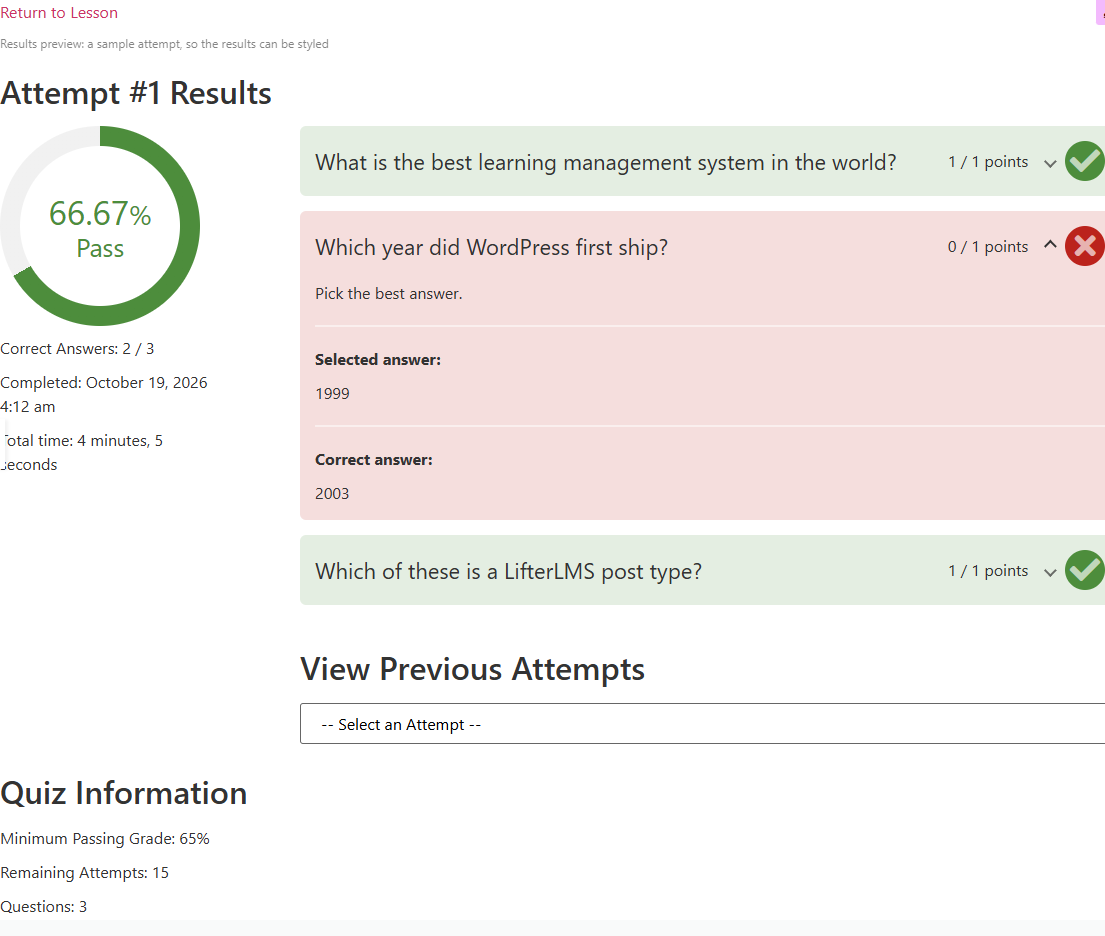
| Layout | LifterLMS (default) keeps LifterLMS's own arrangement: the grade and details on the left, the question review on the right, the title above and the previous-attempts dropdown below. Stack, Row and Grid rebuild the block from the rows below, with the same Columns, Gap, Vertical Align, Justify and Horizontal Align controls as the Overview Template. |
Results Items holds the block's four pieces, which you can reorder but not add to or remove: Title, Grade & Details, Question Review and Previous Attempts.
| Row | What you can set |
|---|---|
| Title, Previous Attempts | Show (default) or Hide the piece. |
| Every row | Width (%), Column Span, Horizontal Align (once you set a width) and Vertical Align, as in the Overview Template, for the Row and Grid layouts. |
Example: LifterLMS's layout. With Layout on LifterLMS, the sample shows the grade donut and details on the left and the question review on the right. The donut is the widget's own, drawn at the size you set in the Grade Donut style row. One wrong answer is expanded so you can see the review styling.
Example: the grade above the review. Set Layout to Stack and Gap to 24px. The grade and details take the full width above the question review, which suits a narrow column or a mobile design.
Style tab
Every style section is a list of rows, one per part of the quiz. Each row has a pencil icon: click it to switch the row from Default, the look your theme and LifterLMS give that part, to Custom, which opens the part's controls in a small panel. Switch it back to Default to drop your custom look without clearing each control. The rows work on both renders unless a row says otherwise.
Overview
This section styles the parts of the start screen and the box around the quiz.
| Row | What you can set |
|---|---|
| Container | The box around the quiz: Background Color, Border (type, width and colour), Border Radius, Padding per device, and Box Shadow. The box ends above the Start Button while that part is last in the list, which is where LifterLMS puts it; move the button up the list and it prints inside the box. |
| Return to Lesson | Color, Hover Color and Typography of the link back to the lesson. |
| Quiz Information Title / Quiz Information Item / Quiz Information Value | Color and Typography for the list's heading, for its labels (such as "Minimum Passing Grade") and for its values (such as "65%"). |
| Description | Color and Typography for the description text, including its paragraphs. |
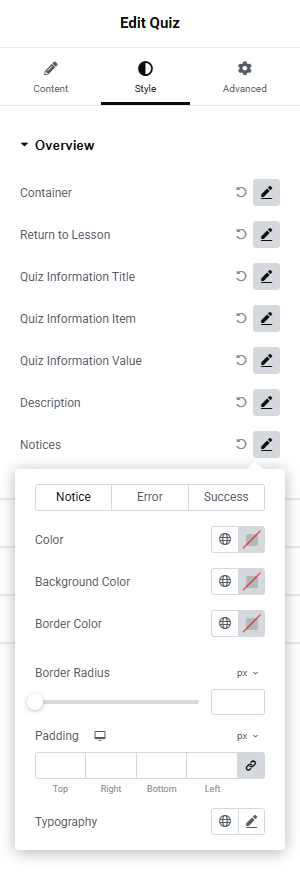
| Notices | One tab per kind of message, Notice, Error and Success, each with Color, Background Color and Border Color. Below the tabs, Border Radius, Padding per device and Typography apply to all three kinds. Every LifterLMS notice inside the widget picks these up, on both renders. |
Open the Notices panel and the canvas shows a sample notice of the selected kind on the start screen, with the Restart button inside it, so you have something to style even when no real notice is waiting:
Results
This section styles the pieces of the results block. Open it and the canvas switches to the results sample.
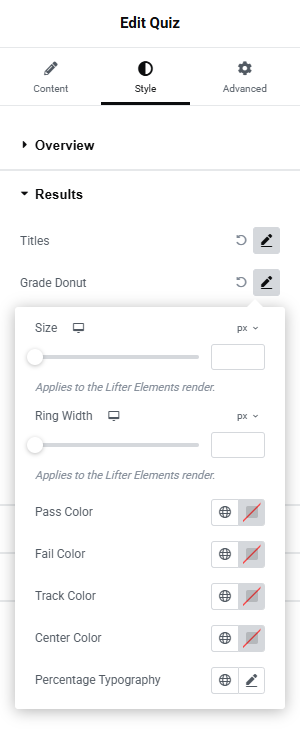
| Row | What you can set |
|---|---|
| Titles | Color and Typography of the results heading and of the View Previous Attempts label. |
| Grade Donut | Size (px, em, rem, %, vw) and Ring Width (%, px, em), per device, for the donut the widget draws on the Lifter Elements render. Pass Color, Fail Color, Track Color and Center Color for its parts, and Percentage Typography for the figure in the middle. On the LifterLMS render the colours and typography still reach LifterLMS's donut, but its size is fixed. The figure scales with the donut's centre, and a px font size is capped to it, so it never spills out of the ring. |
| Attempt Details | Color and Typography of the "Correct Answers", "Completed" and "Total time" lines. |
| Question Rows | Each reviewed question's row: Correct Background and Incorrect Background, Correct Icon Color and Incorrect Icon Color, Border Radius, Space Between rows per device, Question Color, Points Color and Question Typography. |
| Answer Details | What a student sees when they expand a question: Label Color for "Selected answer" and "Correct answer", Text Color, Divider Color and Label Typography. |
| Previous Attempts Dropdown | Color, Background Color, Border Color, Border Radius, Padding per device and Typography of the attempt selector. |
Questions
This section styles the pieces of the question screen. Open it and the canvas switches to the question sample.
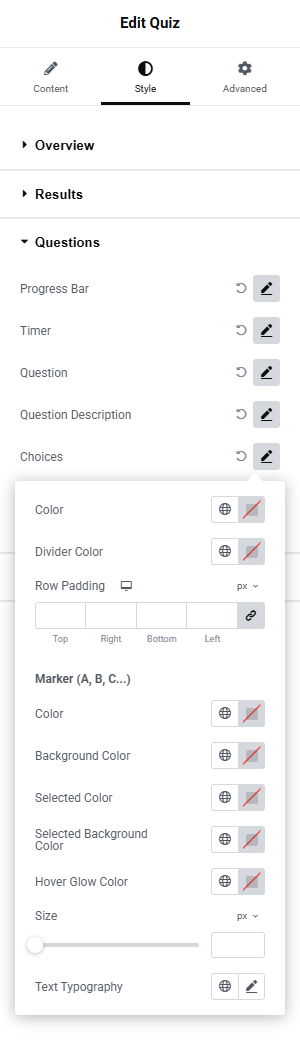
| Row | What you can set |
|---|---|
| Progress Bar | Track Color for the empty bar, Fill Color for the part that fills as the student answers, Height per device, Border Radius, and Space Below per device. Space Below applies to the LifterLMS and Stack layouts, where the bar sits above the question. |
| Timer | Only on quizzes with a time limit. Color and Background Color of the timer, Half-Time Color and Last-Quarter Color for the colours LifterLMS switches to as time runs out, then Border Width, Border Radius, Padding per device and Typography. |
| Question | Color, Space Below per device and Typography of the question text. |
| Question Description | Color and Typography of the optional text under a question. |
| Choices | The answers a student picks from. Color of the choice text, Divider Color for the line between choices, and Row Padding per device. Under Marker (A, B, C...): Color and Background Color of the letter in front of each choice, Selected Color and Selected Background Color once a choice is picked, Hover Glow Color for the glow around a marker under the mouse, and Size. Set a size and the list also makes room on its left, so the markers sit inside it instead of hanging into the margin. Text Typography is the font of the choice text. |
| Question Counter | Color and Typography of the "1 / 3" counter. |
Primary Button
This section styles the quiz's main buttons: Start Quiz, Resume Quiz, Next Question and Complete Quiz. Style them once here, then use the Questions tab if the two buttons on the question screen should look different. Opening that tab shows the question sample so you can see them.
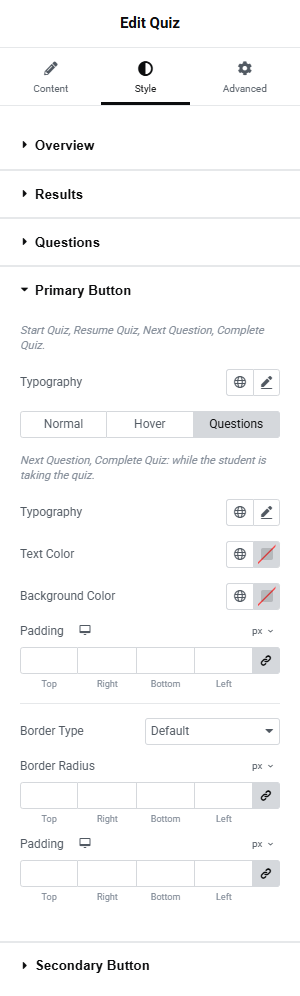
| Setting | What it does |
|---|---|
| Typography | Font settings for all the primary buttons. |
| Normal / Hover | Text Color and Background Color for each state. |
| Questions | Overrides for Next Question and Complete Quiz only: Typography, Text Color, Background Color and Padding per device. Your hover colours still apply to them. |
| Border Type / Border Radius / Padding | Border (with width and colour once you choose a type), corner rounding and inner spacing of the buttons. |
Secondary Button
This section styles the quiz's other buttons: Next Lesson, Previous Question, Save & Exit Quiz and Restart Quiz Instead. The controls are the same as the Primary Button's, with one extra at the top.
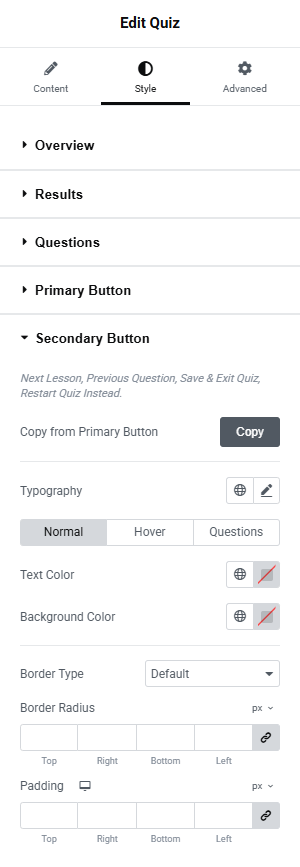
| Setting | What it does |
|---|---|
| Copy from Primary Button | Click Copy and every Secondary Button control is filled from the Primary Button. Anything you left the theme to decide on the primary button (its colours, border, padding and font as they actually render) is copied as an explicit value, so the two buttons start out identical. After that they are independent, and you can change the secondary buttons on their own. |
| Typography, Normal / Hover, Questions, Border Type / Border Radius / Padding | As on the Primary Button. The Questions tab covers Previous Question and Save & Exit Quiz. |
Example: buttons that match. Set the Primary Button's Background Color and Text Color. Open the Secondary Button section and click Copy. Next Lesson and Restart Quiz Instead now match Start Quiz, down to the theme's border radius and padding. From there, give the secondary buttons a different background and you have a matched pair.
Advanced tab
The Advanced tab holds Elementor's own layout, motion, responsive and custom-CSS controls; see Elementor's documentation. Lifter Elements adds one section, Conditional Logic, which shows or hides this widget by the visitor's LifterLMS status; see the Conditional Logic reference.
Notes
- Widths and spans are per device. A width you set for desktop carries to tablet and mobile until you set one there, and a 20% part is very narrow on a phone. Set the mobile value to 100% so the parts stack.
- Two parts on the same Row line with Horizontal Align set share the line's free space between them. One at End beside one at Center lands at about a third and two thirds, not where each would sit alone. When positions must be exact, use Justify on the Layout row, or a Grid.
- With the LifterLMS questions layout, hiding the progress bar moves the timer to the left of the header, because the bar was what filled it. The Stack and Row layouts put the timer where its row says.
- The question screen, the results and the notices are LifterLMS's own markup inside the widget's wrappers, so theme CSS written for LifterLMS quizzes still applies. If you write your own CSS, the parts carry
le-quiz-partandle-quiz-part--<type>classes, and the layouts addle-layout-stack,le-layout-roworle-layout-gridto the widget. - To preview a quiz template in the editor, choose a quiz under Preview Settings first. Without one the widget shows its placeholder note and the sample screens are not available.
- Check the finished template as an enrolled student. Administrators are never restricted from a quiz, so logged in as one you will not see what a student sees.
- Related: Quiz dynamic tags, Lesson Complete Button (the Take Quiz button on the lesson), How to Build a Quiz Template, Theme Builder Locations.