8.6 Conditional Logic
Conditional logic shows or hides an Elementor element depending on the visitor's LifterLMS status, using rules you build in the Conditional Logic section of the element's Advanced tab (see The Conditional Logic Panel). It works with Elementor Core and ships in every edition of Lifter Elements; this page lists each condition, its operators and values, and what makes a rule true.
Every condition applies to widgets, sections, columns and containers alike. A rule reads left to right as it appears in the editor (for example Current course / is started), and the element is shown when the rule (and the rest of its rule group) is true.
Core conditions
These four conditions are available whenever Lifter Elements and LifterLMS are active.
Completion status
Checks whether the logged-in student has completed a lesson or a course.
| Value | Operator | Extra field | True when |
|---|---|---|---|
| Current lesson | is complete / is incomplete | — | The student has (or has not) marked the lesson being viewed complete. |
| Current course | is complete / is incomplete | — | The student's progress in the course being viewed is (or is not) 100%. |
| Specific course | is complete / is incomplete | Course drop-down | The student's progress in the chosen course is (or is not) 100%. |
| Specific lesson | is complete / is incomplete | Lesson drop-down | The student has (or has not) marked the chosen lesson complete. |
Current course resolves on a course page or on any lesson page (through the lesson's parent course). Current lesson resolves only on a lesson page; elsewhere the lesson cannot be found and the rule is false.
Logged-out visitors: no student record, so is complete is always false and is incomplete is always true.
Course started status
Checks whether the logged-in student has made any progress in a course.
| Value | Operator | Extra field | True when |
|---|---|---|---|
| Current course | is started / is not started | — | The student's progress in the course being viewed is above 0% (or is exactly 0%). |
| Specific course | is started / is not started | Course drop-down | The student's progress in the chosen course is above 0% (or is exactly 0%). |
"Started" means at least one lesson is complete; an enrolled student who has not completed anything is is not started. Current course resolves on course and lesson pages.
Logged-out visitors: progress is always 0%, so is started is false and is not started is true.
User enrollment status
Checks whether the logged-in user is enrolled in the current course or in a membership.
| Operator | Value | Extra field | True when |
|---|---|---|---|
| is / is not | Enrolled in current course | — | The user is (or is not) enrolled in the course being viewed. Resolves on course and lesson pages. |
| is / is not | Enrolled in membership | Membership drop-down | The user is (or is not) enrolled in the chosen membership. |
Enrollment is read from LifterLMS, so only a currently enrolled user counts as is; an expired or cancelled enrollment counts as is not.
Logged-out visitors: never enrolled, so is is false and is not is true.
Lesson Drip Date
Checks whether a lesson's drip release date has passed. This condition describes the lesson, not the visitor, so it gives the same result to every student. It has a single operator, is; choose past or future in the last field instead.
| Value | Operator | Extra field | True when |
|---|---|---|---|
| for current lesson | is | past / future | The lesson being viewed became available before now (or is still scheduled for the future). |
| for next lesson | is | past / future | The lesson after the one being viewed became available before now (or is still scheduled for the future). |
Points to note:
- A lesson with no drip schedule counts as past.
- The rule only resolves on a lesson page. On other pages it is skipped and the element is shown.
- On the last lesson of a course there is no next lesson, so for next lesson falls back to the current lesson.
- Users who can bypass LifterLMS restrictions (administrators, and any role granted Unrestricted Preview Access in LifterLMS > Settings > General) always see the element, whether they pick past or future.
Logged-out visitors: evaluated the same as everyone else; the drip date does not depend on who is viewing.
Group conditions
These four conditions appear in the panel only when the LifterLMS Groups add-on is active alongside Lifter Elements. They are available since Lifter Elements 1.7.0.
For every group condition, current group means the group whose page is being viewed: a single group page, or an Elementor Theme Builder template applied to the group post type. On any other page the current group cannot be found; use the specific group variant there, which adds a drop-down of published groups.
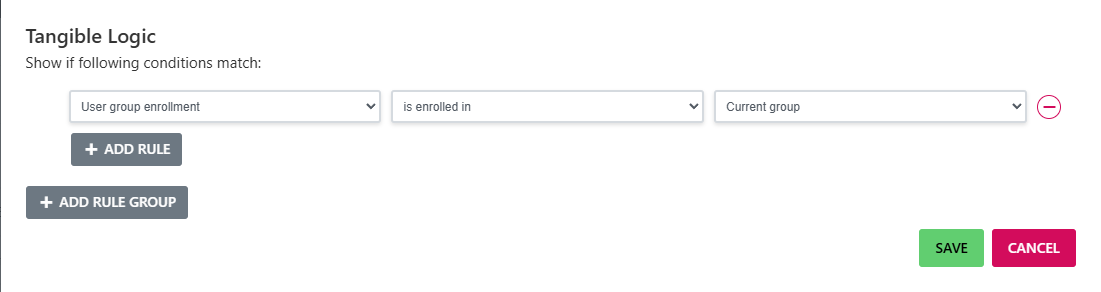
User group enrollment
Checks whether the logged-in user belongs to a group in any role: member, leader or admin.
| Operator | Value | Extra field | True when |
|---|---|---|---|
| is enrolled in / is not enrolled in | Current group | — | The user holds any role in the group being viewed (or holds none). |
| is enrolled in / is not enrolled in | Specific group | Group drop-down | The user holds any role in the chosen group (or holds none). |
Logged-out visitors: never enrolled, so is enrolled in is false and is not enrolled in is true.
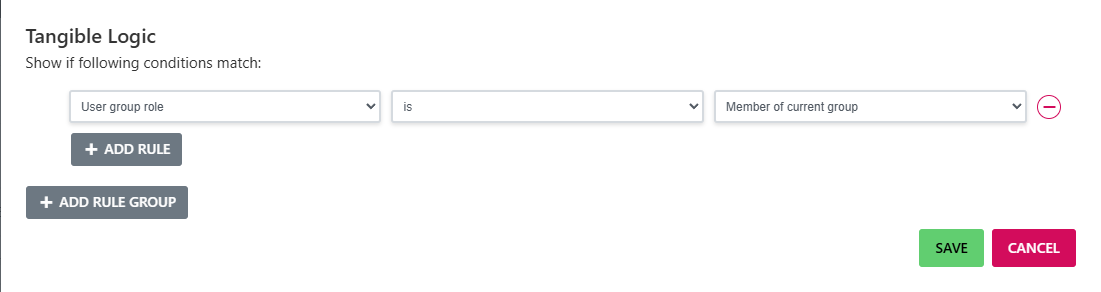
User group role
Checks the exact role the logged-in user holds in a group. The role and the group context are combined in one value.
| Operator | Value | Extra field | True when |
|---|---|---|---|
| is / is not | Member of current group | — | The user's role in the group being viewed is (or is not) member. |
| is / is not | Leader of current group | — | The user's role in the group being viewed is (or is not) leader. |
| is / is not | Admin of current group | — | The user's role in the group being viewed is (or is not) admin. |
| is / is not | Member of specific group | Group drop-down | The user's role in the chosen group is (or is not) member. |
| is / is not | Leader of specific group | Group drop-down | The user's role in the chosen group is (or is not) leader. |
| is / is not | Admin of specific group | Group drop-down | The user's role in the chosen group is (or is not) admin. |
Each value matches one role exactly: a leader is not a member for this condition. To show something to leaders and admins together, put two rules in separate rule groups so they are joined by OR.
Logged-out visitors: hold no role, so is is false and is not is true for every value.
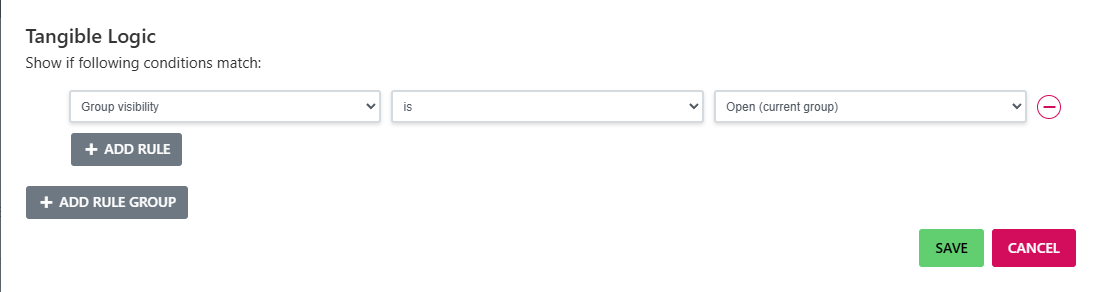
Group visibility
Checks the Visibility setting of a group: Open, Private or Closed. This condition describes the group, not the visitor, so it gives the same result to every student.
| Operator | Value | Extra field | True when |
|---|---|---|---|
| is / is not | Open (current group) | — | The group being viewed is (or is not) set to Open. |
| is / is not | Private (current group) | — | The group being viewed is (or is not) set to Private. |
| is / is not | Closed (current group) | — | The group being viewed is (or is not) set to Closed. |
| is / is not | Open (specific group) | Group drop-down | The chosen group is (or is not) set to Open. |
| is / is not | Private (specific group) | Group drop-down | The chosen group is (or is not) set to Private. |
| is / is not | Closed (specific group) | Group drop-down | The chosen group is (or is not) set to Closed. |
Logged-out visitors: evaluated the same as everyone else.
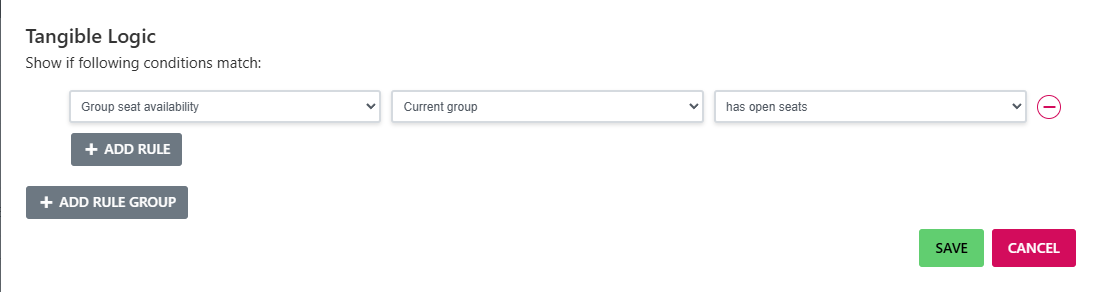
Group seat availability
Checks whether a group still has at least one open seat. The operator carries the meaning; there is no is / is not. This condition describes the group, not the visitor.
| Value | Operator | Extra field | True when |
|---|---|---|---|
| Current group | has open seats / is full | — | The group being viewed has one or more unused seats (or none). |
| Specific group | has open seats / is full | Group drop-down | The chosen group has one or more unused seats (or none). |
Open seats are the group's total seats minus its current enrollments, the same figure the Group Seats dynamic tag outputs as Available Seats.
Logged-out visitors: evaluated the same as everyone else.
Notes
- Conditions are evaluated on every render, so an element's visibility changes as soon as a student enrols, completes a lesson, or joins a group.
- Elements that carry rules are excluded from Elementor's element output cache, so a cached page never serves a stale visibility state. Pages last saved with an older version of Lifter Elements need to be saved again in the editor for this to apply.
- The three course and enrollment conditions treat a missing target as false: a Current course rule on a page with no course context, or a specific course or lesson that has since been deleted, behaves like an incomplete, unstarted, or unenrolled course. The group conditions and Lesson Drip Date instead skip the rule when the target cannot be found, and the element stays visible. Use the specific variants on pages without a course, lesson or group context.
- Conditions registered by other Lifter Elements extensions appear in the same panel and can be mixed with these in one rule group.
- For worked examples, see Hide a Widget from Enrolled Students and Create a Leader-Only Sidebar.