Groups Dynamic Tags
Groups Dynamic Tags
These tags appear in the dynamic tag picker only when the LifterLMS Groups add-on is active alongside Lifter Elements. They are available since Lifter Elements 1.7.0.
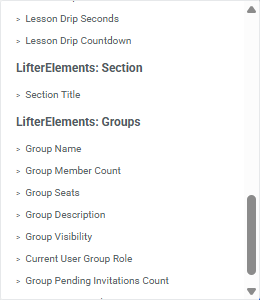
All group tags are listed under the LifterElements: Groups heading of the Elementor dynamic tag picker. By default each tag reads from the group being viewed (a single group page, or an Elementor Theme Builder template applied to the group post type) and outputs nothing anywhere else. Set the Group ID setting to read a specific group from any page. Every tag except Group Invitation Link first applies LifterLMS Groups' visibility rule and outputs nothing for a visitor who may not view the group: Open groups are readable by everyone, Private groups by logged-in visitors, Closed groups by their members, and administrators (manage_lifterlms) always. Within that, tags that describe the group itself return the same value for every visitor; only Current User Group Role depends on who is logged in.
Common setting
Every group tag has the same first setting.
| Setting | Description |
|---|---|
| Group ID | The numeric post ID of the group to read. Leave empty to use the current group. Enter an ID to read that group from any page, such as a course sales page or a sidebar. |
Group Name
Returns the group's title.
Type: Text · Source: the Name field on the group's Settings tab · Settings: Group ID (see above)
Group Description
Returns the group's description, as an excerpt or as the full formatted content.
Type: Text · Source: the group's About tab · Settings: Group ID (see above), plus:
| Setting | Description |
|---|---|
| Format | Excerpt (default) returns the group's short excerpt as plain text. Full Content returns the complete description with its formatting. |
Group URL
Returns the address of the group's page.
Type: URL · Source: the group's Web Address Slug on the Settings tab, combined with the site's permalink structure · Settings: Group ID (see above)
Group Visibility
Returns the group's visibility setting as a lower-case value.
Type: Text · Source: the Visibility dropdown on the group's Settings tab · Settings: Group ID (see above)
| Visibility setting | Output |
|---|---|
| Open | open |
| Private | private |
| Closed | closed |
Use it when — the value is displayed as-is, for example in a badge. To show or hide an element by visibility, use the Group Visibility condition in conditional logic instead.
Group Logo
Returns the group's logo image, for use in any Elementor image control such as the Image widget or a background image.
Type: Image · Source: the Update logo button on the group page header · Settings: Group ID (see above)
Group Banner
Returns the group's banner image, for use in any Elementor image control.
Type: Image · Source: the Update banner button on the group page header · Settings: Group ID (see above)
Group Member Count
Returns the number of members enrolled in the group, counted live from the group's enrollments.
Type: Text or Number · Source: the group's current enrollments · Settings: Group ID (see above), plus:
| Setting | Description |
|---|---|
| Format | Number Only (default) returns the bare count, so the tag also works in numeric controls such as the Counter widget. With Label returns the count with a label, for example 1 Member or 12 Members. |
Group Seats
Returns the group's seat usage in the format you choose.
Type: Text · Source: total seats are set through Manage Seats on the group's Settings tab; used seats are counted from current enrollments · Settings: Group ID (see above), plus:
| Setting | Description |
|---|---|
| Display | Which figure to output. See the table below. |
| Display option | Output |
|---|---|
| Used / Total (default) | Used and total seats, for example 3 / 10 |
| Total Seats | Total seats, for example 10 |
| Used Seats | Seats taken by members, for example 3 |
| Available Seats | Seats still open, for example 7 |
| Percentage Used | Used seats as a rounded percentage of the total, for example 30%. Returns 0% when the group has no seats. |
Group Pending Invitations Count
Returns the number of email invitations sent for the group that have not yet been accepted.
Type: Text or Number · Source: invitations sent from the group's Members tab · Settings: Group ID (see above)
Current User Group Role
Returns the logged-in visitor's role in the group. Although it is listed with the group tags, the value describes the visitor, not the group.
Type: Text · Source: the role assigned to each member under the group's Members tab · Settings: Group ID (see above)
| Situation | Output |
|---|---|
| Visitor is a group member | member |
| Visitor is a group leader | leader |
| Visitor is a group administrator | admin |
| Visitor is not in the group, or is logged out | empty |
Use it when — the role is shown as text. To show or hide an element by role, use the User Group Role condition in conditional logic instead.
Group Invitation Link
Returns the group's open invitation URL, the link anyone can use to join the group. It is the one group tag not limited by the group's visibility setting, because the invitation link is how people get into a Private or Closed group.
Type: URL · Source: Invite with Link under the group's Members tab · Settings: Group ID (see above)
| Situation | Output |
|---|---|
| The group has an open invitation link enabled | The invitation URL |
| No open invitation link is enabled | empty |
Use it when — you are building your own join button or link. For a ready-made button that also handles the "no link enabled" state, use the Group Invitation Link widget.
Group Course Title
Returns the title of the course or membership the group is linked to.
Type: Text · Source: the Course or Membership field on the group's Settings tab · Settings: Group ID (see above)
Group Course URL
Returns the address of the course or membership the group is linked to.
Type: URL · Source: the linked course or membership's permalink · Settings: Group ID (see above)
Group Course Image
Returns the featured image of the course or membership the group is linked to, for use in any Elementor image control. Empty if the linked course or membership has no featured image.
Type: Image · Source: the Featured image of the linked course or membership · Settings: Group ID (see above)
Notes
- The group widgets cover the common group-page layouts without dynamic tags: Groups List, Group Members, Group Page Course Card, Group Invitation Link, and Leave Group.
- To show or hide elements based on group data, use the four group conditions in conditional logic: User Group Enrollment, User Group Role, Group Visibility, and Group Seat Availability.
- There are no shortcode equivalents for the group tags. Group data is available only through these dynamic tags and the group widgets inside Elementor.