Lesson Dynamic Tags
Lesson Dynamic Tags
These tags are listed under LifterElements: Lesson in the Elementor dynamic tag picker. They read from the current lesson, so they only produce output on a lesson page: in practice, inside an Elementor Theme Builder template that applies to lessons.
Lesson content and media respect LifterLMS drip settings: while the lesson is not yet available to the current student, the content, audio, and video tags return nothing.
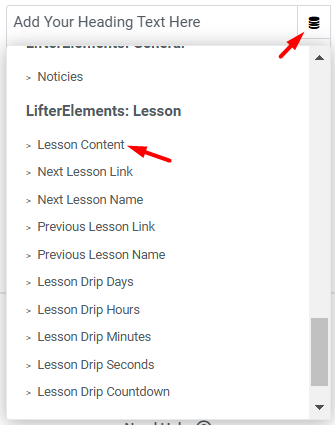
Type tells you which controls accept the tag: Text tags appear in text controls (Heading, Text Editor, button text, and similar); URL tags appear in link and media-source controls (a Button link, the Video widget's source, an Audio widget's URL).
Lesson Content
Returns the lesson content as written in the block editor, with any LifterLMS blocks removed so only your own content is returned. Empty while the lesson is drip-locked for the current student.
Type: Text · Source: the lesson's editor content · Settings: none
Use it when — a Text Editor widget should carry the lesson body while you place the lesson navigation and mark-complete elements yourself with the Lesson widgets.
Lesson Audio
Returns the lesson's Audio Embed URL. Empty if none is set, or while the lesson is drip-locked.
Type: URL · Source: Lesson Settings > Audio Embed URL · Settings: none
Lesson Video
Returns the lesson's Video Embed URL. Empty if none is set, or while the lesson is drip-locked.
Type: URL · Source: Lesson Settings > Video Embed URL · Settings: none
Use the media tags when — you want the lesson's video or audio in an Elementor Video or Audio widget rather than the LifterLMS embed. Because both return nothing while the lesson is drip-locked, the player does not appear before release. Pair with the drip tags to show a countdown in its place.
Back to Course URL
Returns the URL of the course that contains the current lesson. It is the tag counterpart of the Back to Course Button widget.
Type: URL · Source: the lesson's parent course · Settings: none
Use it when — a Button widget on the lesson template should send the student back to the course page.
Navigation tags
The next and previous tags follow the lesson order set in the course builder, across section boundaries. Each direction comes in three forms: Name returns the neighbouring lesson's title, URL returns its bare address, and Link returns a ready-made <a> element. At the first or last lesson, the Name tags fall back to the course title and the URL and Link tags to the course URL, so a "next" button on the final lesson leads back to the course; if the student cannot access the neighbouring lesson yet, the URL and Link tags return nothing.
Next Lesson Name
Returns the title of the next lesson in the course. On the last lesson, the course title is returned instead, matching the Next Lesson URL fallback.
Type: Text · Source: the next lesson's title · Settings: none
Next Lesson URL
Returns the URL of the next lesson. If there is no next lesson (the current lesson is the last one), the course URL is returned instead. If there is a next lesson but the current student cannot access it yet, nothing is returned.
Type: URL · Source: the next lesson's permalink · Settings: none
Next Lesson Link
Returns a complete link to the next lesson: <a href="…">Next Lesson</a>. The link text is fixed, except on the last lesson, where the course-URL fallback applies and the text reads Back to course. Follows the same fallback as Next Lesson URL, and returns nothing when that URL is empty.
Type: Text · Source: the next lesson's permalink · Settings: none
Use it when — you need a link inside a text control (a Text Editor or Heading) rather than on a widget's link setting. For a styled button, use the URL tag on a Button widget instead.
Previous Lesson Name
Returns the title of the previous lesson in the course. On the first lesson, the course title is returned instead, matching the Previous Lesson URL fallback.
Type: Text · Source: the previous lesson's title · Settings: none
Previous Lesson URL
Returns the URL of the previous lesson. If there is none (the current lesson is the first one), the course URL is returned. If the student cannot access the previous lesson, nothing is returned.
Type: URL · Source: the previous lesson's permalink · Settings: none
Previous Lesson Link
Returns a complete link to the previous lesson: <a href="…">Previous Lesson</a>. The link text is fixed, except on the first lesson, where the course-URL fallback applies and the text reads Back to course. Follows the same fallback as Previous Lesson URL, and returns nothing when that URL is empty.
Type: Text · Source: the previous lesson's permalink · Settings: none
Drip tags
LifterLMS drip settings delay a lesson's release: to a fixed date, or a number of days after enrollment, the course start, or a prerequisite. The drip tags render a live countdown to that release, counting down every second, and output nothing once the lesson is available or when the lesson has no drip schedule. They are set up under Lesson Settings > Drip Settings in the lesson editor (see the LifterLMS drip guide).
Users who can bypass LifterLMS content restrictions (administrators, and anyone covered by the Unrestricted Preview Access setting) are treated as though every lesson is already available, so the countdown renders nothing for them. Check it as an enrolled student.
Lesson Drip Countdown shows all four units together (for example 36 Days 6 Hours 10 Minutes 31 Seconds). The four single-unit tags each show one unit of that same countdown, not a total: Drip Hours shows the hours left in the current day (0 to 23), Drip Minutes the minutes left in the current hour (0 to 59), and Drip Seconds the seconds left in the current minute. Drip Days and Drip Hours can round their unit up; the other tags always round down.
Every drip tag has a For Which Lesson setting:
| Setting | Options | Default | Description |
|---|---|---|---|
| For Which Lesson | Current, Next | Current | Count down to the current lesson's release, or to the next lesson's, for example to tease when the following lesson unlocks. |
Lesson Drip Countdown
Renders the full countdown: days, hours, minutes, and seconds.
Type: Text · Source: Lesson Settings > Drip Settings · Settings: For Which Lesson
Lesson Drip Days
Renders the days remaining.
Type: Text · Source: Lesson Settings > Drip Settings · Settings: For Which Lesson, plus:
| Setting | Options | Default | Description |
|---|---|---|---|
| Round Day | Yes, No | No | Adds a day once 12 or more hours remain in the current day, so 36 Days 13 Hours shows as 37 Days. |
Lesson Drip Hours
Renders the hours remaining in the current day (0 to 23).
Type: Text · Source: Lesson Settings > Drip Settings · Settings: For Which Lesson, plus:
| Setting | Options | Default | Description |
|---|---|---|---|
| Round Hours | Yes, No | No | Adds an hour once 30 or more minutes remain in the current hour. |
Lesson Drip Minutes
Renders the minutes remaining in the current hour (0 to 59).
Type: Text · Source: Lesson Settings > Drip Settings · Settings: For Which Lesson
Lesson Drip Seconds
Renders the seconds remaining in the current minute (0 to 59).
Type: Text · Source: Lesson Settings > Drip Settings · Settings: For Which Lesson
Notes
- The lesson tags have equivalent shortcodes for layouts built outside Elementor. There, a single
[le-lessons-drip-time]shortcode with ashowattribute covers all five drip tags. - The Link tags and the URL tags are not interchangeable: the picker offers the Link tags only in text controls and the URL tags only in link and media-source controls.