5.2 Dynamic Tags
Dynamic tags bind a setting on any Elementor element to a piece of LifterLMS data (a course title, a lesson video URL, a group logo) so one template can serve every course, lesson or group. This page shows you where the Lifter Elements tags live and how they behave; the References Hub lists every tag.
Finding the dynamic tags
Open any page or template in the Elementor editor and select an element. Next to each control that accepts dynamic content, a Dynamic Tags icon appears (a stack of squares). Click it to open the tag picker. The Lifter Elements tags sit in six groups, each prefixed with LifterElements:
- LifterElements: Course — the current course's title, content, media, meta, access plans and progress
- LifterElements: Lesson — the current lesson's content, media, course URL, next and previous navigation, and drip countdown
- LifterElements: Quiz — the current quiz's title, description, information fields, the student's attempt results, the review URL and the parent lesson
- LifterElements: Section — the current section's title
- LifterElements: General — the LifterLMS notices queued for the visitor
- LifterElements: Groups — the current group's identity, media, membership, seats, invitations and linked course; appears only when LifterLMS Groups is active
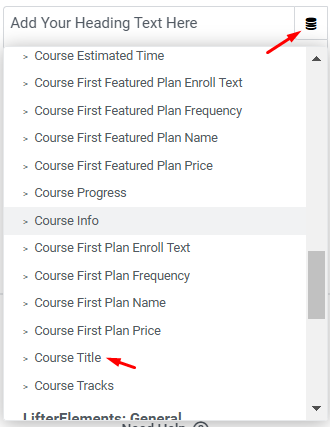
Pick a tag and the control's own value is replaced by the tag's output. To remove the tag and go back to a static value, open the picker again and choose the remove option. Dynamic tags are an Elementor feature; for the general mechanics see Elementor's dynamic content help.
A list of every available tag is also shown under Settings > Lifter Elements in the WordPress dashboard.
Which controls accept which tags
Each tag has a type, and the picker only offers tags whose type matches the control you clicked. The hub pages state the type of every tag.
| Type | Controls that offer it | Examples |
|---|---|---|
| Text | Text, textarea and rich-text controls: a Heading title, a Text Editor, a Button label | Course Title, Lesson Content, Group Name, Next Lesson Link |
| URL | Link and media-source controls: a Button link, the Video widget's source, the Audio widget's URL | Course Video, Next Lesson URL, Group Invitation Link |
| Image | Image controls: the Image widget, a background image | Course Featured Image, Group Logo, Group Banner |
| Number | Numeric controls such as the Counter widget | Group Member Count, Group Pending Invitations Count |
The Link and URL tags are not interchangeable: a Next Lesson Link tag returns a complete <a> element and is offered only in text controls, while Next Lesson URL returns the bare address and is offered only in link and media-source controls.
Tags resolve the current course, lesson or group
Lifter Elements tags carry no configuration for which item to read; they read from whatever is being viewed. That is what makes them suited to Elementor Theme Builder templates: the same template renders the right data on every course, lesson or group page.
| Group | Reads from | Outside that context |
|---|---|---|
| Course | The course being viewed, or the parent course of the lesson being viewed | Empty |
| Lesson | The lesson being viewed | Empty |
| Quiz | The quiz being viewed | Empty |
| Section | The section of the lesson being viewed; on a course page, the section holding a logged-in student's next incomplete lesson | Empty |
| General | The notices queued for the current visitor, on any page | Empty when nothing is queued |
| Groups | The group being viewed, unless a Group ID is set in the tag's settings | Empty |
Some tags also depend on the visitor. Course Progress and Current User Group Role reflect the logged-in student, and lesson content, media and navigation tags respect LifterLMS drip and access rules: a drip-locked lesson returns nothing, and the drip countdown never renders for administrators. Check those tags while logged in as an enrolled student.
Tag settings
Most tags have no settings: pick them and they output their value. A few expose settings behind the wrench icon that appears on the control once the tag is applied. Click it to open them.
- Course Information — a Field dropdown chooses which course setting to return (start date, enrollment dates, capacity, restriction messages and so on), plus a date format for the date fields. See Course Dynamic Tags.
- Course Progress — a Type setting switches between a percentage (
45%) and steps (3 / 12). See Course Dynamic Tags. - Lesson Drip tags — a For Which Lesson setting counts down to the current or the next lesson's release; Drip Days and Drip Hours add a rounding option. See Lesson Dynamic Tags.
- Quiz Information and Quiz Attempt — a Field dropdown chooses which quiz setting (passing grade, attempts, questions, time limit) or which attempt value (best or last grade, status, correct answers, completed date, total time) to return, with a date format for the completed date. See Quiz Dynamic Tags.
- Group tags — every group tag has a Group ID setting to read a specific group from any page; Group Description, Group Member Count and Group Seats add a format or display choice. See Groups Dynamic Tags.
Section Title and Notices have no settings. See Other Dynamic Tags.
Dynamic tags vs shortcodes
Dynamic tags work only inside Elementor controls. The course, lesson and section tags each have a shortcode equivalent that returns the same data anywhere shortcodes run: the block editor, theme widgets, or a Text Editor widget's content. Quiz data, group data and Notices are available only as dynamic tags. See Shortcodes.
Next step
Learn where the shortcode equivalents live and how they take attributes: Shortcodes.