5.3 Shortcodes
Lifter Elements registers 32 shortcodes that output a single value from the current LifterLMS course, lesson or section: a title, a price, a video URL, a next-lesson link. They are for content written outside Elementor: block-editor pages, theme widgets, other page builders.
Finding the shortcodes
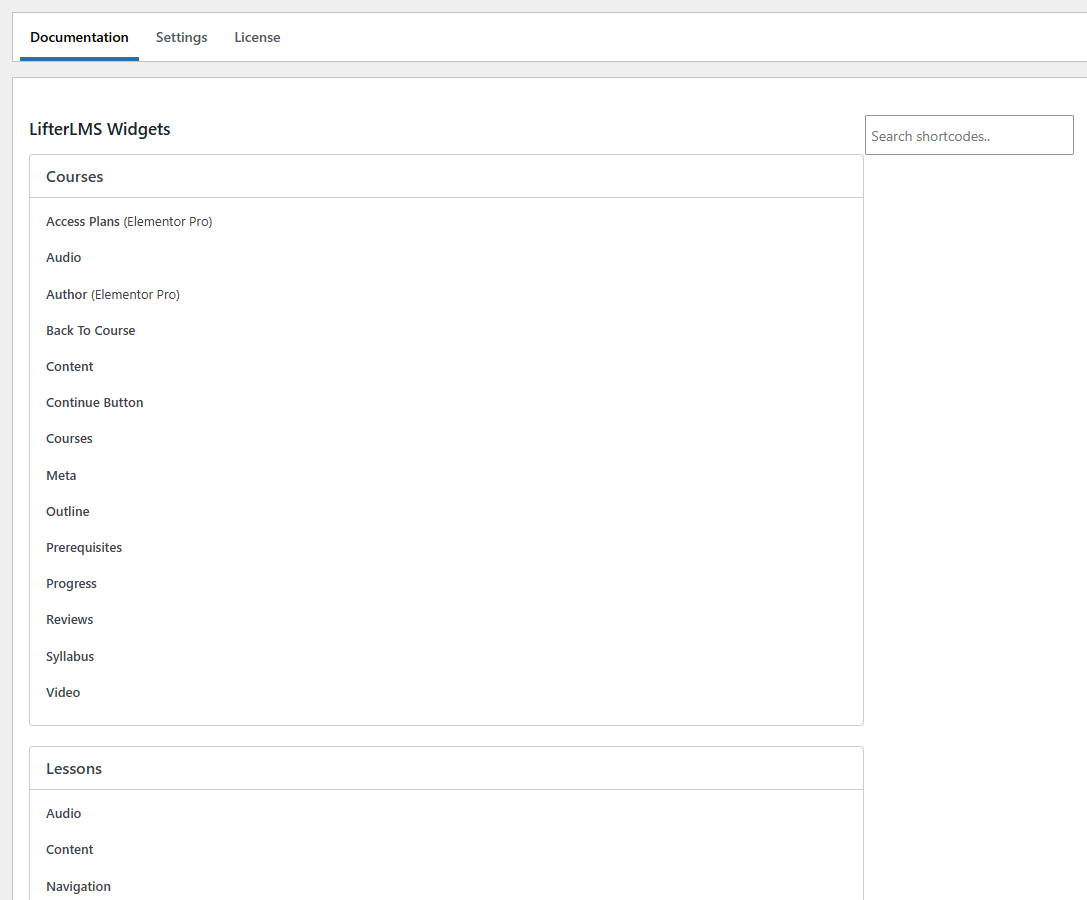
The full list lives in your WordPress admin under Settings > Lifter Elements, on the Documentation tab. The tab lists every widget, dynamic tag and shortcode the plugin registers; scroll to the LifterLMS Shortcodes area at the bottom, expand the group you need (Course, Lesson or Section), and copy the tag. (The search box at the top filters the widgets list only.)
Every tag follows the same pattern, [le-{group}-{key}], where the group is courses, lessons or sections: [le-courses-title], [le-lessons-next-url], [le-sections-title].
How to insert a shortcode
A shortcode works anywhere WordPress processes shortcodes:
- Block editor — add a Shortcode block and paste the tag, or type it inline inside a Paragraph block when it should sit within a sentence.
- Elementor — paste it into a Shortcode widget or a Text Editor widget. Inside Elementor a dynamic tag is usually the better choice; see below.
- Theme widgets — a Text or Custom HTML widget in a sidebar or footer that appears on course and lesson pages.
- Other page builders — any text control that processes WordPress shortcodes, even if the builder has no LifterLMS integration.
Only one shortcode, [le-lessons-drip-time], accepts attributes. All the others are written exactly as listed, with nothing inside the brackets but the tag.
Shortcodes resolve the current course, lesson or section
You never tell a shortcode which course or lesson to read. It reads from the page it is rendered on:
| Group | Outputs on | Outputs nothing on |
|---|---|---|
le-courses-* | A course page, or a lesson page (the lesson's parent course is used) | Quizzes, archives, and any page that is not a course or lesson |
le-lessons-* | A lesson page | Any other page |
le-sections-* | A lesson page (that lesson's section), or a course page for a logged-in student (the section holding their next incomplete lesson) | A course page for a logged-out visitor, and any other page |
Because an out-of-context shortcode outputs nothing rather than an error, a theme widget carrying [le-courses-title] can stay site-wide: it fills in on course and lesson pages and is simply blank elsewhere.
Since 1.7.9 every key is lowercase: [le-lessons-next-url], [le-sections-id]. The former upper-case forms ([le-lessons-next-URL], [le-sections-ID]) still render but are deprecated; rendering one logs a WordPress deprecation notice when WP_DEBUG is on, and the plugin's settings page shows a notice with the old → new map on its Documentation tab. Use the lowercase form in new content.
The lesson drip countdown is the one shortcode whose output depends on how the page is rendered: its numbers are filled in by the plugin's front-end script, which only runs on pages Elementor renders. See Lesson Drip Time.
Shortcodes or dynamic tags?
Every shortcode has a matching dynamic tag. The two return the same values, so the choice is about where you are editing:
- Inside Elementor, use the dynamic tag. It binds straight to the widget control (a Heading's text, an Image's source, a Button's link) with no brackets to type and no Shortcode widget in the layout.
- Everywhere else, use the shortcode. The block editor, theme widgets and other builders cannot read Elementor dynamic tags, but they all process shortcodes.
The three groups
The References Hub documents each shortcode with its key, output type and typical uses:
- Course shortcodes — title, content, categories, tracks, difficulty, length, media URLs, progress, and the featured-plan and first-plan sets.
- Lesson shortcodes — content, media URLs, next and previous lesson IDs and URLs, and the drip countdown.
- Section shortcodes — the current section's title and ID.
Next step
The Documentation tab is one of several tabs on the plugin's settings screen. The next page walks through them: The Settings Page.