How to Grant LearnDash Course Access Through a Membership Plan
Link one or more LearnDash courses to a WooCommerce Memberships plan so that anyone with that membership is enrolled automatically — and unenrolled when the membership ends.
- LearnDash, WooCommerce, and WooCommerce Memberships active (Installation & Setup).
- A published LearnDash course.
- A WooCommerce Memberships plan (WooCommerce → Memberships → Membership Plans).
1. Open the plan's Course Enrolment tab
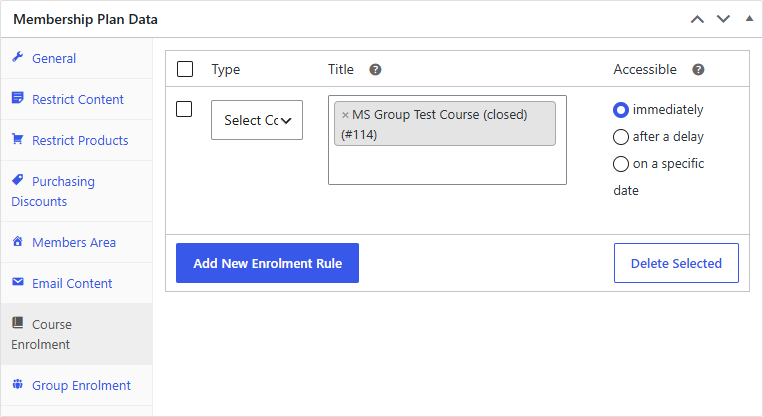
Go to WooCommerce → Memberships → Membership Plans, edit your plan, and open the Course Enrolment tab.
2. Add an enrolment rule
Click Add New Enrolment Rule. Set Type to Select Courses, then in Title choose the course(s) to grant. Leave Title blank to grant all courses.
3. Set the schedule and save
Set Accessible to immediately, then Save the plan.
4. Grant a member the membership
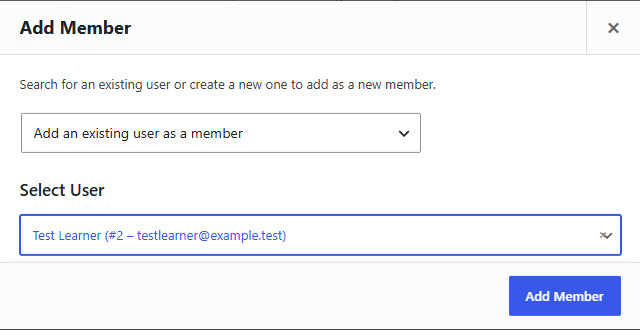
Go to WooCommerce → Memberships → Members and click Add New User Membership. In the Add Member dialog, choose the user; then set the Plan and a status of Active, and Save.
Result
The member is enrolled in the linked course(s) right away. You can confirm on the user's profile (their LearnDash enrolled courses) or on the course's enrolled-users list. If the membership is later cancelled, expired, or paused, MemberDash removes the access — unless the member still holds it through another active membership.
To grant everything and keep new courses flowing to members automatically, leave Title blank, or use a category rule — see How to Grant Access by Course Category.