How to Sync a WooCommerce Team to a LearnDash Group
Keep a WooCommerce Team and a LearnDash group in sync: team members become group members automatically, so a team's people all get the group's courses.
Teams for WooCommerce Memberships active, plus a product configured for team memberships.
1. Enable team-synced groups on the product
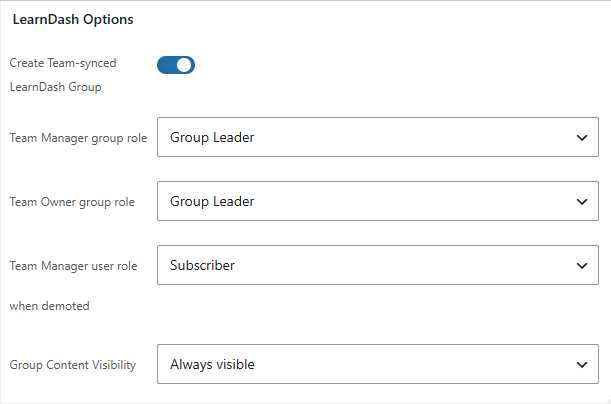
On the product that sells the team membership, open the MemberSync product tab and enable Create Team-synced LearnDash Group. See Product Settings.
2. Create the team
Create the team by purchasing the product — the customer becomes the team owner. The synced group is created only for teams that come from a product with this option enabled; a team added manually under WooCommerce → Memberships → Teams is not synced (it has no product behind it).
3. MemberDash creates and syncs the group
When the team is created, MemberDash automatically creates a LearnDash group (named after the team) and mirrors the team's people into it: members become group members, and managers/owners can become group leaders (see Map Team Roles to a Group Leader).
Result
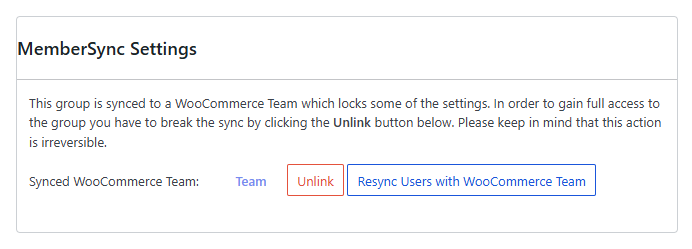
The team and group stay in step as members are added or removed. The synced group is managed from the group editor's MemberSync Settings box, which offers Unlink (break the sync — irreversible) and Resync (reconcile group members with the team).