How to Display Progress and Status
Showing learners where they are in a course — how far they have progressed, whether the current item is complete, and what action to take next — is core to a good LMS experience. BeaverDash provides three modules specifically for this.
- Completed Using Modules
- A Beaver Themer layout for a course or lesson page
The three modules
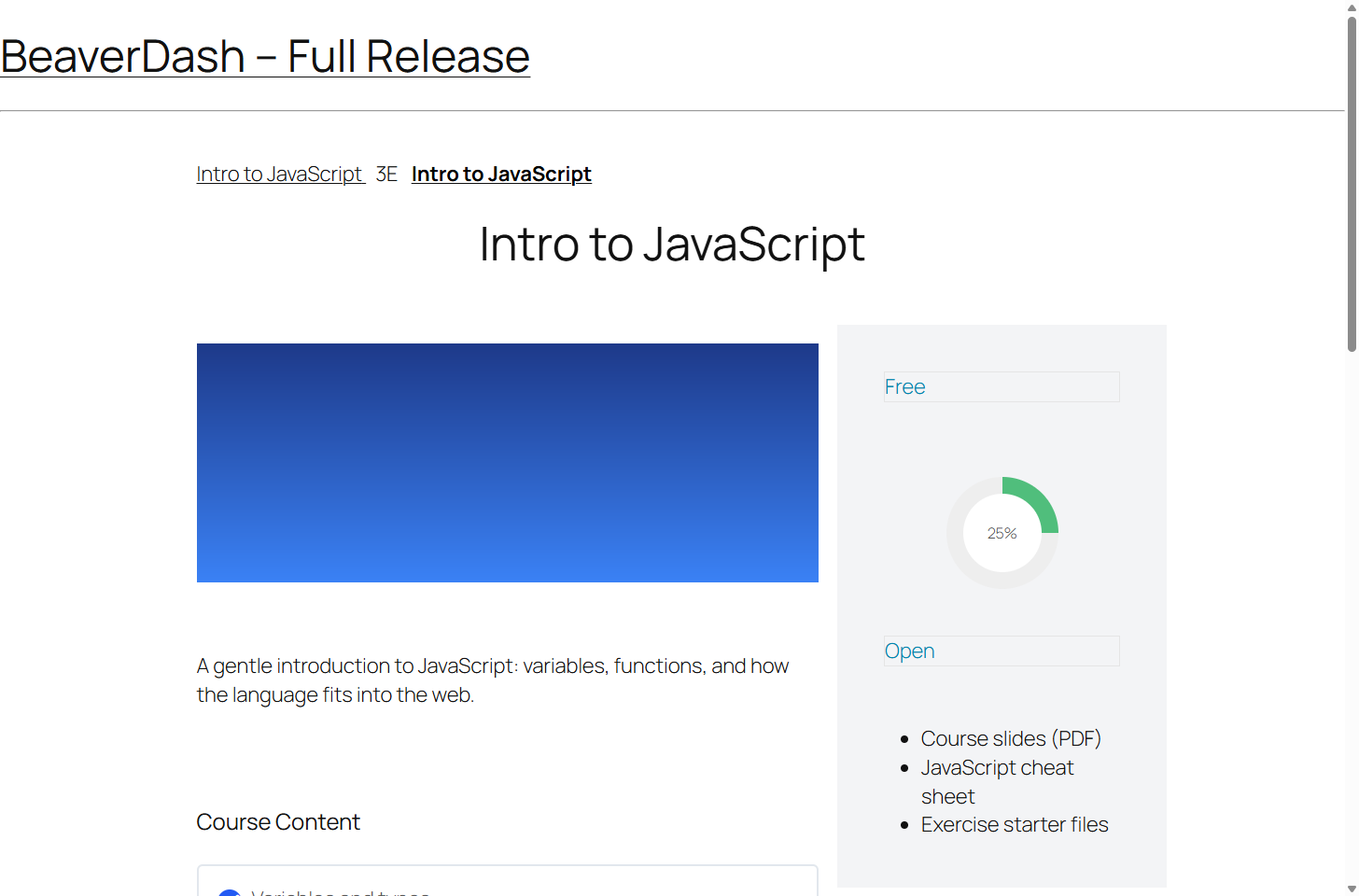
Course Progress renders a visual progress bar showing the current user's completion percentage for a course. It supports multiple display shapes (line, circle, semi-circle, text, raw) and updates automatically as the learner completes items.
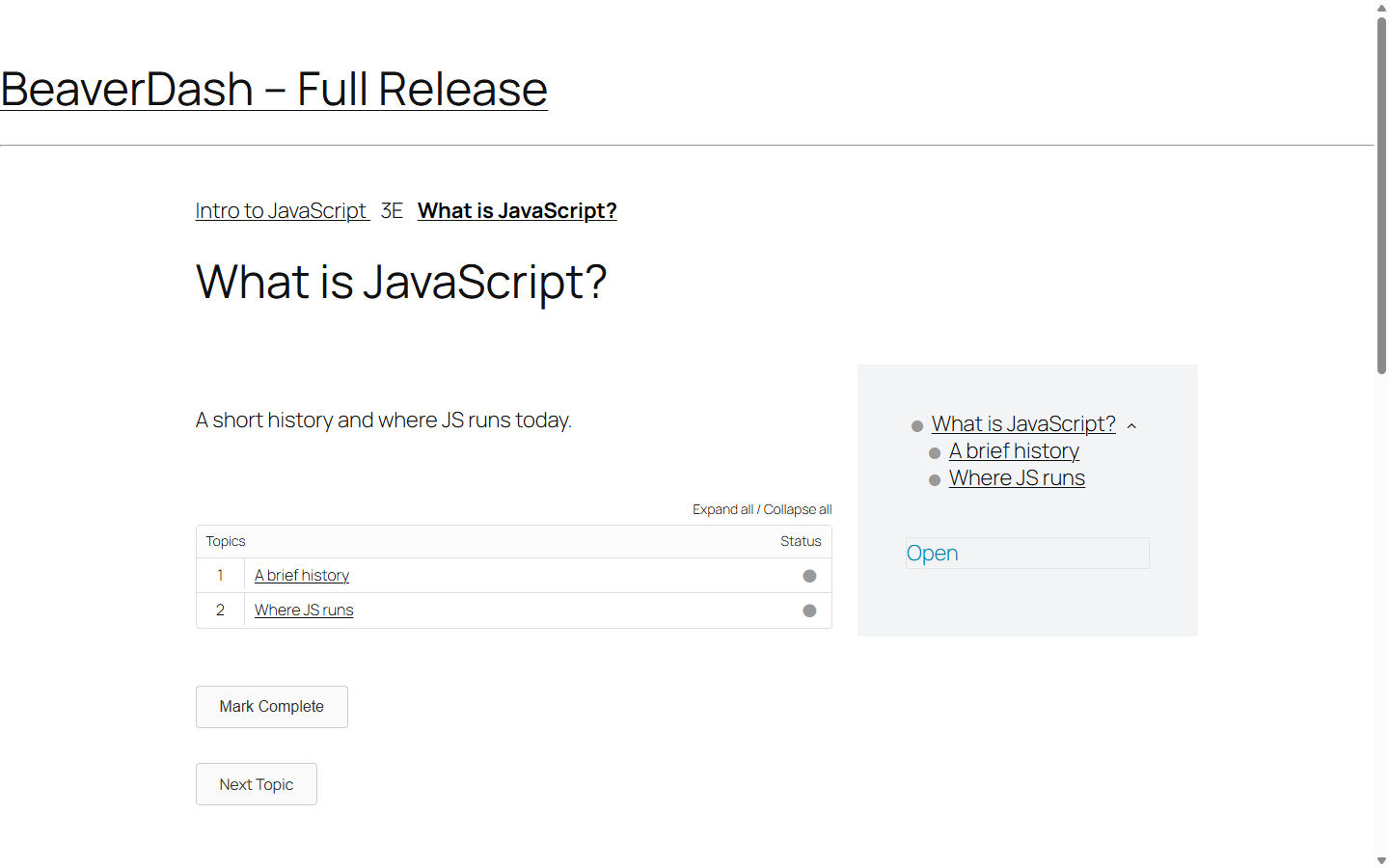
Status renders a configurable label based on the current item's state — Open, Started, Completed, or Locked. Each state has its own text, icon, and color settings, so you can show "In progress" in one colour and "Locked" in another.
Mark Complete renders LearnDash's mark complete button. It hides automatically once the item is marked complete and locks when video progression or a timer is active.
1. Add a Course Progress bar
On a course template, add the BeaverDash Course Progress module. In the Settings tab, the default shape is Line and the default progress type is Percentage. Save and preview on a course page where you have some progress to confirm it renders.
To use a circular bar instead, change Shape to Circle in the Settings tab.
2. Add a Status label
On a lesson or topic template, add the BeaverDash Status module. Open the General tab and configure what each state shows:
- Set Open to show "Not started" with a neutral colour
- Set Started to show "In progress" with an accent colour
- Set Completed to show a checkmark icon
- Set Locked to show "Complete the previous lesson first"
The module evaluates the current user's state automatically and renders the matching output.
3. Pair the Mark Complete button with progress
Add the BeaverDash Mark Complete module at the bottom of a lesson or topic template. In the General tab, set Redirect to Next so learners advance to the next item automatically after clicking.
When a learner completes an item, the progress bar on the course page updates to reflect the change.
4. Test the full progression flow
Visit a lesson as a test user who has not started it. The Status module should show the Open state. Click Mark Complete — the button should disappear, the Status should update to Completed, and the Course Progress bar on the course page should reflect the change.
What you've accomplished
You have the three core progression modules in place. Learners can see their progress at a glance, understand the state of each item, and advance through the course with a single click. These three modules together form the foundation of the learner experience in most BeaverDash-powered LMS sites.