How to Build a Course Grid with Custom Cards
The Course Grid module includes a custom HTML/CSS template system that lets you design each course card exactly as you want, pulling dynamic LearnDash data into the card using BeaverDash shortcodes.
- BeaverDash installed, activated, and licensed
- At least two published LearnDash courses with featured images
1. Add the Course Grid module
Add the BeaverDash Course Grid module to any page or Beaver Themer layout where you want to display a course catalog.
2. Switch to a Custom post layout
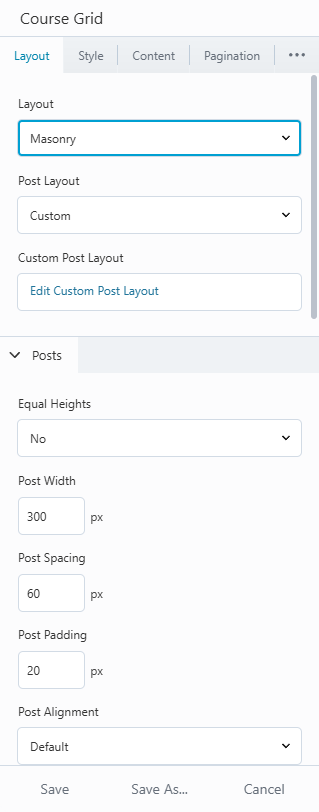
In the Course Grid settings, under the Layout tab, find the Post Layout setting and switch it from Default to Custom. A sub-panel opens with two tabs: HTML and CSS.
3. Write the card HTML
In the HTML tab, write the markup for each card. Use BeaverDash shortcodes to pull in dynamic course data. For example:
<div class="my-course-card">
  <div class="card-image">
    [bdash_image]
  </div>
  <div class="card-body">
    <h3>[bdash_course_title]</h3>
    <p>[bdash_course_description]</p>
    <div class="card-footer">
      [bdash_course_price]
      [bdash_enroll_button]
    </div>
  </div>
</div>
The shortcodes in the HTML template are evaluated per card in the context of each course, so [bdash_course_title] outputs that specific course's title for each card.
4. Add card styles in the CSS tab
In the CSS tab, write styles scoped to your card class. The CSS is output on the page alongside the grid. Keep selectors specific to your card class to avoid affecting other elements:
.my-course-card {
  border: 1px solid #e5e5e5;
  border-radius: 6px;
  overflow: hidden;
}
.my-course-card .card-body {
  padding: 16px;
}
.my-course-card h3 {
  margin: 0 0 8px;
}
5. Configure columns and spacing
In the Layout tab, set the number of columns for desktop, tablet, and mobile. Adjust Spacing and Padding to control the gap between cards and the internal card padding.
6. Preview and refine
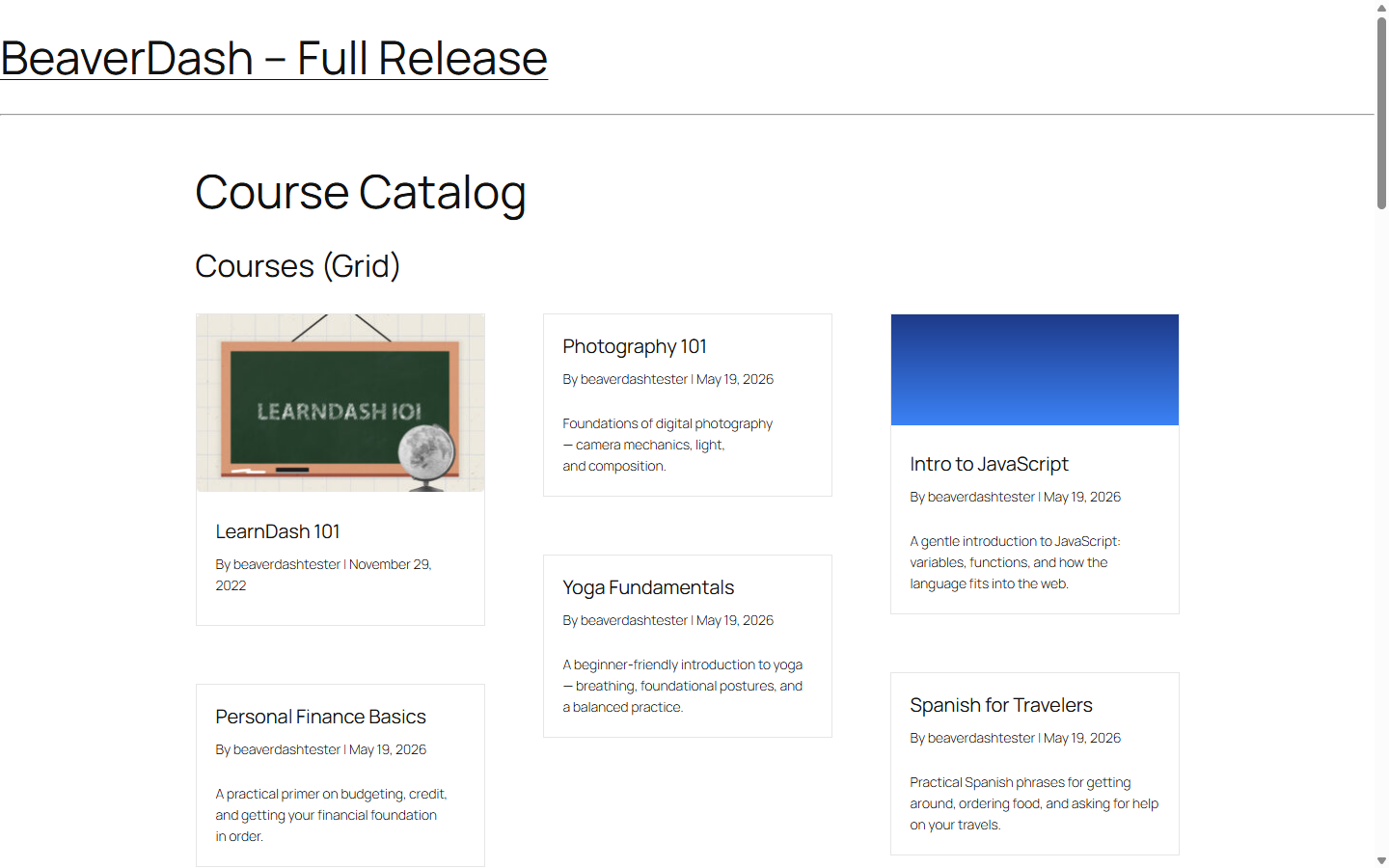
Save and preview the page. Each card should show the course data pulled dynamically from LearnDash. The Enroll button automatically hides for courses the current user is already enrolled in.
Result
You have a fully custom course catalog grid where each card design is under your control. Changes to the card template apply to all courses in the grid at once.