How to Build a Course Template
Build a Beaver Themer layout targeting LearnDash courses so that one design applies automatically to every course on your site, pulling in the correct course data for whichever course the visitor is viewing.
- Beaver Builder and Beaver Themer installed and active
- LearnDash installed and active with at least one published course
- BeaverDash installed, activated, and licensed
1. Create a Themer singular layout
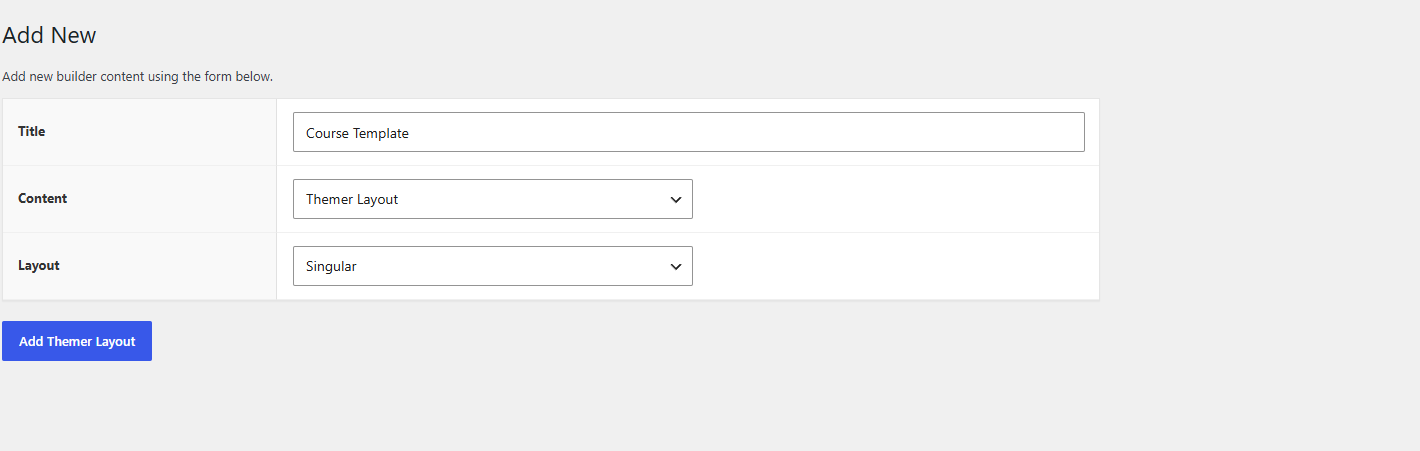
In your WordPress admin, go to Beaver Builder > Themer Layouts and click Add New. Set the layout type to Singular and assign the location to LearnDash > Courses.
2. Open the layout in Beaver Builder
Click Launch Beaver Builder to open the editor. You are now building a template that will apply to every course page.
3. Add a course header section
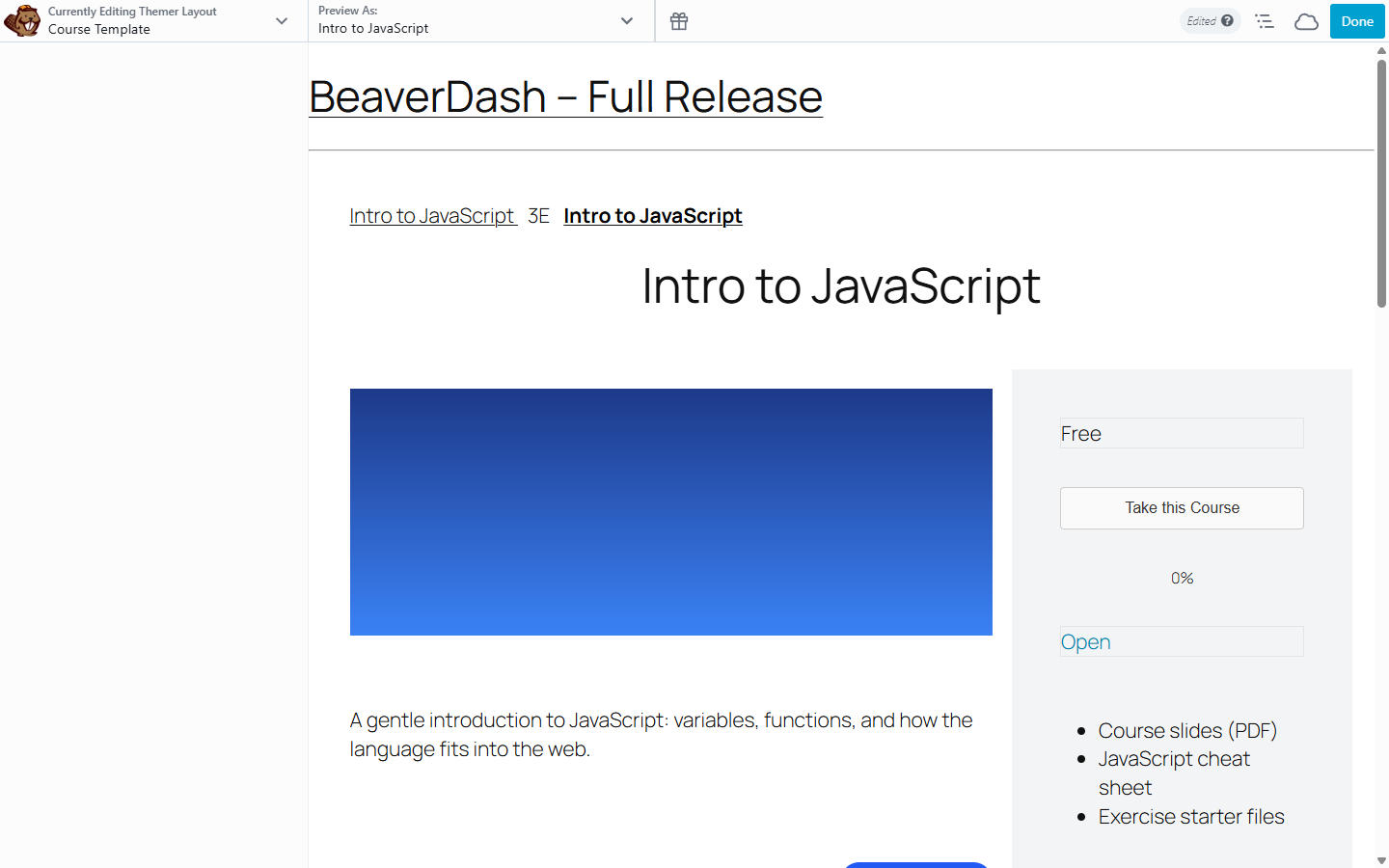
Add a row at the top of the layout. Inside it, add a Beaver Builder Heading module. Connect the heading to the course title by clicking the connect icon next to the text field and selecting BeaverDash - Course > Course Title.
Add a BeaverDash Image module below the heading for the course featured image.
4. Add the course navigation
Add a second row. Place the BeaverDash Course Navigation module in a sidebar column. This renders the full course outline — lessons, topics, and quizzes — with completion status icons.
In the Course Navigation General tab, set Expand to Current so the outline shows only the active section rather than expanding the entire course at once.
5. Add the course content area
In the main content column alongside the navigation, add whichever modules match your course design:
- Course Progress — shows the current user's progress through the course
- Course Content Table — a structured table of lessons and topics with completion statuses
- Enroll — the enrollment button (hides automatically for enrolled users)
6. Save and preview
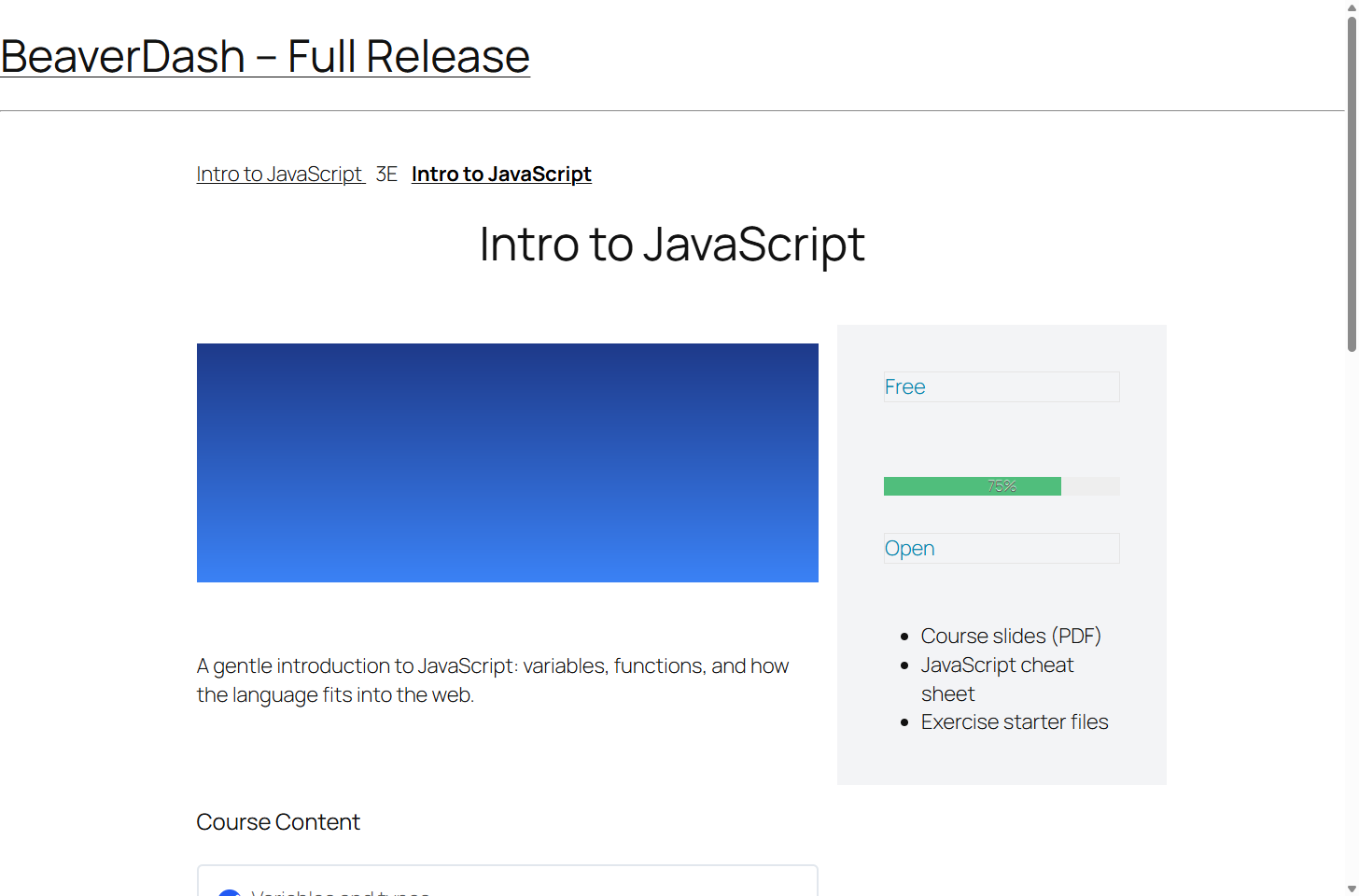
Click Save. Visit any published course page — the template should render with that course's actual data. Check that the course title, featured image, and navigation outline are showing correctly.
Result
Every LearnDash course page on your site now uses this template and populates automatically with each course's own data. Changes to the template apply to all courses at once.