Membership Plans: Course & Group Enrolment
MemberSync adds two tabs to a WooCommerce membership plan, Course Enrolment and Group Enrolment, where you choose which LearnDash courses (or groups) a plan's members are enrolled in. When a customer gains the membership they're enrolled automatically; when they lose it, they're unenrolled, unless they still hold that access another way.
This requires WooCommerce Memberships, and the LearnDash courses (or groups) you want to target must already exist. See Compatibility.
Opening the Course Enrolment tab
- Go to WooCommerce > Memberships > Membership Plans and edit the plan (or add a new one).
- In the Membership Plan Data box, open the Course Enrolment tab.
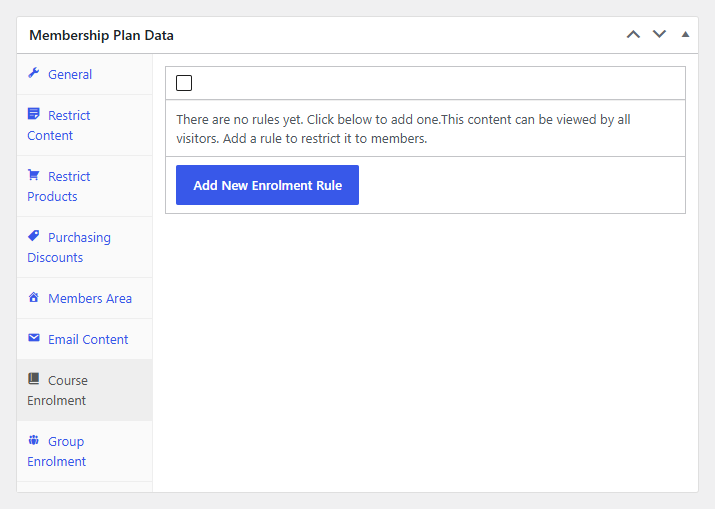
A plan with no rules enrolls members in nothing on its own. You add enrollment rules to say what its members get.
Adding an enrollment rule
Select Add New Enrolment Rule. Each rule has three parts:
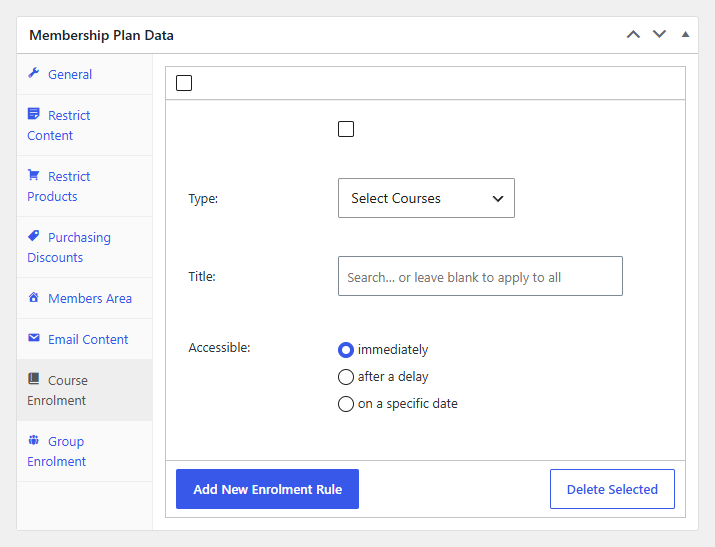
- Type, what the rule targets:
- Select Courses: one or more specific LearnDash courses.
- Select Course Terms: every course in a course category.
- Title: search for and choose the specific course(s) or category. Leave it blank to apply the rule to all courses.
- Accessible, when members gain access:
- immediately: as soon as the membership becomes active.
- after a delay: a set time after the member's start date; you choose the amount and the period (days, weeks, months, or years).
- on a specific date: access unlocks on a chosen calendar date.
Add as many rules as the plan needs, then Update the plan to save. Delayed and date-based rules are applied automatically when they're due. There's no manual step.
Group Enrolment
The Group Enrolment tab enrolls members into LearnDash groups instead of individual courses. This is useful when your content is organized into groups (a cohort, or a bundle of courses). It works the same way as Course Enrolment, with one difference: there's no Type option, so you choose the group(s) directly.
- Open the Group Enrolment tab and select Add New Enrolment Rule.
- In Title, search for and choose the LearnDash group(s), or leave it blank to apply to all groups.
- Set Accessible (immediately, after a delay, or on a specific date) exactly as for courses.
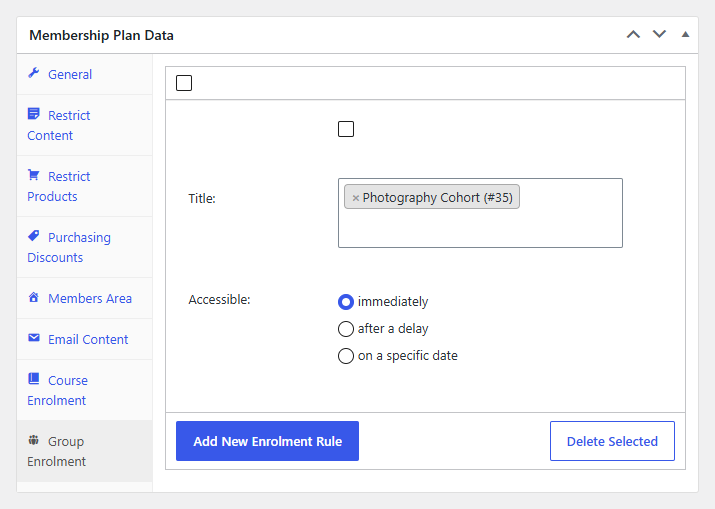
Update the plan to save. Members of the plan are then enrolled in the group (and its courses) while their membership is active.
How access is applied
- Access is granted for active (and pending) memberships and removed when a membership ends (expires, is canceled, or paused).
- After a delay rules count from the member's purchase/start date; on a specific date rules unlock at that date, and both are applied automatically.
- If a member already has a course another way (a second membership, a license, or a free/open course), MemberSync leaves that access in place and only removes what the ending membership itself granted.