Organizations & Organization Types
An organization is a group (a company, team, or similar) that holds seats and licenses and has members in roles. An organization type is a template that defines an organization's defaults and per-role seat benefits.
Both are managed from the MemberSync menu.
Organization Types
Go to MemberSync > Organization Types > Add new. An organization type has three tabs:

- General: the type's name, its Visibility, and an optional default Seat Type.
- Access: access-related settings for organizations of this type.
- Seat Benefits: what each role (owner, manager, member) is entitled to.
Create the organization types you need before creating organizations, so you can assign a type to each one.
Organizations
Go to MemberSync > Organizations > Add new, give the organization a title, then open Organizations Details:
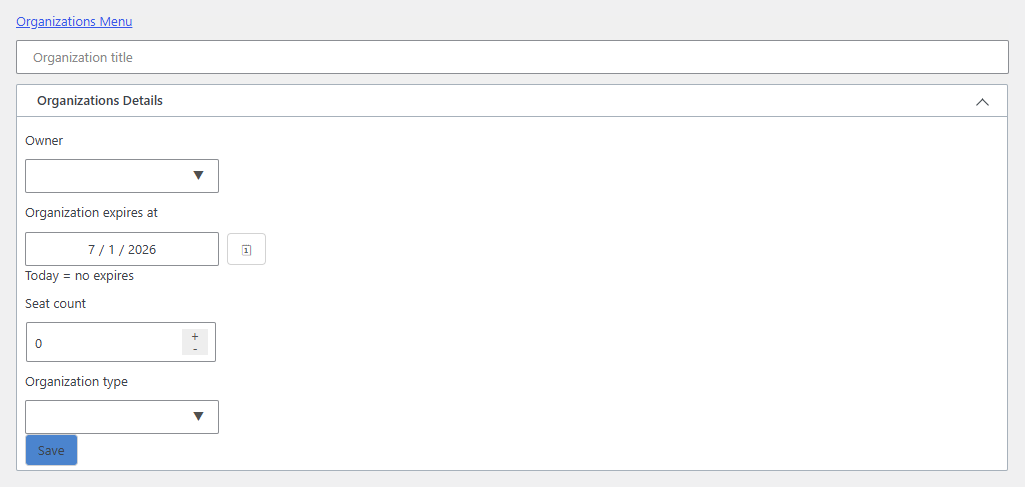
- Owner: the account that owns and manages the organization. Set this. The owner manages the organization's members and seats from the dashboard (see Managing members and seats below), so an organization needs an owner to be manageable.
- Organization expires at: when the organization expires (leave as today for no expiry).
- Seat count: how many seats the organization has.
- Organization type: the type this organization is based on.
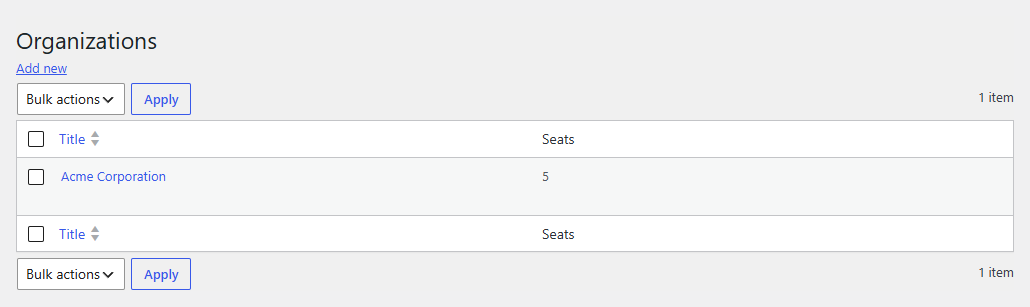
Saved organizations appear in the Organizations list:
Managing members, seats, and licenses
Adding members to an organization is still being finalized in the current release. On this build a member may not be added even though the form submits. The steps below describe the intended workflow.
Day-to-day management (adding members, giving them seats, and reviewing progress) happens in the front-end MemberSync Group Dashboard, used by the organization's owner (and any managers). Open the dashboard, find the organization, and choose View to open its management page:
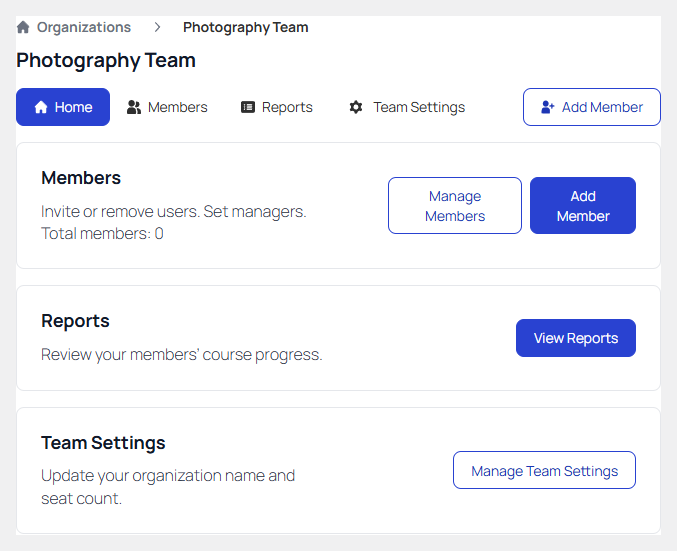
From here you can:
- Members: Add Member adds people (by name and email, as a member or manager) or invites them; Manage Members removes people or promotes them to manager. Each member added takes one of the organization's seats.
- Manage Seats: add more seats to the organization when you run low.
- Reports: Course Report and User Report views of your members' course progress, with charts.
- Settings: update the organization's name and seat count.
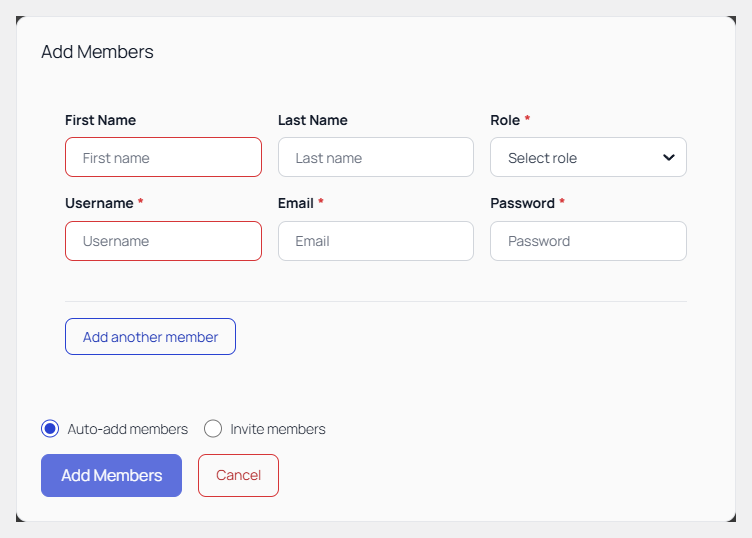
Adding members opens a short form. Enter their details (or switch to Invite members), then select Add Members:
Members automatically receive the access their seat carries (the courses and licenses granted by the organization's seat type(s) and organization type), without assigning licenses one by one.