04. Installation & Setup
This page walks through installing MemberSync and confirming your site has everything it needs.
Before you begin
MemberSync is an integration layer, so its dependencies must be installed and active first. Confirm you have:
- LearnDash (with at least one course)
- WooCommerce
- WooCommerce Memberships
Depending on which features you use, also install:
- Teams for WooCommerce Memberships: for team memberships
- WooCommerce Subscriptions: for subscription-based licenses
See Compatibility for full requirements and supported versions.
Install MemberSync
- In your WordPress admin, go to Plugins > Add New > Upload Plugin.
- Choose the MemberSync plugin
.zipfile and select Install Now. - Select Activate.
On activation, MemberSync sets up the tables it needs and adds a MemberSync menu to your admin sidebar.
Activate your license
Activate your MemberSync license so you receive updates and support. Go to Settings > MemberSync and enter your license key.
Confirm the setup
- A MemberSync menu appears in the admin sidebar, with License Types, Organizations, Organization Types, and Seat Types.
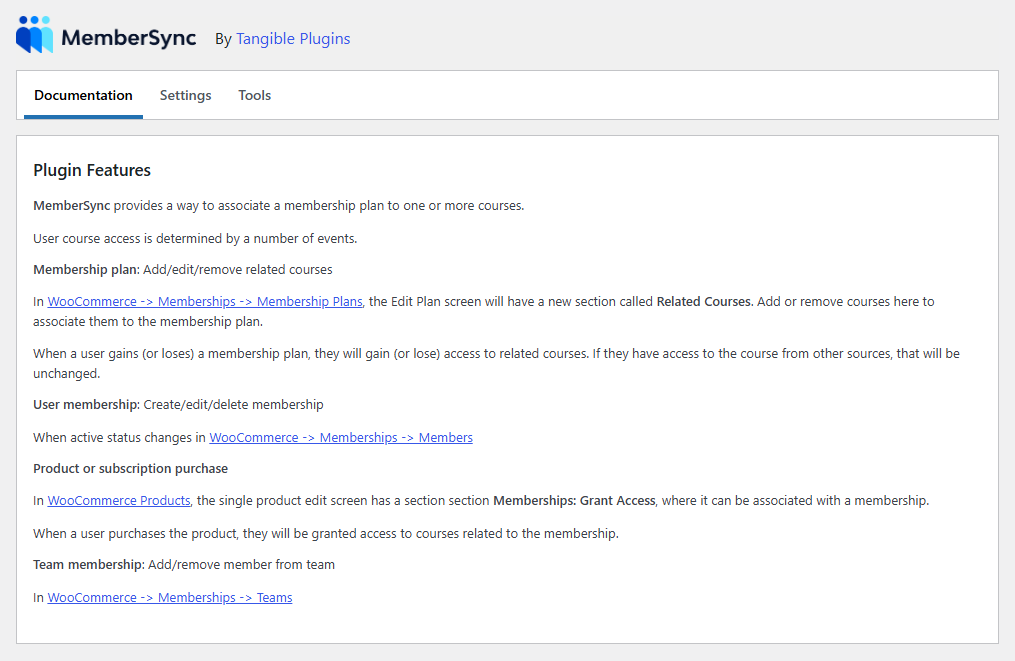
- Under Settings > MemberSync, you'll see the Documentation, Settings, and Tools tabs.
Next
- Basic Usage: learn the MemberSync interface.
- Getting Started with LearnDash and WooCommerce & Memberships if you haven't set those up yet.