License Types
A license grants LearnDash access to whoever holds it. Licenses are created from license types, reusable templates that define what a license grants. License types are managed under MemberSync > License Types.
Generating license types automatically
The quickest way to have a license type for every course is to let MemberSync generate them from your LearnDash content, so you don't create them by hand.
1. Enable content sync. Go to Settings > MemberSync > Settings, and under Licensing settings turn on Sync LearnDash Content as license types. Select Save Settings.
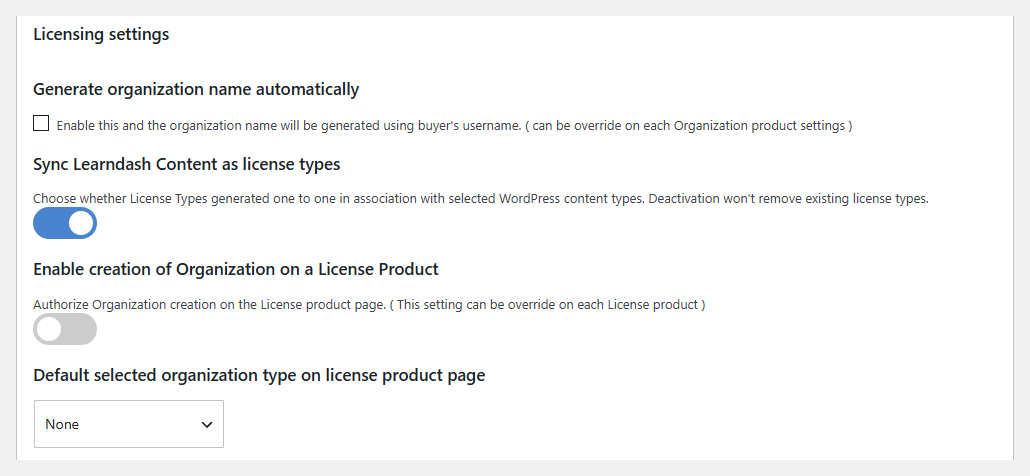
2. Your license types are created. MemberSync generates one license type per LearnDash course and per course category. They appear in the list under MemberSync > License Types:
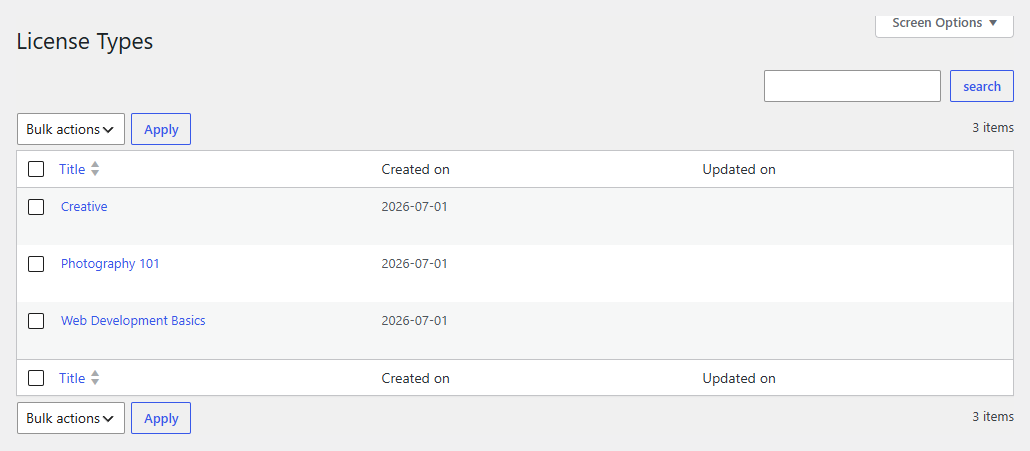
These stay in sync as you add content. Turning the setting off later doesn't remove license types that were already generated.
Opening a license type
Select a license type from the list to open it. It has two sections:
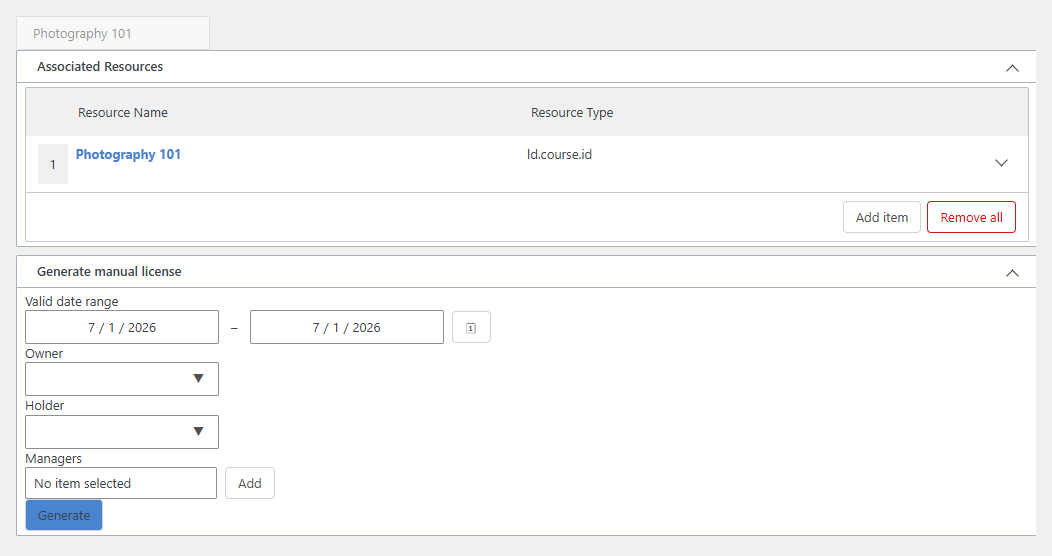
Associated Resources
The LearnDash content this license type grants. For a course license type, this is the course itself (each resource lists its name and content type). For system-generated types this is kept in sync with your content automatically.
Generate a license manually
From here you can create a single license from this type on demand, for example to grant access to someone outside a purchase.
- Set the Valid date range, the period the license is valid for.
- Choose an Owner, the account that owns the license.
- Choose a Holder, who receives its access.
- (Optional) Add Managers, who can manage the license.
- Select Generate.
Custom license types
Besides the generated ones, MemberSync is designed to support custom license types, admin-defined templates that combine multiple resources for bundled or non-standard access.
On the current release the License Types screen has no Add new form, so custom license types can't be created from the admin yet. For now, license types are generated from your LearnDash content (see above).