6.2 The Membership Plan Rule Builder
MemberDash adds two tabs — Course Enrolment and Group Enrolment — to every WooCommerce Memberships plan. These are where you decide which LearnDash courses, course categories, or groups a plan grants. This is the heart of the plugin.
Create the membership plan itself in WooCommerce Memberships first (WooCommerce → Memberships → Membership Plans → Add Membership Plan). See the WooCommerce Memberships documentation. You'll also need at least one published LearnDash course (or group).
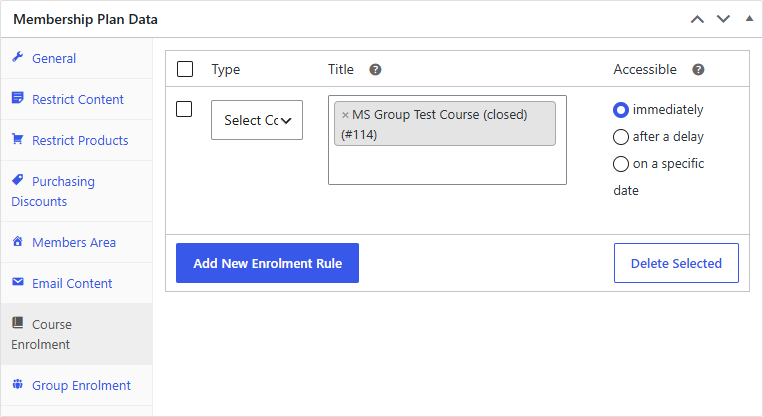
The Course Enrolment and Group Enrolment tabs
Open a membership plan for editing. Alongside WooCommerce's own tabs (General, Restrict Content, etc.) you'll see two added by MemberDash:
- Course Enrolment — grant LearnDash courses (directly, or by course category).
- Group Enrolment — grant LearnDash groups.
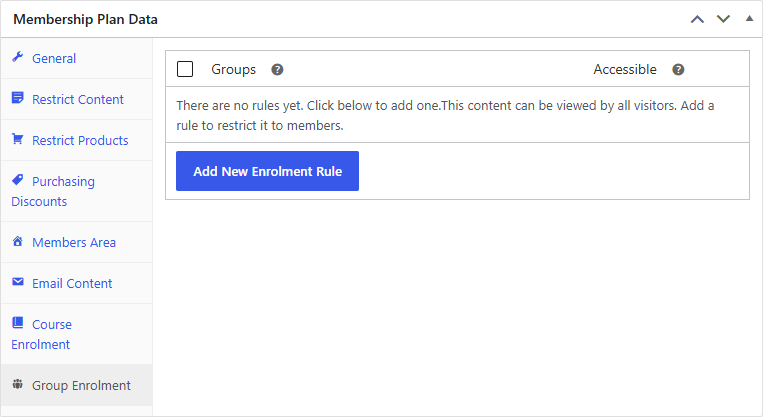
The Group Enrolment tab works the same way, but grants LearnDash groups instead of courses. It starts empty until you add a rule:
Adding an enrolment rule
On either tab, click Add New Enrolment Rule and configure the row:
- Type — what kind of content the rule grants:
- On Course Enrolment: Select Courses or Select Course Terms (a course category).
- On Group Enrolment: groups.
- Title — search and select the specific courses, categories, or groups. Leave it blank to apply to all items of that type (including ones you add later).
- Accessible — when members get the content: immediately, after a delay, or on a specific date. See Access Scheduling.
Save the plan to store the rules.
How course access follows the membership
Once a plan has rules, MemberDash keeps each member's LearnDash access in step with their membership automatically:
- When a member's membership is active (or pending), they're enrolled in the plan's courses/groups.
- When the membership is cancelled, expired, or paused, that access is removed.
If a member already has access to a course from another source — for example a second active membership, or because the course is free/open to everyone — MemberDash leaves that access in place. Removing a membership only revokes access the member doesn't still hold some other way.
For the full rule model (enrolment types, content types, and schedules), see the Membership Plan Rules reference. To do this as a task, see How to Grant Course Access Through a Membership Plan.