5.5 Group: Users Management
The Group: Users management feature gives group leaders a front-end interface for managing their LearnDash group's members. Leaders can create new user accounts, add them to the group, and remove members, all from pages you build and with no WordPress admin access required.
This suits training providers and B2B setups where a client contact manages their own team's seats.
Enable the feature
- Go to Settings > Tweaks for LearnDash.
- Tick Group: Users management and click Save Changes.
The shortcodes
| Shortcode | Parameters | What it renders |
|---|---|---|
[add-group-users] | group_id | A form where a group leader queues one or more new users (first name, last name, email) and creates them all at once. Created users are added to the group and emailed their login details. |
[remove-group-user] | group_id, user_id, class | A button that removes the given user from the group. |
Place them on a page visible to your group leaders, for example:
[add-group-users group_id="123"]
Replace 123 with the ID of the LearnDash group. You can find a group's ID in the URL when editing it in the WordPress admin.
How the add-users form works
- The leader fills in First name, Last name, and Email, then clicks Add user. The entry joins a list, so several users can be queued in one sitting.
- Each queued entry must be saved with its Save button.
- Clicking Create users creates all saved entries: each becomes a WordPress user, joins the group, and receives an email with their login details.
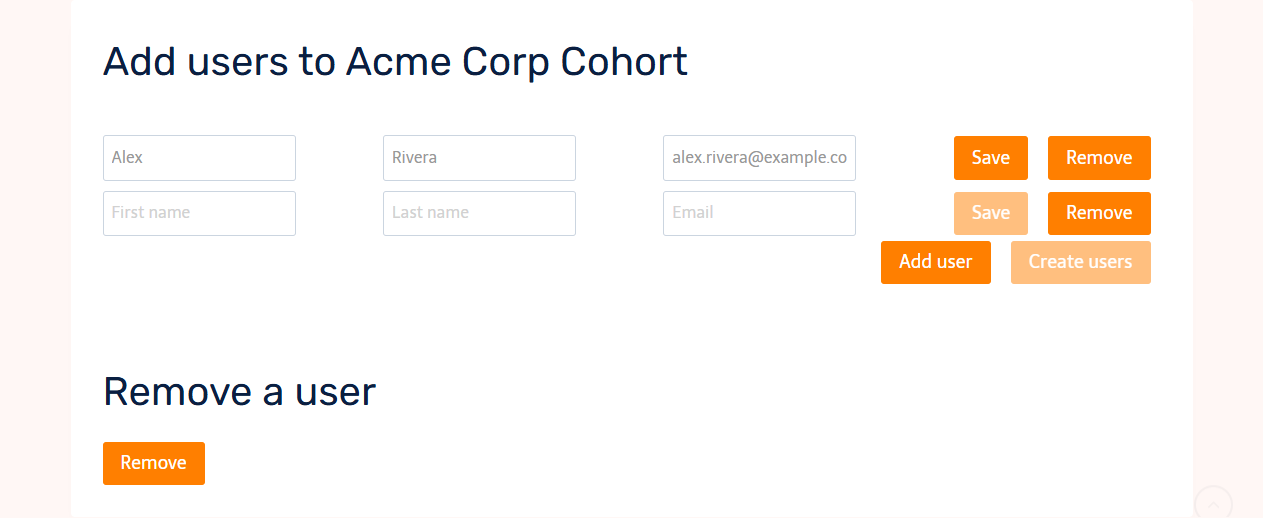 Queue one or more users, save each row, then create them all with one click.
tip
Make sure each queued row is saved before clicking Create users. Unsaved rows are not submitted.
Notes
- Usernames are generated automatically from the new user's name.
- New users receive a login-details email, so make sure your site sends mail reliably. Most production sites use an SMTP plugin or a transactional email service.
- Removing a user with
[remove-group-user]removes them from the group; their WordPress account remains.