5.4 Gravity Forms Lesson/Topic Completion
The Gravity Forms Lesson/Topic Completion feature turns a Gravity Forms form into a completion gate: you attach a form to a lesson or topic, and when a learner submits it, that step is marked complete and the learner moves on to the next one.
Use it for reflection prompts, assignments, or any step where you want a learner response instead of a plain Mark Complete click.
This feature requires the Gravity Forms plugin to be installed and active. Install and activate Gravity Forms before enabling this feature.
Enable the feature
- Make sure Gravity Forms is installed and active, and create the form you want learners to submit.
- Go to Settings > Tweaks for LearnDash.
- Tick Gravity Forms Lesson/Topic Completion and click Save Changes.
Attach a form to a lesson or topic
- Edit the lesson or topic and open its Settings tab.
- In Display and Content Options, find the Gravity Form for Lesson/Topic Completion field.
- Select your form and update the post.

Display the form to learners
Place the matching shortcode in the lesson or topic content where the form should appear:
| Shortcode | Use in |
|---|---|
[gravityform-lesson] | Lesson content |
[gravityform-topic] | Topic content |
Each shortcode displays the form selected in that post's settings. The shortcode itself takes no form ID.
What happens on submission
When a logged-in learner submits the form:
- The form entry is saved in Gravity Forms as usual.
- The lesson or topic is marked complete for that learner.
- The learner is redirected to the next step in the course.
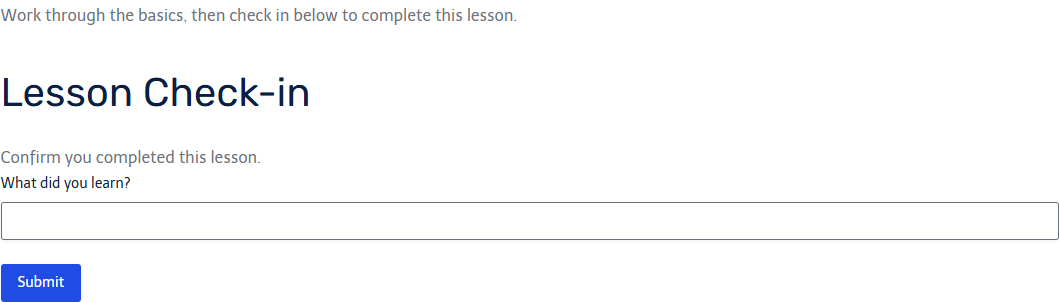 Submitting the form completes the lesson and moves the learner to the next step.
Notes
- The learner must be logged in and enrolled for the completion to be recorded.
- The form's own confirmations and notifications keep working normally. Completion happens in addition to standard Gravity Forms behaviour.