5.1 The Settings Page
Everything in Tangible Tweaks for LearnDash is controlled from one place: Settings > Tweaks for LearnDash in your WordPress admin.
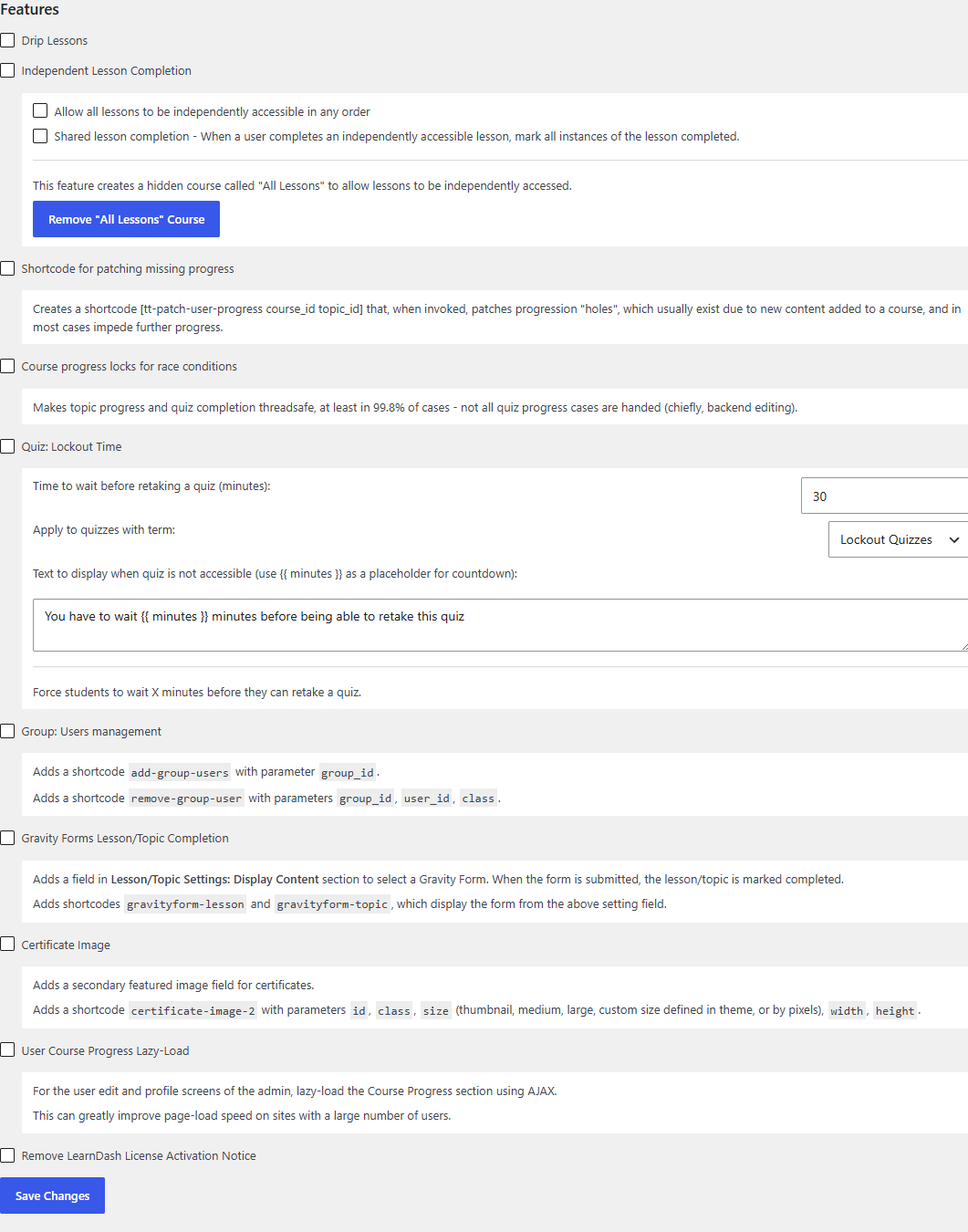
The three tabs
| Tab | What it holds |
|---|---|
| Features | One toggle per feature, plus each feature's own settings inline. |
| License | License key activation. See 4.2 License Activation. |
| Support | Links for getting help. |
Enabling a feature
- Go to Settings > Tweaks for LearnDash.
- On the Features tab, tick the checkbox next to the feature you want.
- If the feature has its own options, they appear directly beneath its checkbox. Set them now or come back later.
- Click Save Changes.
The feature is active immediately after saving. Features you leave unticked add no code to your site's pages.
tip
Enable features one at a time and check the affected page after each change. Because every tweak is independent, this makes it easy to see exactly what each one does on your site.
Features with inline options
Three features carry their own settings on this page:
- Independent Lesson Completion has two sub-options (independent access, shared completion), both on by default when the feature is enabled. See 5.3.
- Group: Users management shows the shortcodes the feature provides. See 5.5.
- Certificate Image shows the shortcode and its parameters. See 5.6.
Other features are configured where they act. For example, Drip Lessons adds its options to each lesson's own settings, and the Gravity Forms feature adds a field to lesson and topic settings.
Next step
Work through the feature pages in this section, starting with 5.2 Drip Lessons.