Widgets - Leave Group
Overview
The Leave Group widget renders a confirmation form that lets the currently logged-in user unenroll themselves from a LifterLMS Group. The form submits to a server-side handler that verifies the user's enrollment, removes them from the group, and redirects.
This widget is designed to appear on a member's view of a group page — for example in a sidebar or footer area — giving members a clean way to leave a group they no longer want to participate in.
This widget is available when the LifterLMS Groups add-on is installed and activated alongside Lifter Elements. Without LifterLMS Groups, the widget is not registered.
The button only renders for users whose role in the group is member. Group leaders and group administrators do not see the button — by design. They cannot self-remove from a group; an administrator with higher privileges must remove them. If you place this widget on a group page template, leaders and admins will see whatever Not a Member Message you configure (or nothing, if you leave it empty).
Getting to know the widget
In the Elementor widget panel, look for the Leave Group tile under the Lifter Elements - Groups category:

Dropped into a page or template, the widget renders as a styled button (visible only to users whose role in the group is member):

Content Tab
Content Section
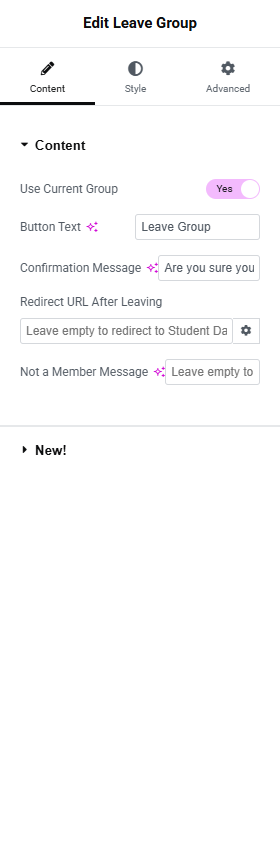
Use Current Group
- Toggle Switch:
- Yes (default): Resolves the group from the current post.
- No: Reveals the Group dropdown.
Group
Only shown when Use Current Group is No.
- Dropdown (SELECT2): Pick a specific group.
Button Text
- Input Field: The button label. Default Leave Group.
Confirmation Message
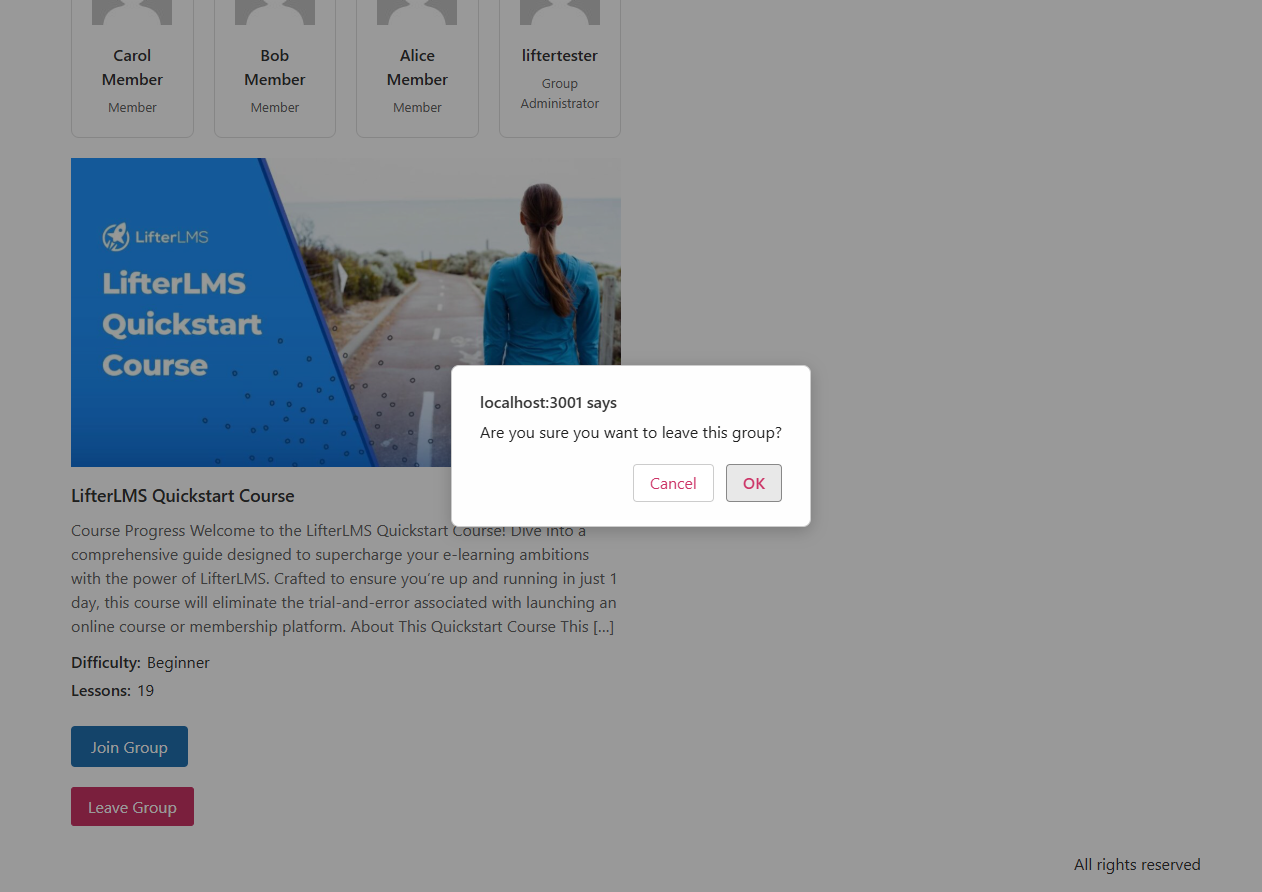
- Input Field: The message shown in the browser's native confirm dialog when the button is clicked. Default Are you sure you want to leave this group?
Redirect URL After Leaving
- URL Field: Where to send the user after they successfully leave.
- Default: Empty — falls back to the LifterLMS Student Dashboard (the page configured at LifterLMS → Settings → Accounts → My Account Page).
Not a Member Message
- Input Field: Optional fallback text shown when the current user isn't a
memberof the group (i.e. is a leader, admin, or not enrolled at all). - Default: empty (the widget renders nothing in that case).
- When set, the message renders inside a
<p>element in place of the button.
Style Tab
Button Section
Standard button styling split between Normal and Hover states.
Typography
Text Color / Background Color (per state)
Border (Group Control)
Border Radius
Padding
Many sites style Leave Group with a warning or danger color to distinguish it from primary CTAs like "Join Group". Set a red background and white text under the Normal state for a clear "destructive action" visual.
Advanced Tab

The Advanced tab provides standard Elementor layout, motion effects, transform, background, border, mask, conditional logic, responsive, attributes, and custom CSS controls. See the Elementor Advanced tab help page for details.
The Motion Effects, Sticky, Attributes, and Mask sections require Elementor Pro.
Conditional Logic section
Lifter Elements allows you to dynamically show or hide this widget based on group role, enrollment, and other conditions. More details here.
This Lifter Elements feature is only available if Elementor Pro is installed & activated.
Under the hood
The widget posts to admin-post.php?action=legi_leave_group with the group ID and a WordPress nonce. The server handler:
- Verifies the nonce (
legi_leave_group_<group_id>) - Confirms the user is logged in
- Re-checks the user's role is
member(not leader, not admin) - Calls
LLMS_Groups_Enrollment::remove()to unenroll them - Redirects to the configured URL (or the Student Dashboard fallback)
If removal fails, the user is redirected with ?legi_error=leave_failed appended to the URL. If the role check fails, ?legi_error=not_member is appended.
The widget intentionally does not show a confirmation page after submission — it redirects immediately. Use a "Just left group" page on your redirect URL if you want to display a success message.