5.3 Field Connections in Beaver Themer
Field connections let any Beaver Builder element pull live LearnDash data — course titles, progress bars, navigation links, enrollment status, and more — without hardcoding values. They're designed for use inside Beaver Themer layouts, where the layout renders with a different course (or lesson, topic, or quiz) depending on the page being viewed.
This tutorial shows how to display the current course's title dynamically in a Beaver Themer layout.
- Beaver Builder and Beaver Themer installed and active
- LearnDash installed and active with at least one published course
- BeaverDash installed, activated, and licensed
1. Open a Themer layout
In your WordPress admin, go to Beaver Builder > Themer Layouts. Open an existing layout that targets LearnDash course pages, or create a new one.
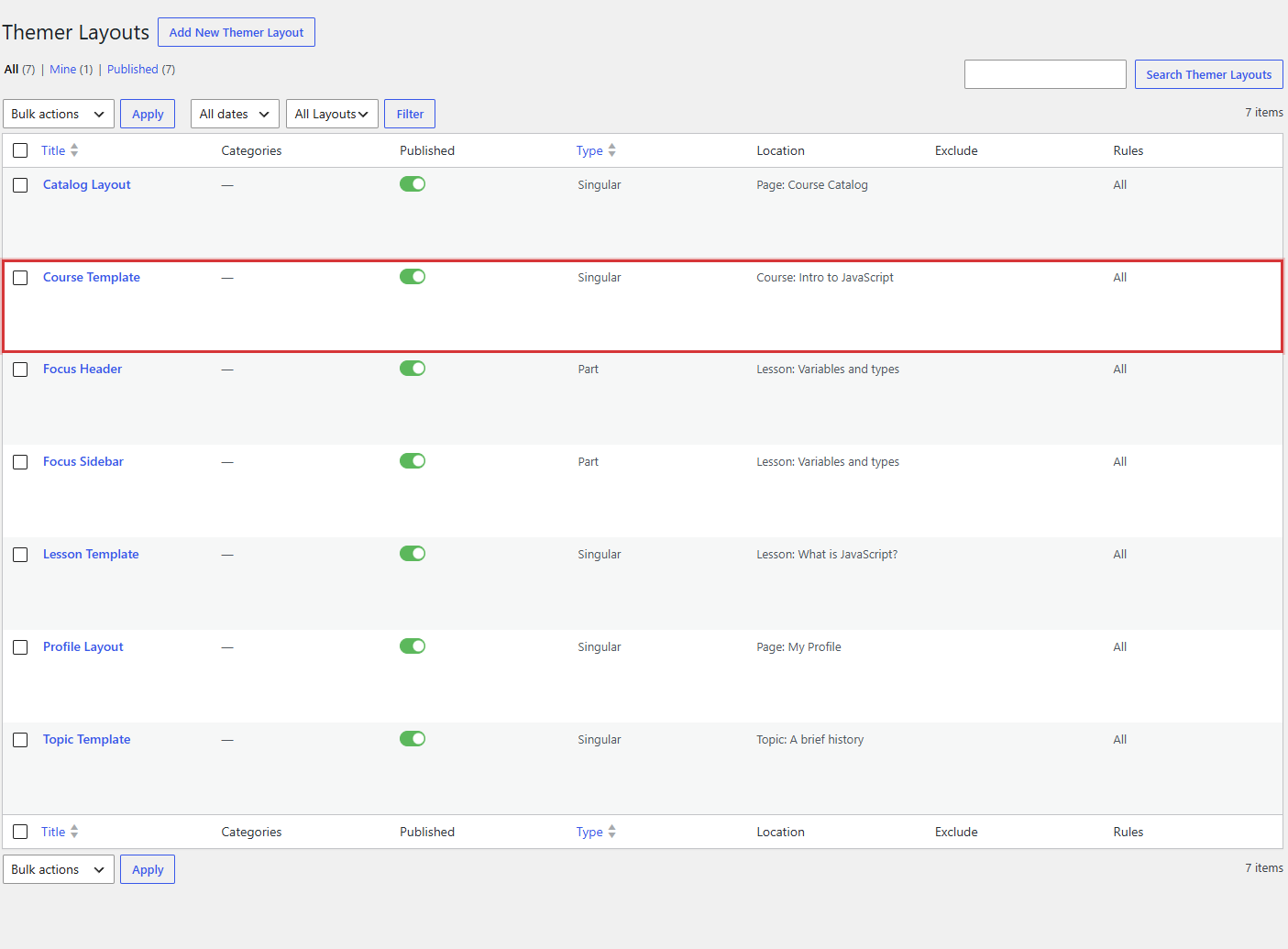
2. Add a Heading module
In the Beaver Builder editor, drag a standard Heading module into the layout.
3. Open the field connection picker
In the Heading module settings, locate the Heading text field. Click the Connect icon (the plug symbol) to the right of the field.
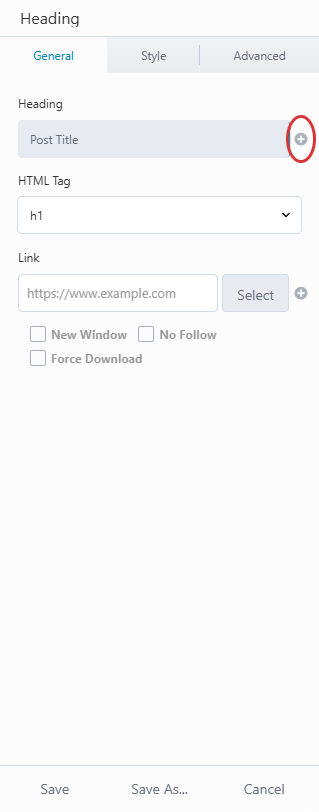
4. Select a BeaverDash field connection
In the connection picker, locate the BeaverDash - Course group and select Course Title.
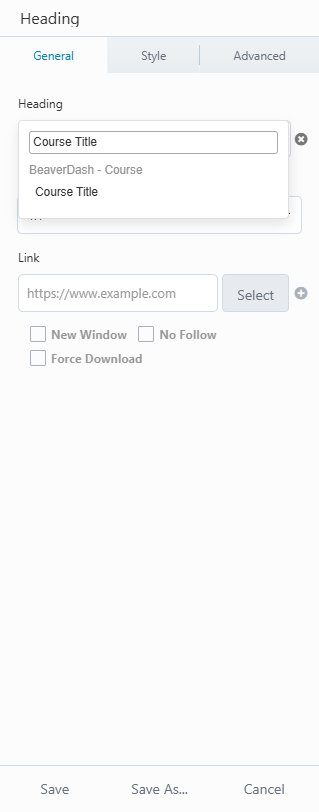
BeaverDash field connections are grouped by content type — Course, Lesson, Topic, Quiz, and more.
5. Preview the connection
Beaver Builder populates the heading field with a preview label. Switch to Preview mode to see the connection resolve against a real LearnDash course.
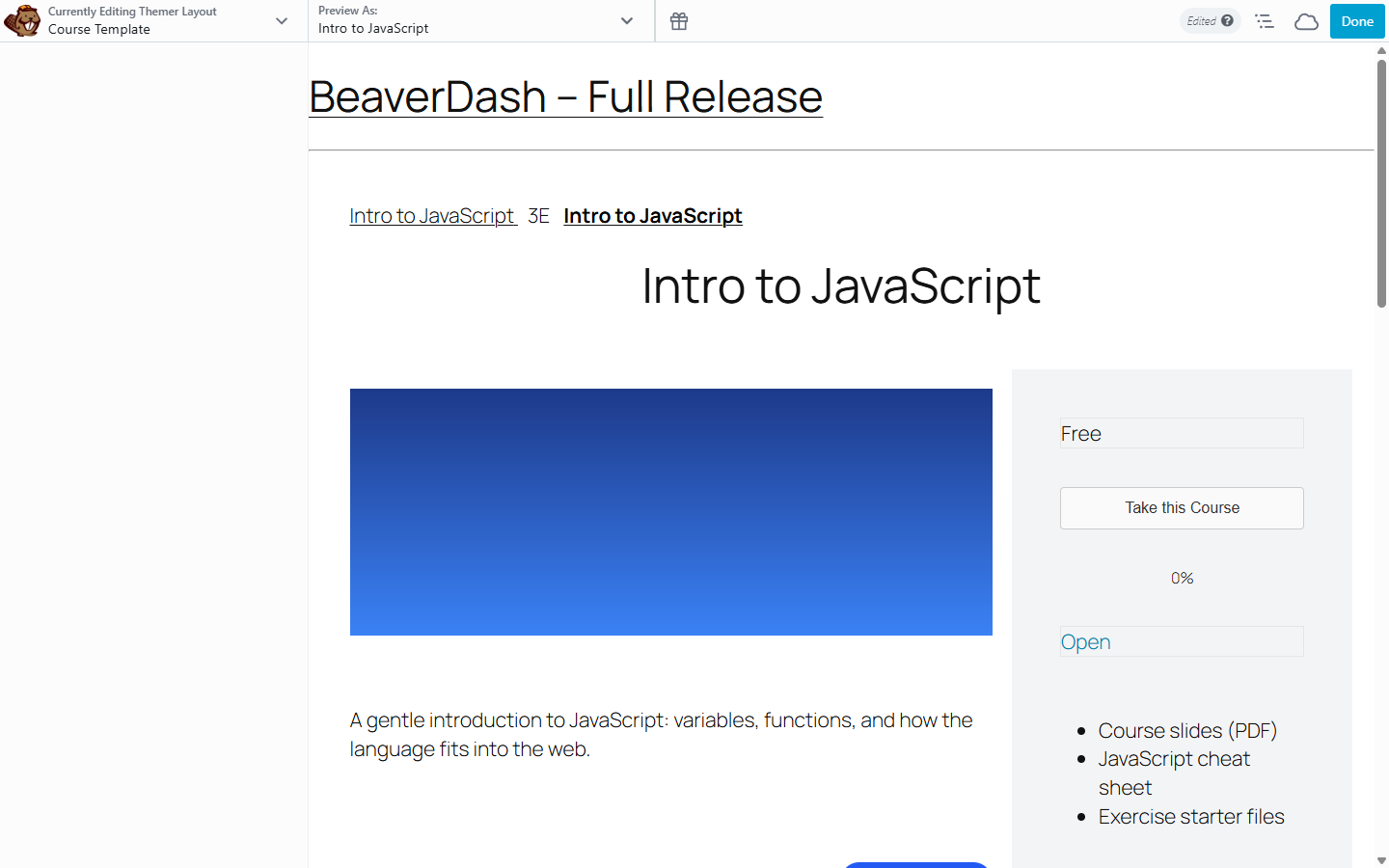
In Preview mode, field connections resolve against real LearnDash data so you can see exactly how the layout will render.
6. Save the layout
Click Save. Visit any LearnDash course page covered by this layout — the heading automatically shows that course's title.
What you've accomplished
You've connected a Beaver Builder element to live LearnDash data using a BeaverDash field connection. The same approach works for all 105 BeaverDash field connections — progress bars, enrollment status, navigation links, price information, and more.
Connections that return true or false (conditionals) are used differently — they go inside [wpbb-if] tags to show or hide content. See Field Connections Reference for how these are used.
Next: Using Shortcodes — use BeaverDash shortcodes directly in content, module text fields, and templates.