Emails
MemberSync sends a handful of transactional emails at key points in the organization, team, and license flows. Most are sent automatically; one, MemberSync: Added Team Member, is a WooCommerce email you can enable, disable, and customize under WooCommerce > Settings > Emails.
MemberSync's emails
| Sent to | When it's sent | Default subject | |
|---|---|---|---|
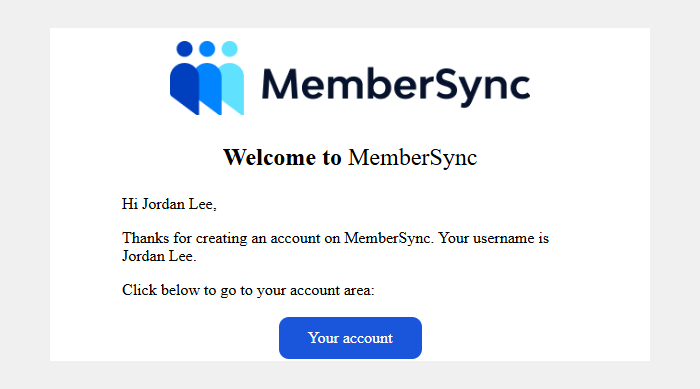
| New account | The new user | MemberSync creates a WordPress account for someone (for example, a new member) | Your {site} account has been created! |
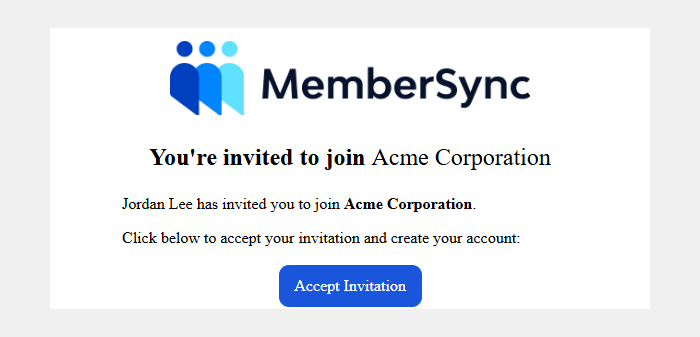
| Organization invitation | The invited person | You invite someone to an organization and the add-member behavior is set to Invite | You've been invited to join {organization} |
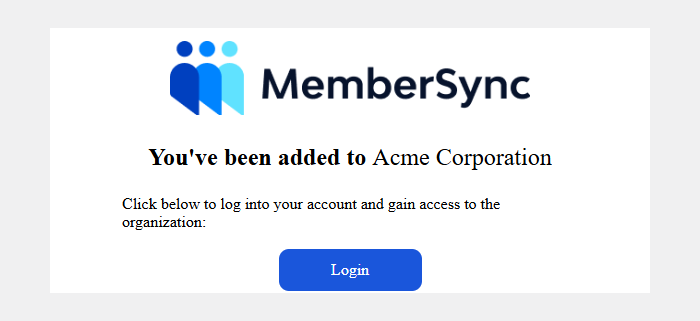
| Added to organization | The added person | Someone is added straight to an organization (behavior set to Automatically add), or accepts an invitation | You've been added to {organization} |
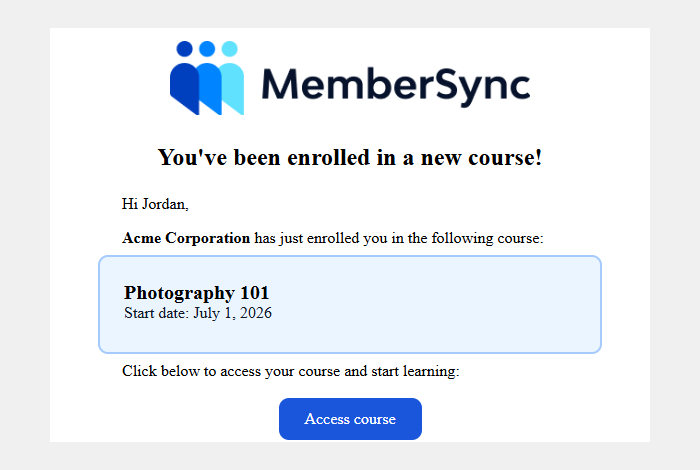
| Course enrollment | The learner | A license gives someone access to a LearnDash course | Your course access has been updated! |
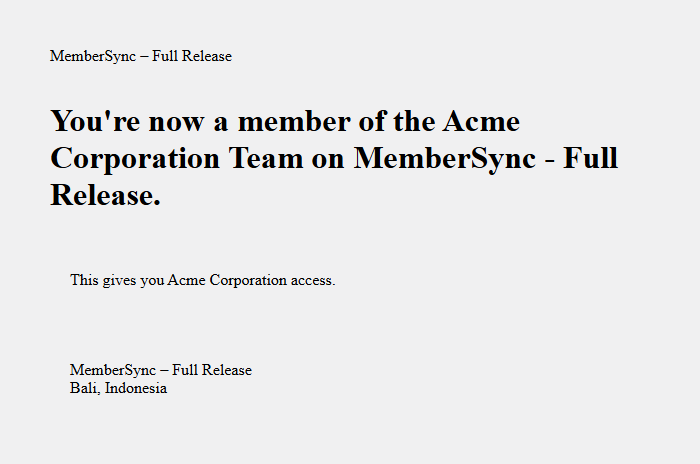
| Added team member | The added person | Someone is added to a team | You've been added as a {role} of {team} |
Whether a new member receives the invitation email or the added to organization email is decided by the Add member modal behavior and Front-end CSV members import behavior settings (Invite vs Automatically add). See The Settings Page.
What the emails look like
The default templates:
New account
Organization invitation
Added to organization
Course enrollment
Added team member uses the standard WooCommerce email template (with your store's header and footer), since it's a WooCommerce email:
Configuring emails
- MemberSync: Added Team Member appears under WooCommerce > Settings > Emails, where you can turn it off or edit its subject, heading, and template (it has HTML and plain-text versions).
- The other MemberSync emails above are sent automatically and aren't individually configurable in this release.
- MemberSync also relies on your WooCommerce Memberships and Teams for WooCommerce Memberships emails for the wider workflow: the Team invitation and the membership renewal / ending-soon / ended notices. These are all managed under WooCommerce > Settings > Emails as well.
When a brand-new account has to be created for someone being added to a team, WordPress also sends its own standard new-user notification.