4.2 License Activation
Activate your Beaver Profile Builder license key to receive automatic plugin updates and support.
1. Find your license key
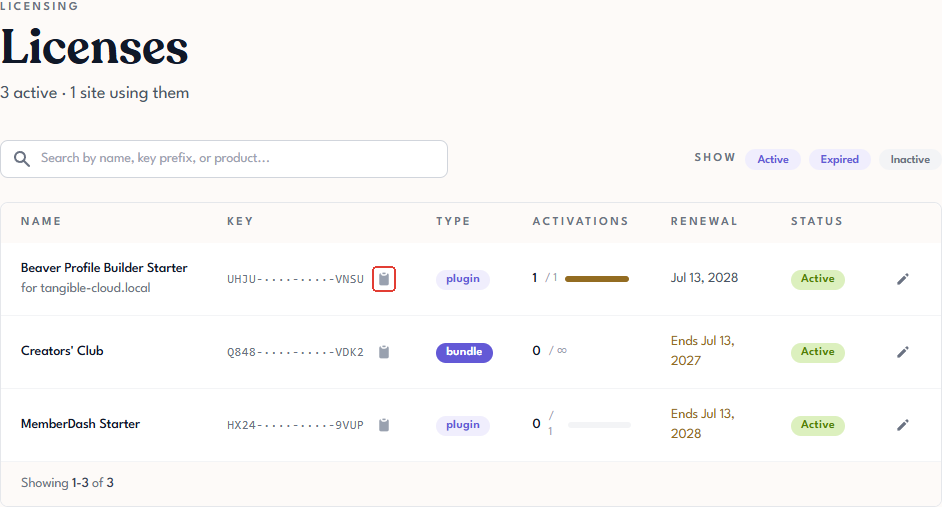
Sign in to Tangible Cloud and click Licensing in the left navigation. Find the license for Beaver Profile Builder and click the copy icon next to the masked key in the Key column. The full key is copied to your clipboard.
2. Enter the key in WordPress
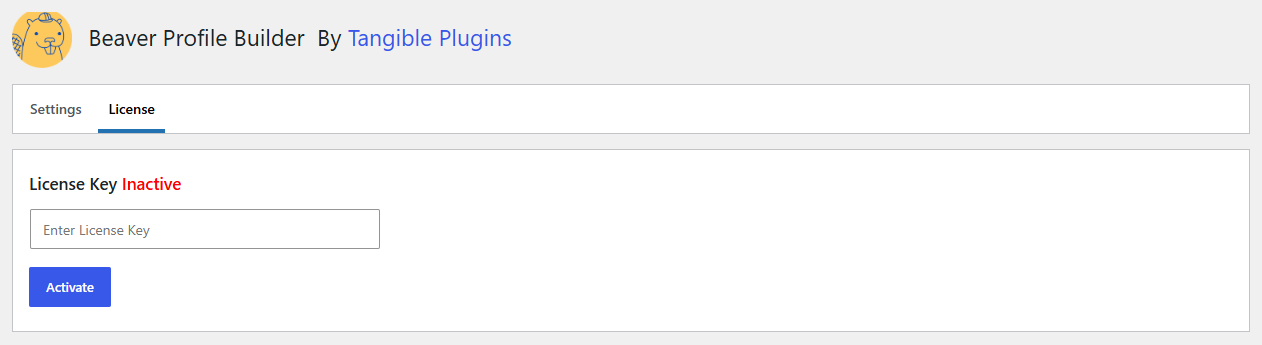
In your WordPress admin, go to Settings > Beaver Profile Builder. Click the License tab, paste your license key into the field, and click Activate.
3. Confirm activation
Once the key is activated, the status next to License Key changes from Inactive to active. Your site is now registered and will receive automatic updates.
Next step
With Beaver Profile Builder installed and licensed, go to Basic Usage to start building.