5.3 The Avatar Edit Module
The Avatar Edit module lets logged-in users change their profile picture from the front end: they click a trigger you design, and a popup walks them through uploading and cropping a new image.
The module stores profile pictures through the free Simple Local Avatars plugin. Install and activate it before using this module.
The trigger element
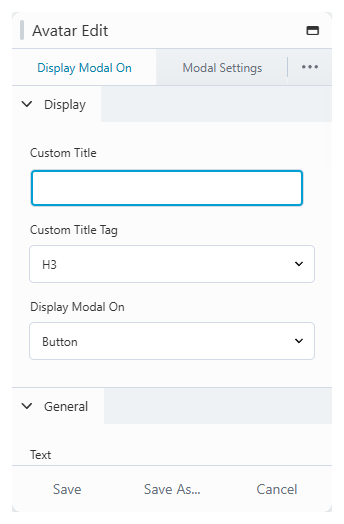
On the page, the module renders a trigger that opens the popup. On the Display Modal On tab you choose what the trigger is:
- an icon, text, or button
- an image, for example the user's current profile picture
- combinations: image + icon, image + text, or image + button, with the icon/text/button below the photo, on it, or shown on hover
When using an image, connect the photo field to User Picture so the trigger always shows the user's current avatar.
The three-screen popup
Clicking the trigger opens a popup with three screens:
- Upload — the user drops or selects an image file.
- Crop / Preview — the user crops and adjusts the image.
- Rating / Result — the user optionally sets a content rating, previews the result, and confirms the upload.
The popup title, each screen's subtitle, the navigation button labels, popup size, and close behaviour (ESC key, overlay click) are all configurable on the Modal Settings tab.
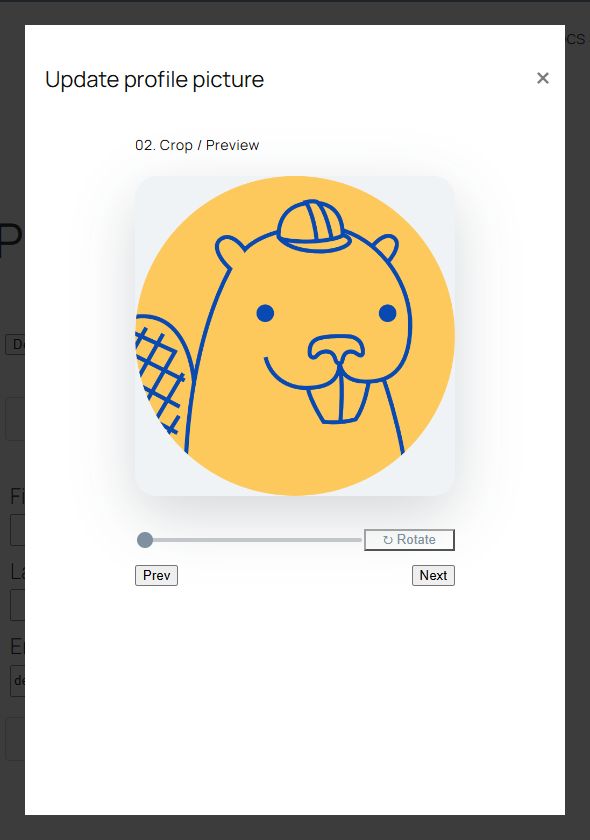
Image rating
Screen 3 can ask the user to rate their image on the standard avatar rating scale (G, PG, R, X), shown as a dropdown or as a confirmation checkbox. You can also hide the rating entirely and apply a default. The rating is stored with the avatar through Simple Local Avatars.
What happens on upload
The confirmed image is saved to the WordPress media library, set as the user's avatar via Simple Local Avatars, and the user's previous uploaded avatar is removed. Anywhere the site displays avatars (comments, author boxes, profile pages) picks up the new image automatically.
The settings tabs
| Tab | Controls |
|---|---|
| Display Modal On | Trigger type (icon, image, text, button, combinations), alignment, and per-type styling. |
| Modal Settings | Popup title, screen subtitles, rating options, popup buttons, size, and close behaviour. |
| Modal Typography | Fonts and colors for the popup title, subtitles, rating text, and buttons. |