5.2 The Profile Edit Form
The Profile Edit Form is the core module of Beaver Profile Builder. It renders a form where logged-in users edit their own profile, and you decide exactly which fields the form contains and in what order.
Field management
The module's General tab contains the field list. Each row is one field in the form. Click Add Field to append a field, drag rows to reorder them, and click a row to edit that field's own settings.
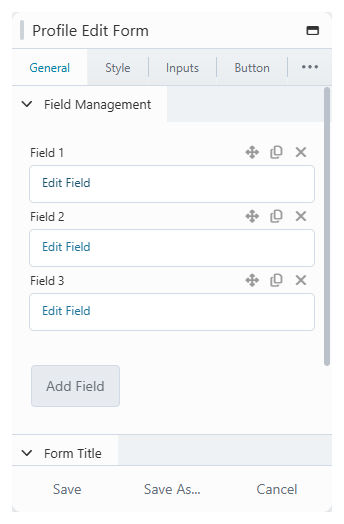
Each field is picked from a library of built-in profile fields:
- Identity — First name, Last name, Nickname, Display Name (a dropdown of WordPress's standard display-name choices), Biography
- Account — Email, Current password, Change Password
- Links — Website, Twitter, Facebook
- Custom field — saves to a user meta key you specify
- Title — a heading element for structuring the form; it saves nothing
Some fields carry WordPress rules with them: Nickname, Email, and Current password are always required, and the form shows a required indicator for them automatically. See Built-in Form Fields for the full reference.
Passwords
Adding the Change Password field lets users set a new password. It supports an optional strength indicator with a minimum strength requirement, and an optional confirmation field. If the Current password field is present in the form, the save is rejected unless the user enters their current password correctly. Add it whenever the form can change email or password.
Custom fields
The Custom field entry saves its value to a user meta key you choose. Out of the box the field type is Text; developers can register more types (date picker, time picker, select, radio, checkboxes) through a filter. See How to Add a Custom Field and the Developer Reference.
Titles and fieldsets
The Title field renders a heading inside the form. Optionally it can wrap all following fields in a fieldset, a visual group that runs until the next title or the end of the form. Use titles to break a long form into sections such as "Account" and "Social profiles".
Saving
The form saves over AJAX, so the page does not reload. Users see a success message you can customise on the Messages tab, and validation errors appear inline per field. Standard profile fields save to the WordPress user record; custom fields save to user meta.
The settings tabs
| Tab | Controls |
|---|---|
| General | The field list and an optional form title. |
| Style | Form background, border, padding, and title spacing. |
| Inputs | Input colors, borders, sizes, placeholder and label display. |
| Button | Save button text, loading state, icon, colors, and structure. |
| Messages | Error and success message colors and the success message text. |
| Typography | Fonts for the title, labels, inputs, errors, and success message. |