Use Conditional Logic
Lifter Elements' conditional logic lets you dynamically show or hide widgets, sections, and columns in Elementor based on conditions you set — shaping each student's experience with your course platform. It is available in the Creator Edition.
Lifter Elements allows you to dynamically show or hide widgets, sections and columns (now called inner sections) in Elementor. This allows you to shape each student's unique experience with your course platform.
The Conditional Logic System
Conditional logic is available in the Creator Edition of Lifter Elements. Our conditional logic system allows you to hide or show different elements on the page based on certain conditions that you set up. You can set these conditions on widgets, sections and columns (now called inner sections). The panel is accessible from the "Advanced" tab of any widget.
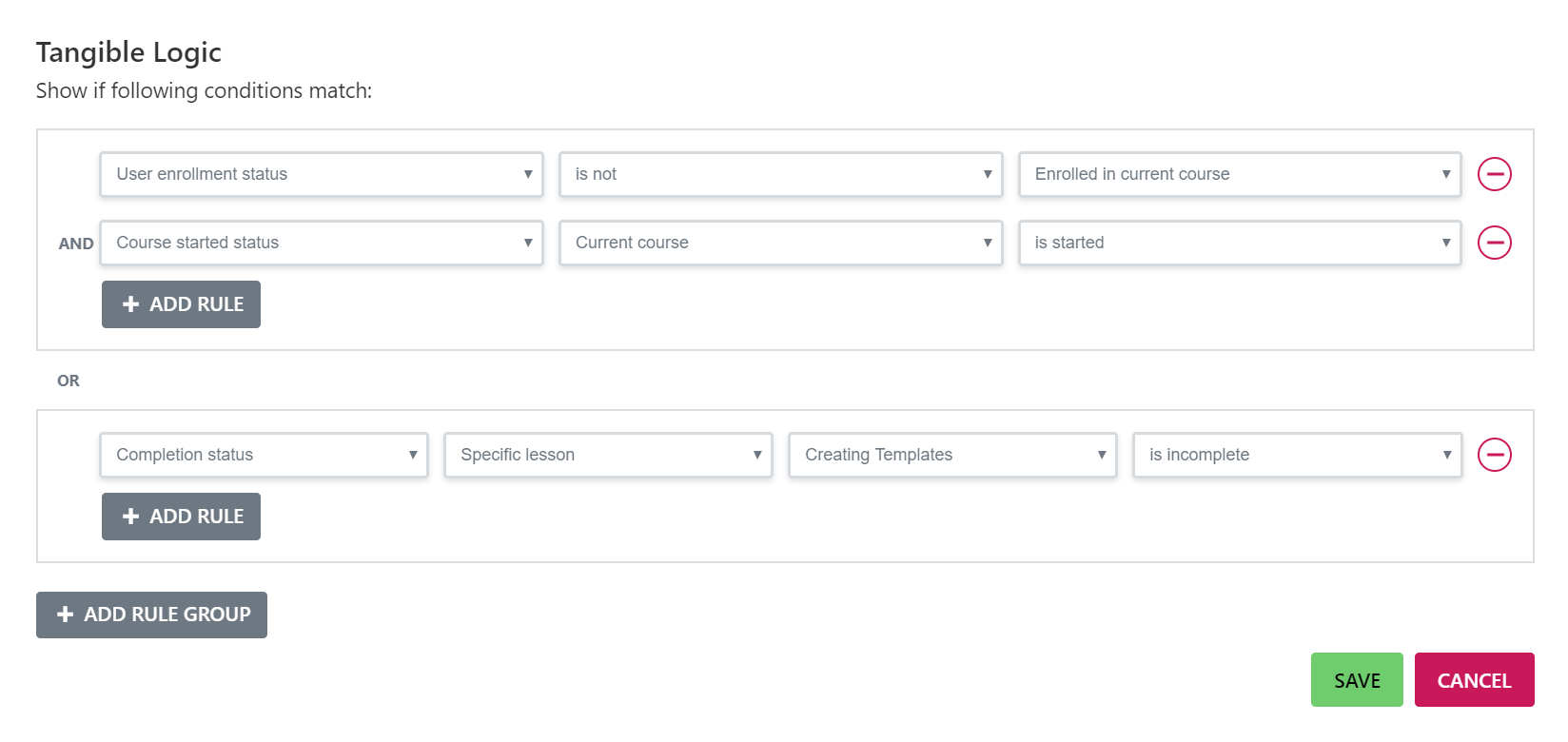
All of our plugins share the same conditional logic panel, so if you install another plugin of ours that adds conditions they will show up in the same panel as the Lifter Elements conditions and can be combined with them.
The panel allows you to create rule groups and add rules to those groups. ALL the conditions in a rule group must be met in order for the widget to be displayed. If you set up multiple rule groups on the same widget, the widget will display if all the conditions in ANY of the rule groups are met.
You can see a list of current conditions available here
Example: Hiding the Course Access Plan widget four users that are already enrolled in the course
- Click on the widget you want to apply the conditional logic to, then on the edit screen, click the Advanced tab.
- You will see a section called Conditional Logic .
- Click on Open Conditional Logic Settings in that section.
- You will then be shown the conditional logic panel which allows you to set the conditions and rules to the specific widget in order to be displayed or hidden.
-
Select User enrollment status for the first rule, then is not for the second column, and Enrolled in current course for the third option.
-
This will set the different pricing for the access plans that will be displayed to the users who are not enrolled in the course already.
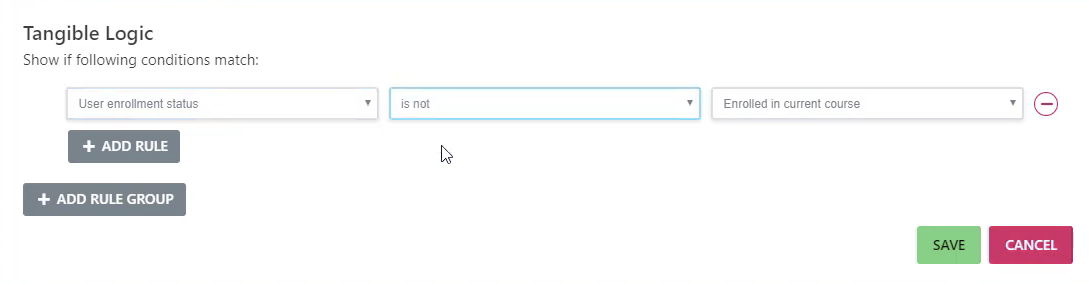
- After this is done, make sure you update your page to save changes to the course.
- To test and verify this is working, view a course that a user is currently enrolled in and the Course Access plan shouldn't show up in the sidebar. If you view a course that a user is not enrolled in, the Course Access plan widget will be displayed.
Available Conditions
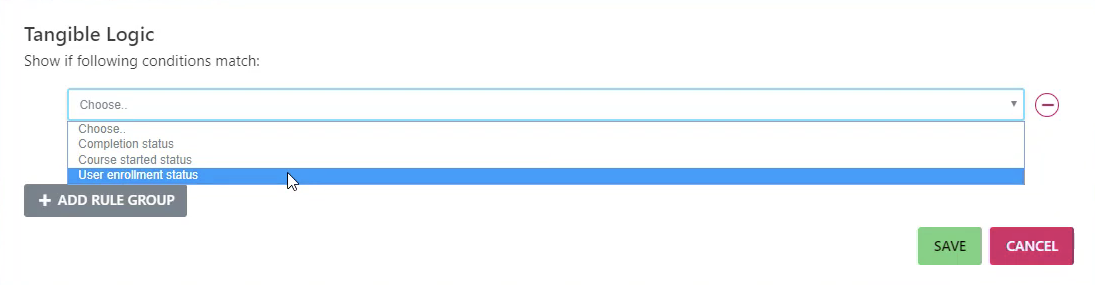
Completion Status
This status applies to whether a user has completed or not completed a certain lesson or course.
| Available rules | |||
|---|---|---|---|
| Current Lesson | is complete/incomplete | ||
| Current Course | is complete/incomplete | ||
| Specific Course | [Course Name] | is complete/incomplete | |
| Specific Lesson | [Lesson Name] | is complete/incomplete |
Course Started Status
This status applies whether a user has started or not started a course.
| Available rules | |||
|---|---|---|---|
| Current Course | is started/not started | ||
| Specific Course | [Course Name] | is started/not started |
User Enrollment Status
This status applied whether a user is or is not enrolled in the current course.
|Available rules|| |:---|:----:|:---:| ||is|Enrolled in current course| ||is not |Enrolled in current course|
User Group Enrollment
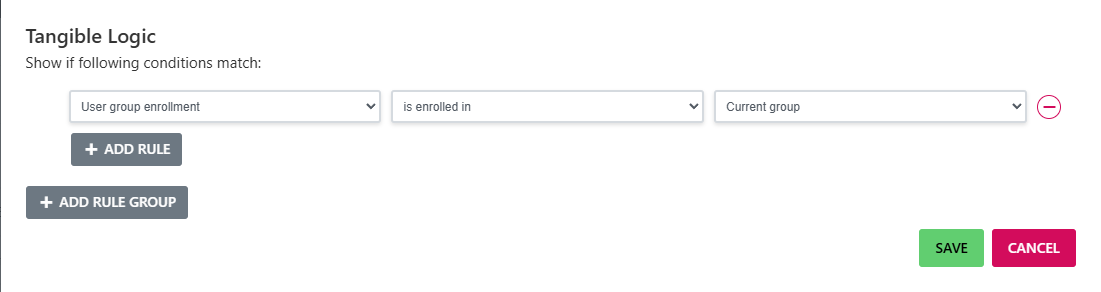
This condition checks whether the currently logged-in user is enrolled in a LifterLMS Group (as a member, leader, or admin). Use it to gate content or features behind group membership — for example, hiding a "Join Group" button when the user is already enrolled.
| Available rules | |||
|---|---|---|---|
| Current group | is enrolled in / is not enrolled in | ||
| Specific group | [Group Name] | is enrolled in / is not enrolled in |
Logged-out visitors always evaluate to is not enrolled in, regardless of which group is targeted.
This condition only appears in the conditional logic panel when the LifterLMS Groups add-on is installed and activated.
User Group Role
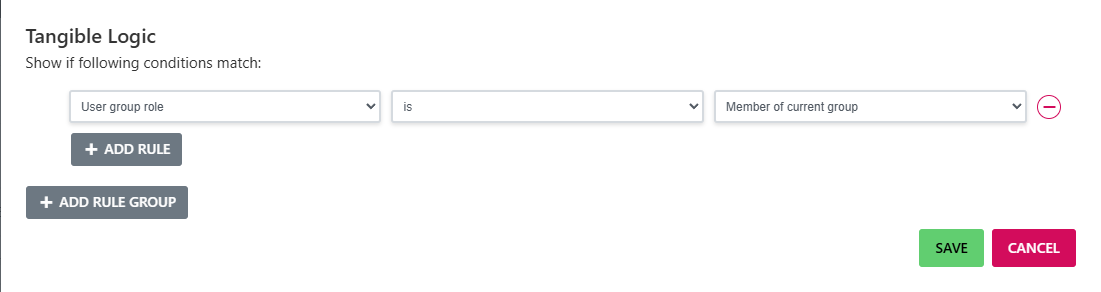
This condition checks the specific role the current user holds in a LifterLMS Group — Member, Leader, or Group Administrator. Use it for role-specific UI, like showing administrative controls only to admins or surfacing leader-only widgets.
| Available rules | |||
|---|---|---|---|
| Member of current group | is / is not | ||
| Leader of current group | is / is not | ||
| Admin of current group | is / is not | ||
| Member of specific group | [Group Name] | is / is not | |
| Leader of specific group | [Group Name] | is / is not | |
| Admin of specific group | [Group Name] | is / is not |
Logged-out visitors always evaluate to is not for any role check.
This condition only appears when the LifterLMS Groups add-on is installed and activated.
Group Visibility
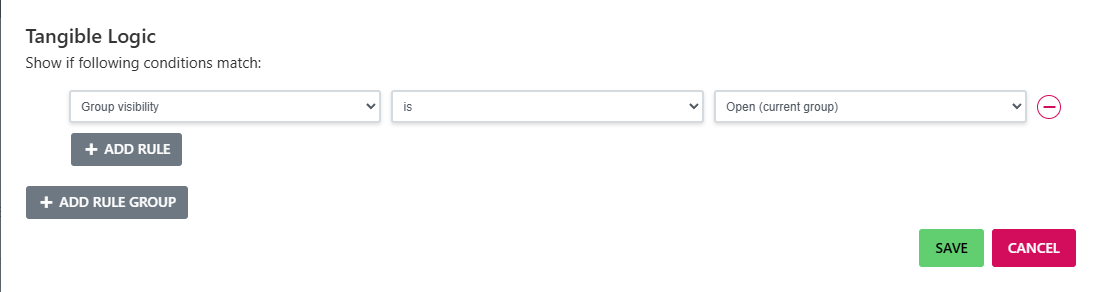
This condition checks the visibility setting of a LifterLMS Group — Open, Private, or Closed. Use it for content that should appear only on groups with a specific visibility, regardless of which user is viewing.
| Available rules | |||
|---|---|---|---|
| Open (current group) | is / is not | ||
| Private (current group) | is / is not | ||
| Closed (current group) | is / is not | ||
| Open (specific group) | [Group Name] | is / is not | |
| Private (specific group) | [Group Name] | is / is not | |
| Closed (specific group) | [Group Name] | is / is not |
Common use: show a "Public group" badge only on groups whose visibility is Open. Build it as a Heading widget with the badge text, then gate visibility on Open (current group).
This condition only appears when the LifterLMS Groups add-on is installed and activated.
Group Seat Availability
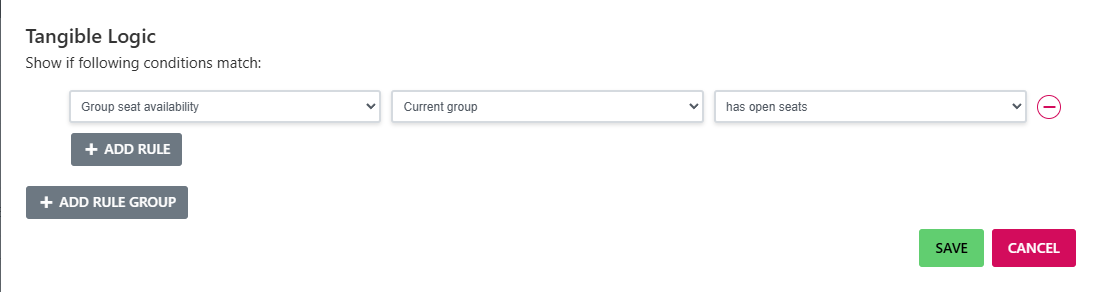
This condition checks whether a LifterLMS Group has at least one open seat remaining (or, conversely, is full). Use it to hide enrollment / invitation CTAs when no seats are available.
| Available rules | |||
|---|---|---|---|
| Current group | has open seats / is full | ||
| Specific group | [Group Name] | has open seats / is full |
Pair this with the Group Invitation Link widget to automatically hide the join-link button when the group is full. Set the widget's conditional logic to Group Seat Availability is Current group has open seats.
This condition only appears when the LifterLMS Groups add-on is installed and activated.